
A key feature of a CygNet note is its ability to be associated with facilities and points, although this is not required.
Note: Default note associations are pre-added for all notes created from a Trend Tool. The default associations are a collection of all points and facilities for all series in the selected axis group. Merely remove the association(s) not relevant to your note.
For more information, see the subsections below:
For information about associating services, see NOTE Configuration File Keywords.
See also Associations Properties.
To Associate a Note with a Facility
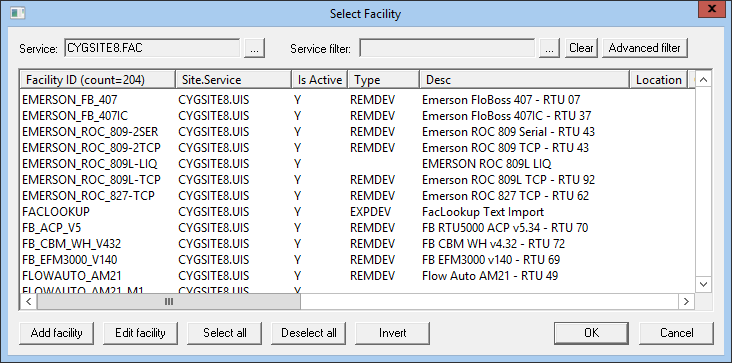
See also Select Facility Properties.
To Associate a Note with a Point
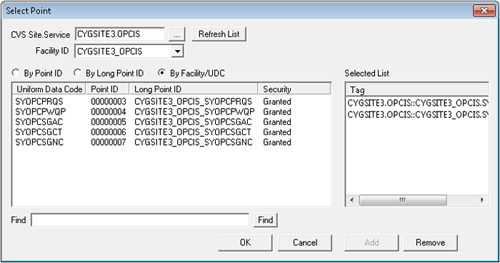
See also Select Point Properties.
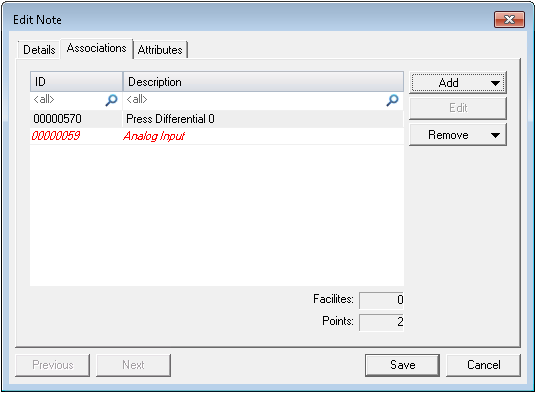
To Associate a Note with Items on Unassociated Services
Note: You may refer to facilities and points that are not on services associated with a given Note Service. However, such items have limited functionality. For example, they are included in a note record, but they do not generate note labels on a Trend Tool.
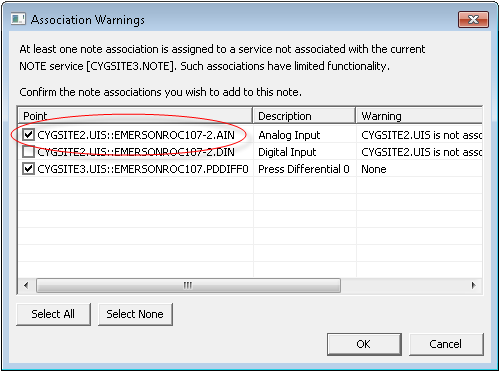
For information about associating services, see NOTE Configuration File Keywords.
The following table lists and describes Associations page properties.
| Property | Description |
|---|---|
|
ID |
Identifies the associated item by facility ID or point tag, depending on type of item. |
|
Description |
Brief description of the associated item. |
|
Add |
Click to add new associations to a note. Two options appear:
|
|
Edit |
Click to edit a selected association. |
|
Remove |
Click to Remove Selected or Remove All associations. |
The following table lists and describes Select Facility properties.
Note: The columns that appear in the Select Facility dialog box depend in part on facility attributes you've defined for your FAC.
| Property | Description |
|---|---|
|
Service |
Filters the service from which the desired facility derives. |
|
Service Filter |
Filters the various possible services. |
|
Clear |
Click to clear the selected Service Filter. |
|
Advanced Filter |
Click to display the Advanced Filter. The Advanced Filter provides a way to filter by a number of facility attributes. |
| Grid | |
|
Facility ID |
Displays an item's facility ID. |
|
Site.Service |
Displays an item's Site.Service. |
|
Is Active |
Displays whether or not an associated facility is active. |
|
Type |
Displays the type of facility. |
|
Desc |
Displays a brief description of a facility. |
|
Location |
Displays the location of a facility, if configured. |
|
Contact |
Displays the contact for a facility, if configured. |
|
Category |
Displays the category of a facility. |
|
Add Facility |
Click to associate a facility. |
|
Edit Facility |
Click to edit an associated facility. |
|
Select All |
Click to select all facilities. |
|
Deselect All |
Click to clear all facilities. |
|
Invert |
Click to invert the order of displayed facilities. |
The following table lists and describes Select Point properties.
| Property | Description |
|---|---|
|
CVS Site.Service |
Filters the current value service (CVS) from which the desired point derives. |
|
Facility ID |
Filters based on relevant facility. |
|
By Point ID |
Enables the display of points in the point ID format. |
|
By Long Point ID |
Enables the display of points in the long point ID format. |
|
By Facility/UDC |
Enables the display of points in the facility/UDC format. |
|
Find |
Enables searching for items from within the selected point field. |
|
Add |
Click to add items to the Tag field for association with a note. You can also double-click an item to add it. |
|
Remove |
Click to remove items from the Tag field for disassociation from a note. You can also double-click an item to remove it. |

|
|
|

