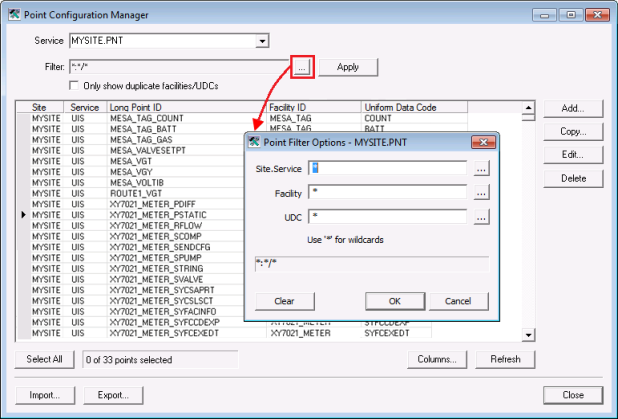
Use the Point Configuration Manager utility to edit a property for multiple points in your system simultaneously. Alternatively you can use CygNet Explorer to edit attributes for multiple points (one point at a time). See Editing Points for more information about that option.
The Edit option provides a method for you to change the value of a point configuration property (attribute) and apply the change to multiple points at once. You can only edit one property at a time in this manner, but you can apply the change to multiple selected points in one action.
To Edit a Property for Multiple Points Using the Point Configuration Manager Utility
Note: If you select only one point, the Properties for Point <point> dialog box will appear instead. See Editing Properties for a Single Point for more information.
Note: The Selected Columns category lists the columns that are currently shown on the main utility screen.
Note: If the selected value cannot be edited, a message appears in the New value field.
*Note: When the selected attribute can only contain well-known values, a drop-down selection box appears.
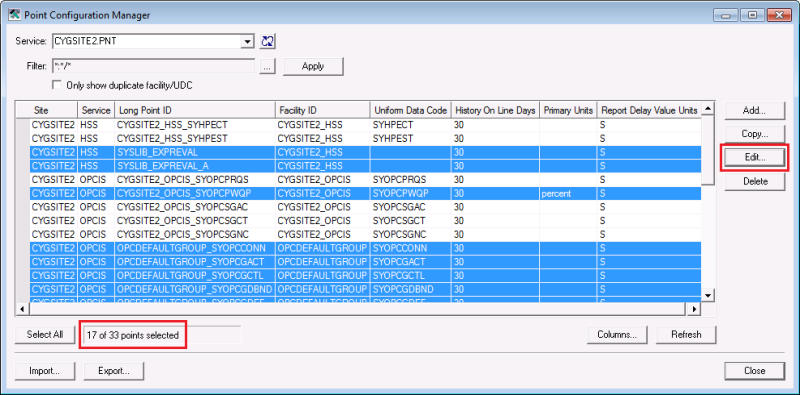
In the Point Configuration Manager, select multiple points on the main screen (using Ctrl+Click or the Select All button) and then click Edit to access the Edit Point Attribute dialog box to select and edit the attribute value. In the example below, 17 points were selected to be edited, from the 33 points in the filtered results list.
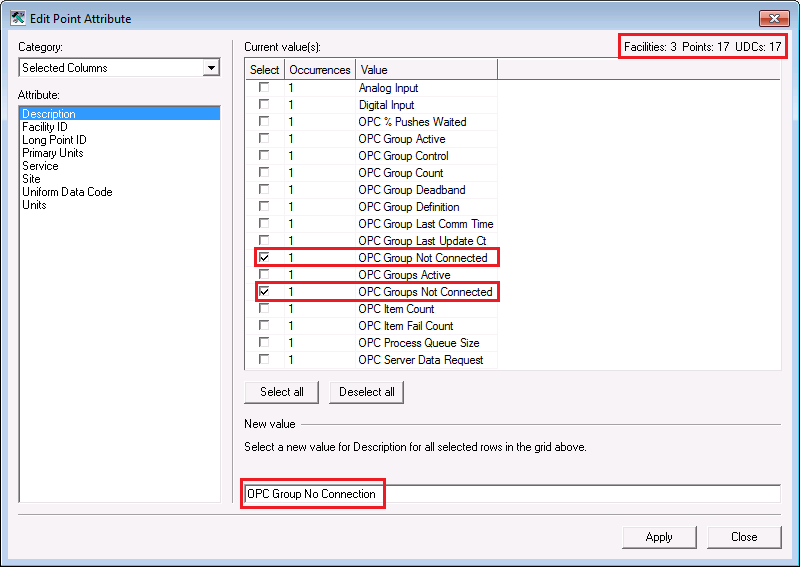
In the Edit Point Attribute dialog box, the upper right corner shows the status of your selection in the following order:
Each time another attribute is selected and occurrences are found, the selection status area is updated to reflect the new information.
When you select an attribute value to be modified for the selected points, the New value message section indicates if the value is editable or not. If the value is editable, an instructional message appears; if not editable, a message appears to that effect and the text box cannot be accessed. Additionally, when you click an item in the Value column, the New value text box is automatically populated with the current value of your selection. This is convenient as a starting point for naming, or if you want to rename selected values to match an existing value.
In the example below, the Description attribute properties "OPC Group Not Connected" and "OPC Groups Not Connected" are selected to be changed, and the new value "OPC Group No Connection" has been entered in the New value text box. When you click Apply, both point occurrences will be modified to display the value "OPC Group No Connection" that was entered. Maximum allowed character count in the New value text box varies, as it corresponds to the limits of the attribute selected.

|
|
|

