Service
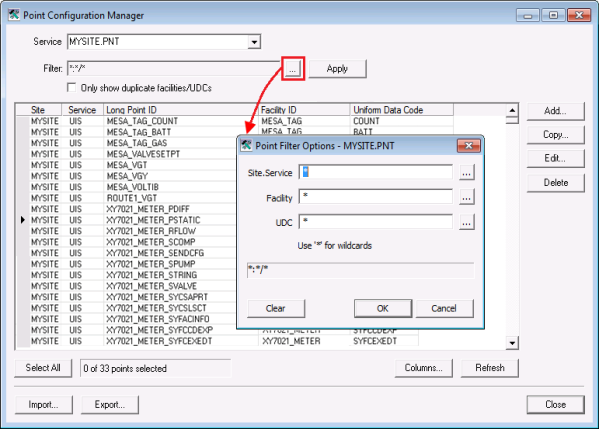
Type a known service name into the text box in the format SITE.SERVICE, or make a selection from the available services listed in the drop-down menu.

Click adjacent to the Service text box to refresh the list of SITE.SERVICE options available in the drop-down menu.
...
Click ... adjacent to the Filter text box to access the Point Filter Options dialog box, containing the filter options listed below. The options are presented in the format <Site.Service>:<Facility>/<UDC> and can be used concurrently.
Site.Service
Filters the view to only show points with the specified Site.Service
Facility
Filters the view to only show points with the specified Facility
UDC
Filters the view to only show points with the specified UDC
Clear
Clears the previously provided filter fields and returns to the default multiple character wildcard (*) values of * : * ? * for each filter element
OK
Sets the filter and populates the Filter text box using the provided fields, to show what filter will be applied when the Apply button is used
Apply
Click Apply to filter points in the selected service by the configured filter string, and display results in the point list
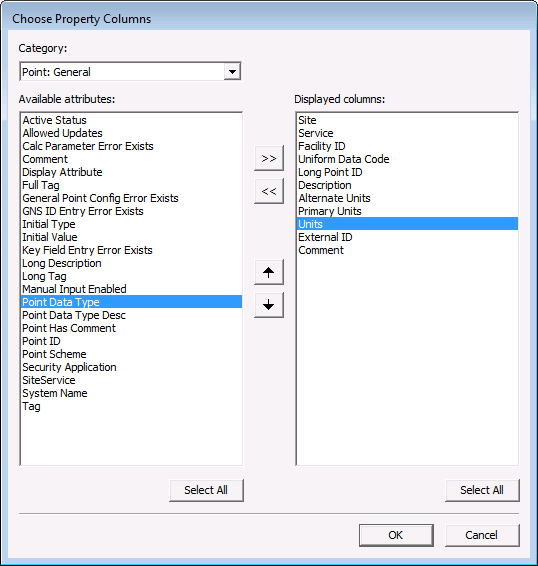
Note: Click Columns to configure additional point attributes to be displayed in the results list.
Only show duplicate facilities/UDCs
Click the check box to select/clear the option to only show points that have duplicate Facility/UDC assignments
Note: This option cannot be used in conjunction with other filter options