Importing Points
Use the Point Configuration Manager utility to import .csv files containing point configuration data to use for creating new points or updating existing points.
Alternatively, some import/export functions can be performed using a command prompt. See Using Command-Line Parameters for more information about this option.
Import File Considerations
- The source file must be a .csv file type.
- The import is based on the values of the column headings present in the file.
- Column heading values must reside in the source file and must match the system headings. Use the export option to create a sample file containing the headings, if needed.
- Point identifier properties must be the first columns in the source file. You can use the Long Tag String (SITE.SERVICE:LONGID) or the Facility Tag String (SITE.SERVICE::FACILITY.UDC) format. The components of the tag string must be in the same order as they appear in the tag string (for example, site, service, longid).
- Other than the point identifier properties, the other columns are optional and do not need to be in any specific order.
- You cannot import a Point ID (pointed). When new points are created, the Point ID is generated automatically by the system.
- Upon import, the Create new points option creates new points using data from the imported file.
- When creating new points, if a property has a blank value, the default value will apply, if applicable. For example, if you do not specify the "Point Type" it will be set to Analog Input since that is the default type.
- Upon import, the Update existing points option updates existing points using data from the imported file.
- When updating existing points, only properties with values specified in the source file are updated. If a cell is blank, the current value is left as-is.
- Whether creating or updating points, if an obsolete property is specified in the source file, the obsolete property will be created or updated using the value of the replacement property for both if specified, or the default value if no value is specified. For example, a source file contains a point with "History On Line Days" set to 365 (obsolete) and "Keep Values Within Days" set to 30 (actual). Upon import both properties will be set to 30, since "Keep Values Within Days" is the replacement (actual) property.
Importing a CSV Source File
To Import Points from a CSV File
- In the Point Configuration Manager, click Import to access the Import Options dialog box.
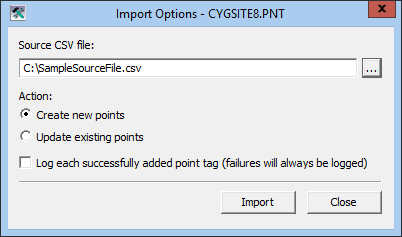
- In the Source CSV file text box, either type in a known path and file name or click … to select the source file from which points will be imported. The source file must be a .csv file type.
- Click to select what action to perform when the file is imported, either Create new points or Update existing points.
- If desired, check the Log each successfully added point tag (failures will always be logged) check box to generate a log of the imported points.
- When all selections are defined, click Import to import the file and perform the selected action.
Creating a Sample CSV File
If necessary, you can use the Export option to create a sample .csv file. See Exporting Points for more information.
To Create a Sample CSV File
- In the Point Configuration Manager, click Export to access the Export Options dialog box for the selected service.
- Configure the export.
- In the Destination CSV file box, enter a directory location for your sample .csv file.
- For the Points to export value, click Selected.
- For the Properties to export value, click All.
- Export a single point. The file that is generated will contain column heading values, and can serve as your sample.


