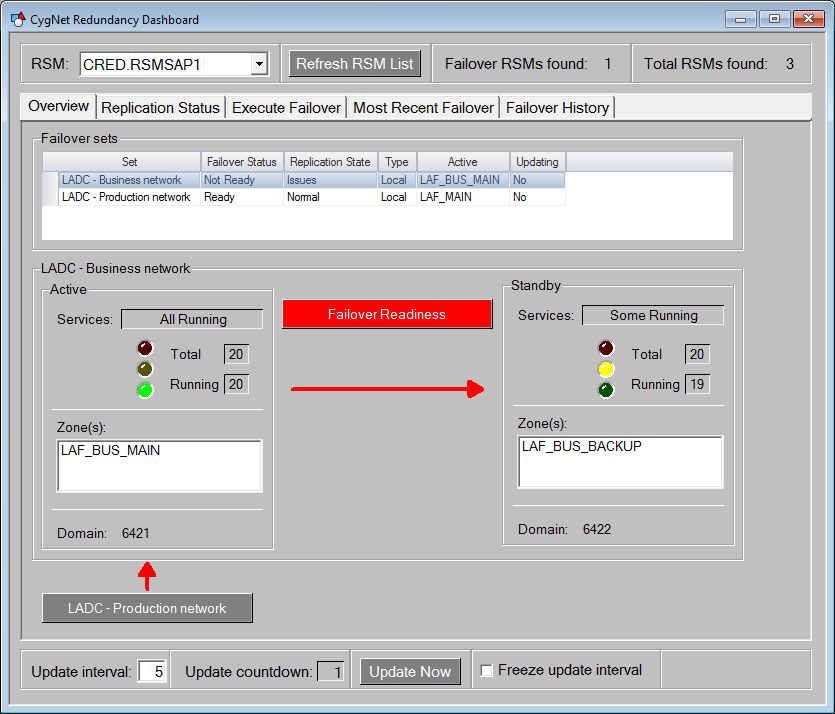
The first page of the CygNet Redundancy Dashboard is the Overview.csf screen, which gives a general understanding about the failover readiness for any particular failover set in the selected network. This shows where the services are running, giving a sense of the health and status of replication, and indicates if failover is ready to be performed.
The redundant RSM selected in the RSM combo box knows about all the failover sets in the network, and all are listed in the main Failover sets grid on the Overview page. Select any failover set to view details in the lower portion of the screen: the Active services are shown on the left and the Standby services are shown on the right.
Click the following image to see a sample Overview screen:
The Overview page contains the following elements:
| Object | Description |
|---|---|
|
Failover sets grid |
A Generic Grid object showing all the failover sets in the selected network. The columns include:
Select a failover set to view details for that set in the lower portion of the page. |
|
Network details (Active on the right; Standby on the left) |
|
|
Services Status box |
Aggregated service states, showing: All Running, Some Running, or None Running. |
|
Colored LEDs |
These LEDs indicate the readiness of the domain to perform a failover. As the services stop during a failover these LEDs will change color. This is determined by communication with the RSM and getting the service states.
|
|
Total box |
Indicates the total number of services in the set. |
|
Running box |
Indicates the total number of running services in the set. |
|
Zones list box |
The name(s) of the zone(s) where your services are running. |
|
Domain |
The domain of the selected set. |
|
Failover Readiness button |
A color-coded button that indicates the readiness to execute failover for the selected failover set. Click to go to Execute Failover page for the selected failover set.
The button color is determined by aggregating FAILOVER_READINESS and FAILOVER STATUS for all services. |
|
Replication arrow |
A horizontal color-coded arrow that indicates the direction and status of Replication.
Double click the arrow to go to the Replication Status page for the domain in question. The arrow color is determined by an aggregation of the REPL_STATE from all running services. |
|
Up arrow and Failover Source button |
A vertical arrow and a button will indicate when the data is coming from another source. It is possible for any zone to source its data from another failover set as indicated by the label on this button, and the set selected in the grid at the top. Click the button to select the other failover set (the same as selecting the set in the grid above) and view details for that set. For example, the Business primary domain may be replicating data to the secondary domain; however, the primary domain may be getting its data from a Production failover set. Note: The arrow and button are visible only if the selected failover set is receiving its data from another source. The arrow and button color is determined by aggregating FAILOVER_READINESS and FAILOVER STATUS for all services. |

|
|
|

