Use the Automatic Service Recovery feature of the CygNet Redundancy Editor to view and configure service recovery definitions for all active and standby RSMs and their owned services in the redundancy environment in one single action. Automatic service recovery in the Redundancy Editor allows for the mass modification of service recovery options for multiple sites and services.
Note: Automatic service recovery is primarily configured on a per service basis in the RSM, by editing the properties of each service in the RSM. For custom configuration of all service recovery options you need to go to the RSM Properties > Automatic Service Recovery for each service. Other more nuanced recovery options not available for configuration in the Redundancy Editor include: restarting with restoration of archived data, restore from a backup with or without changes, specifying a backup directory, adding special stage commands and command line parameters, and running special commands after a successful recovery. See Automatic Service Recovery for more information about these options.
In the CygNet Redundancy Editor you can view and configure the following service recovery options to facilitate local recovery:
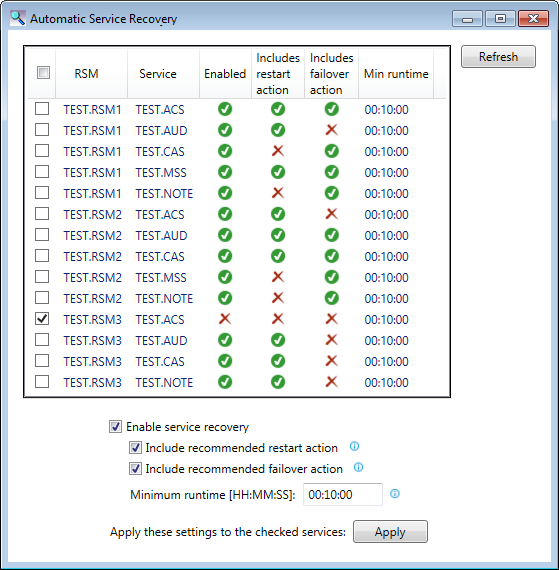
Click Automatic recovery options... on the Auto-failover page to access this dialog box. Click the following image to see a sample Automatic Service Recovery dialog box:
The following table lists and describes the automatic service recovery definitions for all RSMs listed in grid.
| Parameter | Description |
|---|---|
|
Select all check box |
Click to enable/disable automatic service recovery for all RSMs in the grid. |
|
Select each check box |
Click to enable/disable automatic service recovery for a single service in the row. |
|
RSM |
The name of the redundant RSM. |
|
Service |
The name of the owned service. |
|
Enabled |
Indicates whether automatic service recovery is enabled for the selected service. |
|
Includes restart action |
Indicates whether any restart action is configured and enabled for the selected service. There are three types of restart actions, available for configuration in the RSM for each service:
See Automatic Service Recovery Overview for more information about these restart options. |
|
Includes failover action |
Indicates whether the failover action is enabled for the selected service. |
|
Min Runtime |
The time that the service must run to consider the recovery successful. If the Minimum Runtime is not met, recovery will proceed to the next action. If the service fails after the Minimum Runtime span, recovery will start again from the first action. |
|
Refresh button |
Click to refresh the RSM grid. The grid will automatically refresh after updating the recovery settings. |
This dialog box allows for mass-modification of automatic service recovery options for all active and standby RSMs.
To Update Automatic Service Recovery Definitions
The following table describes the service recovery settings.
| Parameter | Description |
|---|---|
|
Enabled |
Click to enable automatic service recovery for the selected services. If enabling service recovery, one or both of the restart/failover actions must be included. |
|
Include recommended restart action |
Click to apply the recommended restart action to all selected services, which is service specific:
|
|
Include recommended failover action |
Click to apply the recommended failover action to all selected services, which is service specific:
|
|
Min runtime |
The time that the service must run to consider the recovery successful. If the Minimum Runtime is not met, recovery will proceed to the next action in the list. If the service fails after the Minimum Runtime span, recovery will start again from the first action. Type the amount of time (HH:MM:SS) the service must run before the recovery stages will be re-initialized. |
|
Update checked services with these settings |
Click Update to modify all checked services with the selected automatic service recovery options:
Note that all existing service recovery configurations will be overwritten when you click Update. Any site-specific automatic service recovery options previously configured will be overwritten. You can remove all settings for selected services by clearing Enable service recovery and clicking Update. Click Yes to accept or No to abort the update. Note: It may take some time to update all services, depending on the size of your redundancy environment. Upon completion, the grid will be refreshed. |

|
|
|

