The following topic describes the user interface and the many options available from the ReplValidator utility.
The ReplValidator utility consists of a menu bar, a toolbar, a display grid, a log viewer, and a status bar. The following tables list the options accessible using the menu, toolbar, and context menu.
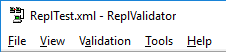
Five tabs are available on the menu bar to access various utility functions, via the File, View, Validation, Tools, and Help menus.
The File menu provides access to the following options.
| Option | Description | Shortcut | Toolbar |
|---|---|---|---|
|
Create Config… |
Select to access the Create Configuration dialog box to create .xml configuration file comparisons for validation of replicated services compared to their source service. See Creating the ReplValidator Configuration File for more information. |
Ctrl+C |
|
|
Open Config… |
Select to access the Open dialog box to navigate to a previously saved ReplValidation .xml configuration file to select for validation of replicated services. Once selected and opened, the primary and replicated sites will appear in the Replication Sites list. |
Ctrl+O |
|
|
Edit Config… |
Select to access the Edit Configuration dialog box to edit comparison values for a previously saved .xml configuration file, for validation of replicated services compared to their source service. See Creating the ReplValidator Configuration File for more information. |
Ctrl+E |
|
|
Recent Files |
List of all recently opened ReplValidation configuration files. Click on any file name to change to the settings configured in that file. |
- |
|
|
Exit |
Select to close the ReplValidator utility. |
- |
|
The Validation menu provides access to the following options.
| Option | Description | Shortcut | Toolbar |
|---|---|---|---|
|
Configuration Error Log… |
Select to access the Configuration Error Log dialog box to view any configuration file errors. Errors are listed in the dialog box for informational purposes. See View Configuration Error Logs for more information. |
- |
|
|
Properties… |
Select to access the Properties dialog box to view the ReplValidator configuration properties for a selected Site.Service pair. Once selected and opened, applicable properties are listed for informational purposes. See View Service Properties for more information. |
- |
|
The View menu provides access to the following options.
| Option | Description | Shortcut | Toolbar |
|---|---|---|---|
|
Start |
Click to begin the process of validating the replicated service data against the source service data for the selected Site.Service pair(s). See Running the ReplValidator Utility for more information. |
- |
|
|
Stop |
Click to discontinue the process of validating the replicated service data against the source service data for the selected Site.Service pair(s). See Running the ReplValidator Utility for more information. |
- |
|
|
Select All |
Click to select all listed Site.Service pairs for validation of their replicated service data against their source service data. See Running the ReplValidator Utility for more information. |
- |
|
|
Deselect All |
Click to clear all previous selections of Site.Service pairs for validation. See Running the ReplValidator Utility for more information. |
- |
|
The Tools menu provides access to the following options.
| Option | Description | Shortcut | Toolbar |
|---|---|---|---|
|
Enable Log Viewer |
Select to display the log file for the currently selected pair of services in the lower Log Viewer pane. The Enable Log Viewer Refresh check box will show the selected/cleared status of the option. See View Validation Logs for more information. |
- |
|
|
DBS Record Viewer |
Select to open the View Primary/Repl Record dialog box to see a side-by-side comparison of the selected database record in the primary and replicated services. See Comparing Database Records for more information. |
- |
|
|
DBS Resync Keys |
Select to open the Resync Records dialog box to submit a list of database keys to be resynchronized on the replicated service. The Resync option triggers the replicated service to read the specified primary service database keys and change its records to match accordingly. When the resynchronization is complete a success summary is listed in the lower pane. See Resynchronizing Database Keys for more information. |
- |
|
The Help menu provides access to the following options.
| Option | Description | Shortcut | Toolbar |
|---|---|---|---|
|
About ReplValidator… |
Click to open the About ReplValidator dialog box to view utility information. Available information includes the following:
In addition to information about the application, the About box includes the following buttons:
|
- |
- |
The toolbar contains commands for the configuration file management, validation, logging, and database management functions of the ReplValidator utility.

| Icon | Command | Description | Menu > Option | Shortcut |
|---|---|---|---|---|
|
|
Open Config |
Select to access the Open dialog box to navigate to a previously saved ReplValidation .xml configuration file to select for validation of replicated services. Once selected and opened, the primary and replicated sites will appear in the Replication Sites list. |
File > Open Config… |
Ctrl+O |
|
|
Start |
Click to begin the process of validating the replicated service data against the source service data for the selected Site.Service pair(s). See Running the ReplValidator Utility for more information. |
Validation > Start |
|
|
|
Pause/Resume Thread |
Click to pause and then resume the process of validating the replicated service data against the source service data for the selected Site.Service pair(s). See Running the ReplValidator Utility for more information. |
- |
|
|
|
Stop All |
Click to discontinue the process of validating the replicated service data against the source service data for the selected Site.Service pair(s). See Running the ReplValidator Utility for more information. |
Validation > Stop |
|
|
|
Select All |
Click to select all listed Site.Service pairs for validation of their replicated service data against their source service data. See Running the ReplValidator Utility for more information. |
Validation > Select All |
|
|
|
Deselect All |
Click to clear all previous selections of Site.Service pairs for validation. See Running the ReplValidator Utility for more information. |
Validation > Deselect All |
|
|
|
Properties |
Select to access the Properties dialog box to view the ReplValidator configuration properties for a selected Site.Service pair. Once selected and opened, applicable properties are listed for informational purposes. See View Service Properties for more information. |
View > Properties |
|
|
|
DBS Record Viewer |
Select to open the View Primary/Repl Record dialog box to see a side-by-side comparison of the selected database record in the primary and replicated services. See Comparing Database Records for more information. |
Tools > DBS Record Viewer |
|
|
|
DBS Resync Keys |
Select to open the Resync Records dialog box to submit a list of database keys to be resynchronized on the replicated service. The Resync option triggers the replicated service to read the specified primary service database keys and change its records to match accordingly. When the resynchronization is complete a success summary is listed in the lower pane. See Resynchronizing Database Keys for more information. |
Tools > DBS Resync Keys |
|
|
|
Enable Log Viewer |
Select to display the log file for the currently selected pair of services in the lower Log Viewer pane. The Enable Log Viewer Refresh check box will show the selected/cleared status of the option. See View Validation Logs for more information. |
Tools > Enable Log Viewer |
The right-click context menu contains the following options.
| Command | Description |
|---|---|
|
Configuration Error Log… |
Select to access the Configuration Error Log dialog box to view any configuration file errors. Errors are listed in the dialog box for informational purposes. See View Configuration Error Logs for more information. |
|
Properties… |
Select to access the Properties dialog box to view the ReplValidator configuration properties for a selected Site.Service pair. Once selected and opened, applicable properties are listed for informational purposes. See View Service Properties for more information. |

|
|
|


