Scripting > CygNet Scripting Guide > HyperPoint Scripting > Creating and Configuring a HyperPoint

Creating and Configuring a HyperPoint

  1. To create a HyperPoint, open CygNet Explorer and navigate to the Point Service (PNT).
  2. Right-click in the PNT service pane to access the context menu, and then click New to access the New Point dialog box to configure the point.
  3. In the General page, enter a site name and HSS service for example, MYSITENAME.HSS, long ID, and other point information (the point name must begin with an alphanumeric character that is not "-").
  4. Select the HyperPoint check box to indicate that the point is a HyperPoint. This will cause the HyperPoint page to appear in the dialog, and will enable the Activate Script check box.
  5. The Activate Script option is cleared by default, but can be selected when the point's script is ready to be run.
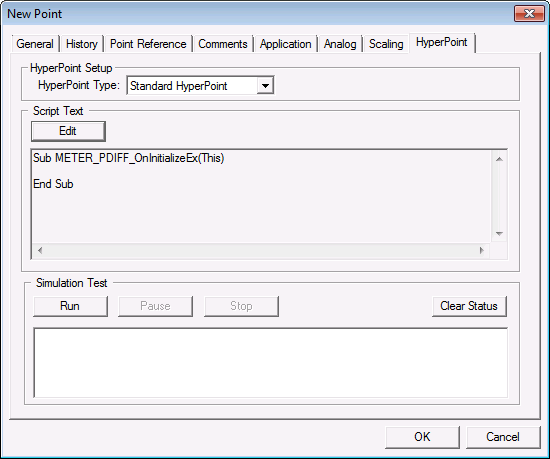
  6. The HyperPoint page contains three sections.

Note: In simulation mode, a HyperPoint Script does not have access to any other HyperPoints or Point objects. This is an isolated environment provided by the CygNet Explorer client and runs independently of the HyperPoint Scripting Service (see Testing Scripts).

HyperPoint
The HyperPoint page in the PNT Editor

HyperPoints with Special Characters

There are several characters that are not allowed in VBScript function names, but are allowed in CygNet Long Point IDs. Since VBScript is a Microsoft product, we have no control over which characters are valid in this context.

In order to create a HyperPoint for points with these characters in the ID, the characters are translated to a hexadecimal string equivalent of their character code.

For example, the hyphen (dash) character code is hexadecimal "2d" so the resultant string is "x2d". An extra underscore is appended for readability, so the full replacement for the "-" is "x2d_".

Back to top

Let us know how we can improve this topic.

CygNet at weatherford.com

© 2020 Weatherford. All rights reserved.