Trending Service Info Items
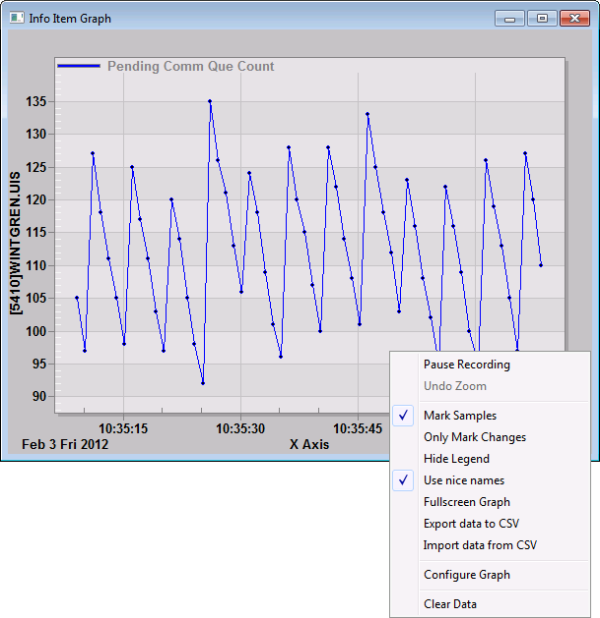
Service info items can be trended from the CygNet Service Diagnostics utility and viewed on the Info Item Graph dialog box. You can change the window while viewing the data. This graph doesn’t use SVCMON or preconfigured points; it polls info items in real time.
Although this info item graph is not generated by CxTrend, it uses some of the same Run mode configuration options that are provided for the Trend tool. See Using the Trend Tool in Run Mode in the CygNet Studio section for more information.
Note: The Info Item Graph is also accessible from CygNet Explorer using the Service Details option.
To Trend an Info Item
- In the CygNet Service Diagnostics data grid, right-click on a cell or range of cells to access the context menu and then click Add to trend. The Info Item Graph will appear.
- Right-click in the Info Item Graph to access a context menu containing
the following display and configuration options. Click to select/clear the desired behaviors.
- Pause Recording / Resume Recording
- Undo Zoom
- Mark Samples
- Only Mark Changes
- Hide Legend
- Use nice names
- Fullscreen Graph / Restore Graph
- Export data to CVS
- Import data from CVS
- Configure Graph
- Clear Data
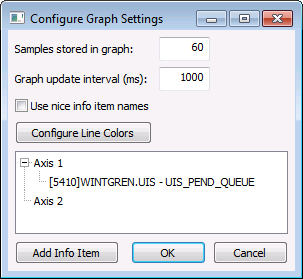
- Optionally use the Configure Graph option to access options to additionally change graph display settings and reconfigure the graph as desired.