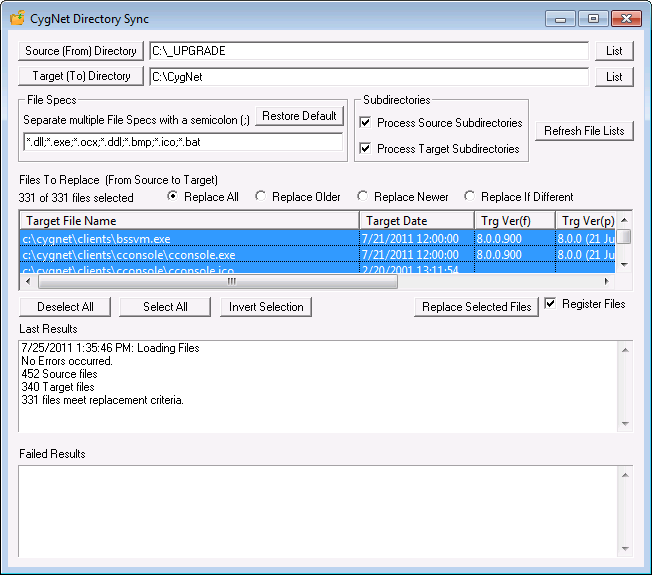
The CygNet Directory Sync utility compares file versions and replaces files based on selected criteria, such as file version, extension, etc. This utility does not compare file sets. As such, use the Microsoft Ccommand Comp utility to compare file lists. (Type Comp /? at a - Command Prompt for more information.) Unlike the CygNet Version Info utility, the CygNet Directory Sync utility does install CygNet files. For most update situations, such as installing patches or new upgrades, use the CygNet Host Updater instead.
When you update any application-type file on your CygNet system, the services must be stopped and you must close or exit CygNet Host Manager.
Essentially, you will copy files that meet certain replacement criteria by first selecting from where the files are to be copied (Source (From) Directory) and then where the files are to be copied to (Target (To) Directory). Make sure that you have mapped the correct directory for the new files. The Process Source and Target Subdirectories options allow you to make sure that any subdirectories are also updated. A Last Results message pane tallies how many source and target files are processed and how many are replaced. The Failed Results message pane displays status text regarding file replacement activity.
Before replacing selected files, you will get a chance to see the list of files, based on the selection criteria, to be copied to their new target destination.
The CygNet Directory Sync utility is stored in the CygNet\Utilities directory (CDirectorySync.exe) on the host server. To start the utility, use Windows Explorer to browse to the directory and double-click the program icon.
Note: You can also set up this utility to be installed and launched (started) via CygNet Client Installer so that the application can be version managed. See Version Management for instructions on how to do this.
To Replace CygNet Files
Click the following image to see a sample CygNet Directory Sync utility dialog box:
File Specs lists which file extensions are candidates for bulk change. If you decide to omit by deleting one or two extensions, make sure that when you add them back, you separate them with a semicolon (;). When you click Restore Default, the default types *.bat; *.ddl; *.dll; *.exe; *.ocx are available.
Files to Replace (From Source to Target) determines what kind of file replacement will occur.
| Option | Description |
|---|---|
|
Replace All |
Requests that all file versions from the source directory replace previous file versions in the target directory. |
|
Replace Older |
Requests that newer file versions from the source directory replace older file versions on the target directory. |
|
Replace Newer |
Requests that previous versions from the source directory replace newer file versions on the target directory. |
|
Replace If Different |
Requests that any file version in the target directory that is different from the file version in the source directory be replaced. |

|
|
|

