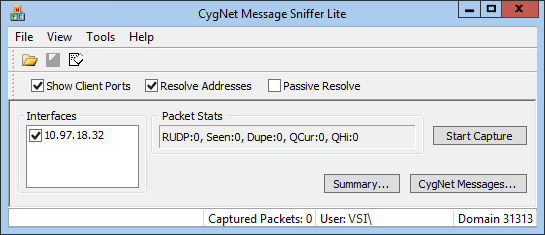
The CygNet Message Sniffer Lite (SnifferLite.exe) utility is a diagnostic tool that captures and evaluates all CygNet message traffic occurring on a CygNet client or host. Sniffer Lite is designed to help the CygNet administrator understand what messaging is occurring between CygNet clients and services in order to diagnose problems and improve performance.
The diagnostic sequence of the CygNet Message Sniffer Lite utility is:
CygNet uses RUDP for packet transmission. For more information, see CygNet Data Packets and RUDP.
Note: You should only capture messages continuously with SnifferLite for a brief period of time (a few minutes) since it stores all of the captured messages in memory and could cause errors if messages are captured for a longer period of time.
The CygNet Message Sniffer Lite utility is stored in the CygNet\Utilities (SnifferLite.exe) directory on the host server. To start the utility, use Windows Explorer to browse to the directory and double-click the program icon.
For more information, see the following subsections:
The following table lists and describes CygNet Message Sniffer Lite Utility properties.
| Property | Description |
|---|---|
| Show Client Ports | |
| Resolve Addresses | Sets attributes on the packet capturing object within the utility and sends out packets to gather further information. |
| Passive Resolve | Sets attributes on the packet capturing object within the utility. |
| Interfaces | Lists the available network interfaces. |
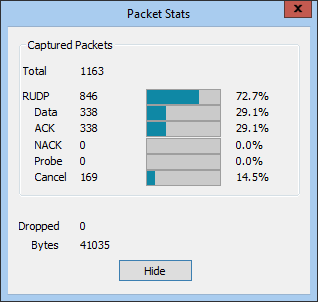
| Packet Stats | Displays the packet statistics of the captured messages. |
| Start Capture/Stop Capture | Starts the capture of CygNet messages, opens the Packet Stats dialog box, and changes the button to Stop Capture, which when clicked ends the capture process. |
| Summary | Opens the CygNet Message Summary dialog box. |
| CygNet Messages | Opens the CygNet Message Viewer, which displays the list of captured CygNet messages. |
To Capture Messages Using Sniffer Lite
Note: If User Account Control (UAC) is enabled, capturing CygNet messages requires administrator-level permission. See CygNet and User Account Control for more information.
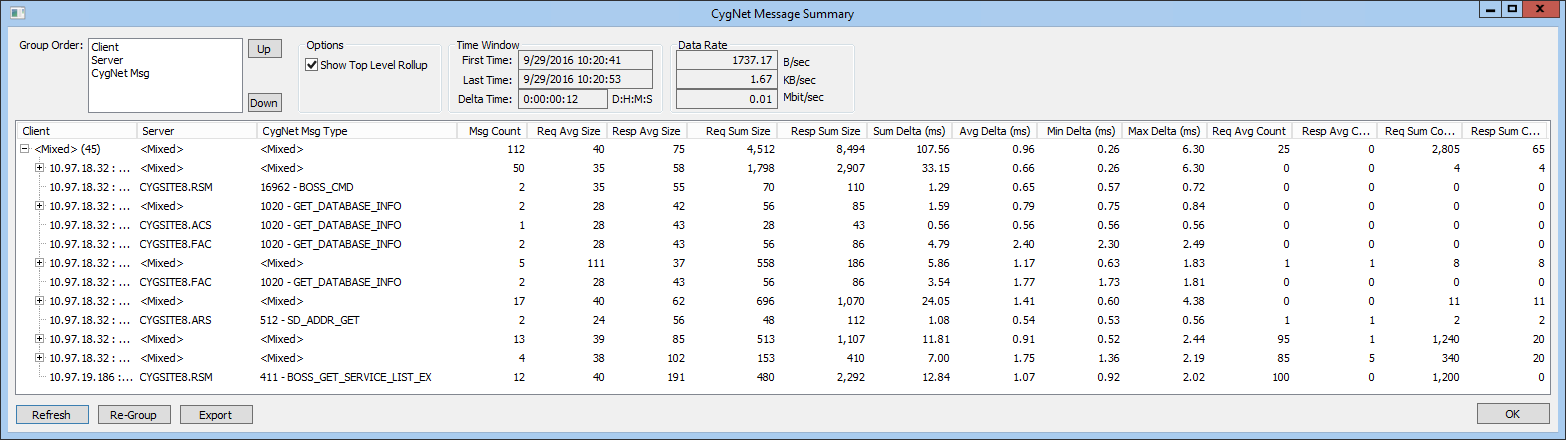
The CygNet Message Summary dialog box provides a high-level view of the CygNet messages captured using the CygNet Message Sniffer Lite utility. By moving the groups up or down in the Group Order field and then clicking Refresh, a user can view the messages according to client, server, or message. The first three columns of the display change accordingly. A user can expand specific items in the list for more information. If Show Top Level Rollup is checked, clicking Re-Group will roll up the expanded items. The Export button exports the data in the summary to a CSV file. For more information, see Common Messages Captured Using Sniffer Lite.
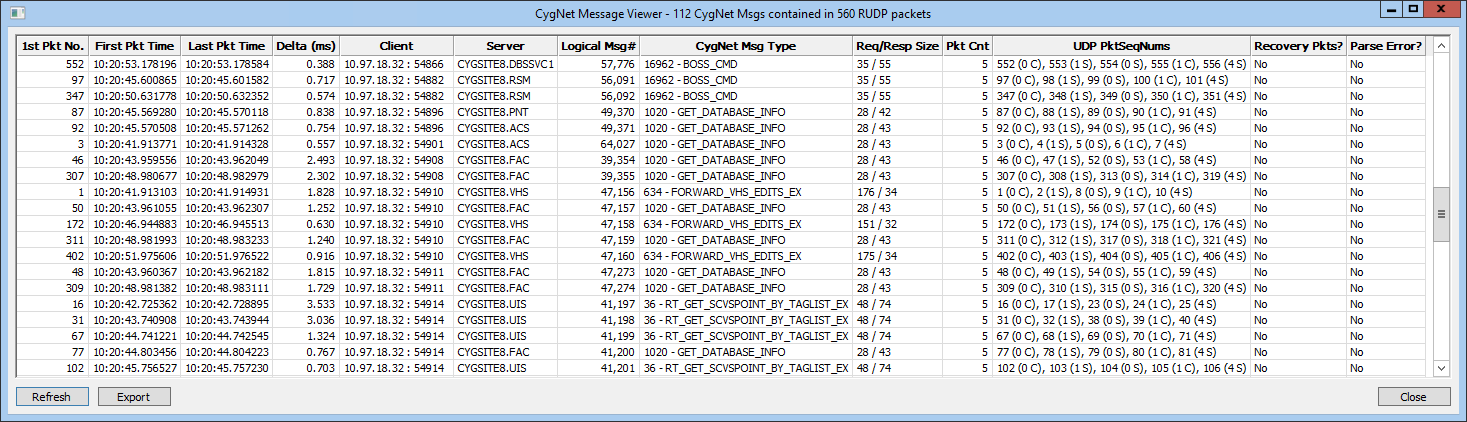
The CygNet Message Viewer dialog box displays the list of captured CygNet messages. The title displays the number of messages contained in the RUDP packets. Sorting on the column headers facilitates viewing according to categories. For example, clicking the 1st Pkt No. column header sorts the messages in the order sent. Clicking the Server column header sorts the list by the CygNet service name to which the message was sent. Selecting Refresh returns the list to its original order.
Right-clicking on a message displays a drop-down menu with four options available for the user to isolate messages.
Selecting one of these options opens another CygNet Message Viewer dialog box that displays the selected option from the drop-down menu. The Export button exports the data from the CygNet Message Viewer to a CSV file.
The following table lists common types of messages that are captured when using the CygNet Message Sniffer Lite utility. This list is not inclusive, as messages may vary and the actual messages may contain various parameters specific to different clients and users.
| Captured Message | Description |
|---|---|
| ADD_EVENT | Adds an entry into an ELS. |
| CAS_GET | Updates client alarms. |
| GENSERV | Registers information to or gathers information from services. |
| GET_DATABASE_INFO | Requests basic information about a database (for example, sequence number). |
| GET_INCREMENTAL | Requests incremental information about a database. Can also gather a list of keys and updates. |
| GET_TABLE_ROW | Gathers table row information from a database. |
| GET_TABLE_ROW_BY_INDEX | Uses an index to gather table row information. |
| GET_VHS_INCREMENTAL_CHANGES | Gathers list of incremental changes to a VHS. |
| LIST_HISTORY_VALUES_EX | Reads history values from a point in chronological order based on a given timestamp. Can be related to a trend in a CygNet Studio screen. |
| READ_DATA | Reads data from a service. Can appear due to missing index. |
| RT_GET | Compiles entire lists of real-time service components (for example, points and facilities). |
| RT_GET_TAGLIST | Returns a list of real-time tags from a service. |
| SD_ADDR_GET | Used by an ARS asking for address/location of another service. |
| RT_SET_CVS_POINT | Sets a real-time value. |
The following tables list and define command options accessed using the CygNet Message Sniffer Lite utility menu and toolbar. See the following sections below for more information:
The following table lists and describes File menu options.
| Option | Description | Toolbar Icon | Shortcut |
|---|---|---|---|
| Open | Select a previously captured message file. Browse to look for an .snf file. |

|
Ctrl+O |
| Save | Select to save the captured packet data as an .snf file. The dafault file name is packetdata.snf, but you can rename if necessary. |

|
Ctrl+S |
| Import PCAP | Ctrl+I | ||
| Export PCAP | |||
| Clear | Select to clear packets from the capture buffer and clear statistics. |

|
Ctrl+X |
| Start Capture | Starts the message capture process. See To Capture Messages above. | ||
| Stop Capture | Stops the message capture process. See To Capture Messages above. | ||
| Recent File | A numbered list of recent files. | ||
| Exit | Select to quit the CygNet Message Sniffer Lite utility. |
The following table lists and describes View menu options.
| Option | Description |
|---|---|
| Toolbar | Hide or Show the toolbar. |
| Display Options | Hide or Show the check boxes under the toolbar. |
| Packet Stats | Select to show the Packet Stats dialog box, if it had been hidden. |
The following table lists and describes Tools menu options.
| Option | Description |
|---|---|
|
Capture Options |
Select to configure the packet capture options:
|
|
PCAP Mass Convert |
The following table lists and describes Help menu options.
| Option | Description |
|---|---|
|
About CygNet Sniffer Lite |
Displays an About CygNet Packet Sniffer Lite Utility dialog box to view application information. Available information includes the following:
In addition to information about the application, the About box includes the following buttons:
|

|
|
|

