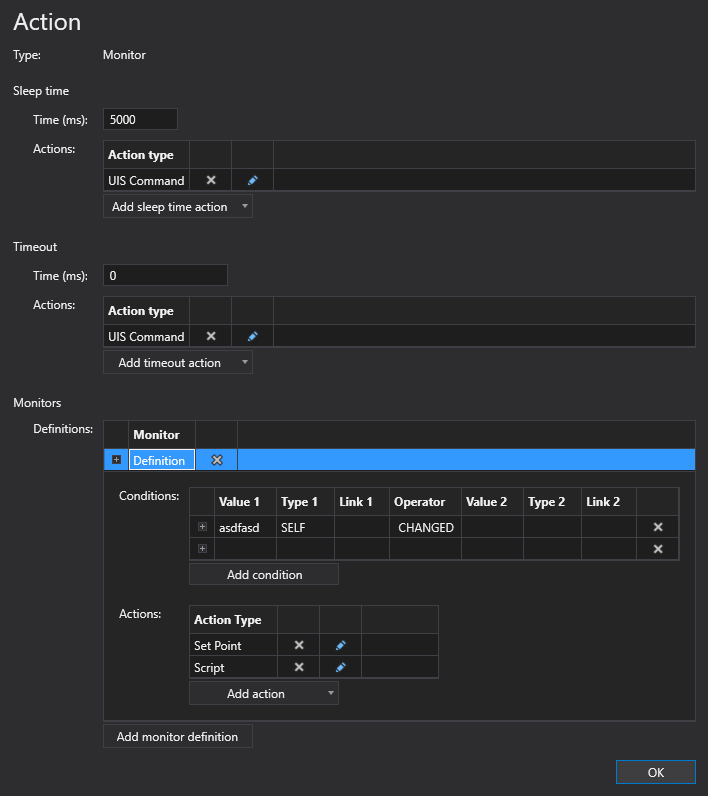
The Monitor action type is used in device-based (PLC) mode configurations where the host needs to monitor the device and take action when certain conditions occur. To do this, there are configurable Monitor blocks in the XML structure where a set of conditions are defined and if those conditions are all true then the set of defined actions are executed. All conditions for a monitor block met be met before moving on to the next monitor block.
The Monitor or Test action types support the configuration of sleep time action(s) to specify how long the Test or Monitor action type will "sleep" before updating the actual timeout value and evaluating the conditional expression. If any actions are specified for the Sleep time actions, then for every sleeptime timeout specified, those actions will be executed. For example, wait five seconds and then poll the device. In the XML configuration these conditional actions are specified in the <SleepTimerActions> element.
The Monitor action type supports the configuration of a timeout value. When the timeout expires, the action(s) specified in the Timeout Actions property will be executed. In the XML configuration these timeout actions are specified in the <TimeoutActions> element.
A Monitor action type may contain multiple monitor definition blocks, configured within the Monitors Definitions block. Each Definitions block contains one or more Conditions and one or more Actions. In the XML configuration these actions are specified in the <Monitors>, <Conditions> and <Actions> elements.
Click the following image for more information:
|
|
| Sample Monitor Action Configuration |
To configure a Monitor action
A Monitor action type can be configured from several different places within the well test configuration control. However, the base configuration is always the same. Perform the following steps to configure this type of action, referring to the property definitions below:

The properties for the Monitor action type are described below.
| Property | Description | XML |
|---|---|---|
|
Type |
Specifies the action type for the action. |
|
| Sleep time | ||
|
Time (ms) |
Specifies the time in milliseconds that the Monitor or Test action will "sleep" before updating the actual timeout value and evaluating the defined conditional actions. When the Sleep time timeout (sleeptime) expires, the actions defined in the Sleep time Actions grid <SleepTimerActions> will be executed. For example, wait five seconds and then poll the device. |
|
|
Actions |
The Monitor or Test action types support the configuration of sleep time action(s) to specify how long the Test or Monitor action type will "sleep" before updating the actual timeout value and evaluating the conditional expression. If any actions are specified for the Sleep time actions, then for every sleeptime timeout specified, those actions will be executed. For example, wait five seconds and then poll the device. In the XML configuration these conditional actions are specified in the <SleepTimerActions> element. To add a sleep time action
|
|
| Timeout | ||
|
Time (ms) |
Specifies the time in milliseconds until the Monitor action will timeout. When this timeout occurs, the defined action(s) will execute. A value of "0" means the action will never timeout based on time. When the timeout expires, the actions in the Timeout Actions grid <TimeoutActions> will be executed. |
|
|
Actions |
The Monitor action type supports the configuration of a timeout value. When the timeout expires, the action(s) specified in the Timeout Actions property will be executed. In the XML configuration these timeout actions are specified in the <TimeoutActions> element. To add a timeout action
|
|
| Monitors | ||
|
Definitions |
A Monitor action type may contain multiple monitor definition blocks, configured within the Monitors Definitions block. Each Definitions block contains one or more Conditions and one or more Actions. In the XML configuration these actions are specified in the <Monitors>, <Conditions> and <Actions> elements. To add a monitor definition
To add a condition
To add an action
|
|
Each condition in a definition contains three parts: Value 1, the operator and Value 2.
| Attribute | Description | XML |
|---|---|---|
| Value 1 | ||
|
Value |
Specifies the first value to use when comparing the point value in the expression:
|
|
|
Value type |
Specifies the first value Type (value1Type) property. Options include Self or UDC. |
|
|
Relative facility link |
Specifies the first relative facility tag to use for the action. Note: The facility tag used as the starting point for the relative resolution depends on where this action type is configured. If the action is defined at a position level, then the base facility tag will be the well facility. If defined at the header level, the base facility will be the header facility. |
|
| Operator | ||
|
Specifies the operation used for the comparison. Acceptable values include:
|
||
| Value 2 | ||
|
Value |
Specifies the second value to use when comparing the point value in the expression:
|
|
|
Value type |
Specifies the second value Type (value2Type) property. Options include Self or UDC. |
|
|
Relative facility link |
Specifies the second relative facility tag to use for the action. Note: The facility tag used as the starting point for the relative resolution depends on where this action type is configured. If the action is defined at a position level, then the base facility tag will be the well facility. If defined at the header level, the base facility will be the header facility. |
|
|
|
|
 to add a new sleep time action to this Monitor action.
 or the action type name to edit the action.
 to delete the action type, as necessary.
 to add a new timeout action to this Monitor action.
 to add a new definition to this Monitor action.
 to add a new conditional expression to this Definition.
 to add a new action to this Definition.
