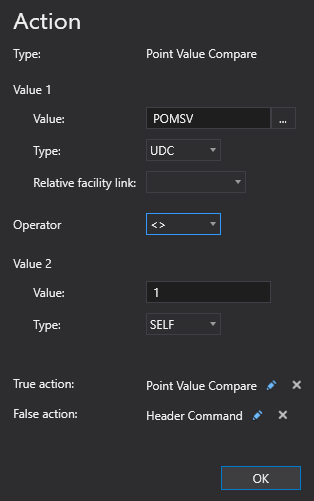
The Point Value Compare (PointValueCompare) action type is used to compare two values and perform an action, if true. The values used in the comparison can be either from a point or a hard-coded value.
The PointValueCompare action type supports the configuration of true and false actions, these will be executed if the comparative expression is evaluated as true and/or false. If the expression evaluated is true, the action defined in the True Action property will be executed. Similarly, if the expression evaluated is false, the action defined in the False Action property will be executed. In the XML configuration these conditional actions are specified in the <TrueAction> and <FalseAction> elements.
Note: It is possible (and probable) to have nested Point Value Compare actions. There is no limit to the number of nested levels.
Click the following image for more information:
|
|
| Sample Point Value Compare Action Configuration |
To configure a Point Value Compare action
A Point Value Compare action type can be configured from several different places within the well test configuration control. However, the base configuration is always the same. Perform the following steps to configure this type of action, referring to the property definitions below:
The properties for the Point Value Compare action type are described below.
| Property | Description | XML |
|---|---|---|
|
Type |
Specifies the action type for the action. |
|
| Value 1 | ||
|
Value |
Specifies the first value to use when comparing the point value in the expression:
|
|
|
Type |
Specifies the first value Type (value1Type) property. Options include Self or UDC. |
|
|
Relative facility link |
Specifies the first relative facility tag to use for the action. Note: The facility tag used as the starting point for the relative resolution depends on where this action type is configured. If the action is defined at a position level, then the base facility tag will be the well facility. If defined at the header level, the base facility will be the header facility. Note: If the Type is set to Self, the Relative facility link property is hidden from view. |
|
|
Operator |
Specifies the operation used for the comparison. Acceptable values include:
|
|
| Value 2 | ||
|
Value |
Specifies the second value to use when comparing the point value in the expression:
|
|
|
Type |
Specifies the second value Type (value2Type) property. Options include Self or UDC. |
|
|
Relative facility link |
Specifies the second relative facility tag to use for the action. Note: The facility tag used as the starting point for the relative resolution depends on where this action type is configured. If the action is defined at a position level, then the base facility tag will be the well facility. If defined at the header level, the base facility will be the header facility. Note: If the Type is set to Self, the Relative facility link property is hidden from view. |
|
|
True action |
A True action can be configured for a Point Value Compare action type. If the expression evaluated in the Point Value Compare action is true, the specified action type will be executed. To add a true action
|
|
|
False action |
A False action can be configured for a Point Value Compare action type. If the expression evaluated in the Point Value Compare action is false, the specified action type will be executed. To add a false action
|
|

|
|
|
 to add an action if the evaluated expression is true.
 or the action type name to edit the action.
 to delete the action type, as necessary.
 to add an action if the evaluated expression is false.
