Alarm Priority Icon Ranges
Use the Alarm Priority Icon Range dialog box to configure the column, the icon color source, the associated priority ranges, and the icon image used for each priority.
|
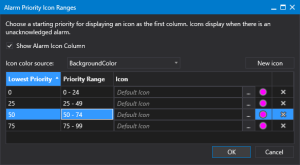
Sample Alarm Priority Icon Ranges dialog box
|
- Click Show Alarm Icon Column to include an alarm column and icon as the first column of the alarm grid.
- Select the color source from the Icon color source drop-down menu.
- Click New icon to add a new icon to the list of priorities.
- Configure the desired priority and associated icon for each range.
- Click
 (Delete row) to remove a selected row as necessary.
- Click New icon again to add another priority range and repeat the steps described above.
- Click OK to accept the priority order, ranges, icon and close the dialog box.
- Click Cancel to close the dialog box without modification.