Filter
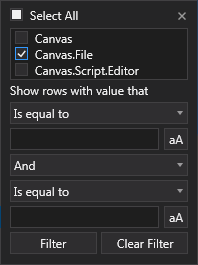
Many panes, controls, and objects in Canvas contain a filtering tool to limit the rows displayed in the grid. Click  next to a column header to filter the rows displayed in a grid based on values from the selected column. Two sets of qualifying filter criteria can be specified, and the criteria can be compounded (use all rules by selecting And or use either rule by selecting Or). The options in the filter tool are described below.
|
Filter
|
- Select All — Click to Select All column elements to include in the filter.
- Select elements — Select the elements from the column on which to filter.
- Show rows with value that — Select an operator from the Show rows with value that drop-down menu. Operators include:
- Is equal to
- Is not equal too
- Starts with
- Ends with
- Contains
- Does not contain
- Is contained in
- Is not contained in
- Is empty
- Is not empty
- Is less than
- Is less than or equal to
- Is greater than
- Is greater than or equal to
- Is null
- Is not null
- <qualifying string> — Type a qualifying string to match the operator.
- Match case — Click
 (Match case) to limit to only occurrences of the string that match the case (for example, uppercase, lowercase) of the qualifying string.
- And/Or — Select And to join one qualifying string to another. Or select OR to choose either qualifying string.
- Show rows with value that — Select an operator from the second Show rows with value that drop-down menu. Operators are listed above.
- <qualifying string> — Type a qualifying string to match the operator.
- Match case — Click (Match case) to limit to only occurrences of the string that match the case (for example, uppercase, lowercase) of the qualifying string.
- Filter — Click Filter to limit the rows in the pane to the those that match the filter criteria.
- Clear Filter — Click Clear Filter to remove the filter criteria and return all rows.