Image Selection

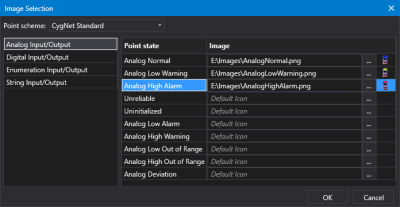
Sample Images Selection dialog box

Sample Image Selection dialog box

  1. Click Open dialog box to open Image Selection dialog box.
  2. Select the appropriate Point scheme. The point scheme defines the point types, point alarms, point statuses, and default colors for a CygNet domain.
  3. Select the Point type (Analog Input/Output, Digital Input/Output, Enumeration Input/Output, or String Input/Output) to access the point states on the right.
  4. Click on the Point state for which you want to configure an image to use when the point state changes in the image control.
  5. For each point state perform the following:
    1. Image — The Image property indicates the file path and file name of the image that will be substituted when the point state changes to the selected point state. Click Open dialog box to open the Open dialog box, where you can access a CygNet APPS or BSS folder or a local or network Windows file-system folder. Browse and select the desired image file.
    2. Repeat for each point state.
  6. To remove an image, delete the path in the Image field.
  7. Once the images are configured, click OK to save.
  8. Or click Cancel to abort and close the Image Selection dialog box.