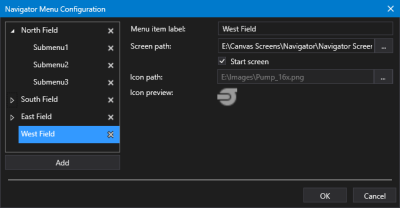
Sample Navigator Menu Configuration dialog box
|
Sample Navigator Menu Configuration dialog box |
 to open Navigator Menu Configuration dialog box.
 to expand the top-level menu items. to select a screen from the Open Files dialog box, where you can access a CygNet APPS or BSS folder or a local or network Windows file-system folder. The option is not available for top-level menu items with sub-menu items. to select an image file from the Open Files dialog box, where you can access a CygNet APPS or BSS folder or a local or network Windows file-system folder. The Icon path field is read-only; you must use the Open Files dialog box to select a new icon. This option is not available for sub-menu items.
 (Delete menu item) to remove a selected menu item.