 The Script view of the Screen pane contains a scripting environment where you can create or edit screen content. In this environment you can write script, add and remove references, and introduce custom elements to further refine the objects in your screens. Supported script languages are C# and VB.NET. The Script view has a context menu and a toolbar, which contains options to validate script and manage assemblies for the currently selected screen.
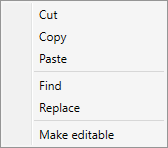
The script view provides additional functionality through its right-click context menu:
| Option | Description | Keyboard Shortcut |
|---|---|---|
|
Cut |
Removes the selected text and places it on the clipboard. |
Ctrl+X |
|
Copy |
Copies the selected text and places it on the clipboard. |
Ctrl+C |
|
Paste |
Inserts the contents of the clipboard at the current location. |
Ctrl+V |
|
Find |
Opens the Find and Replace dialog box, with the Find tab in focus. See Find and Bookmark Text in Script below. |
Ctrl+F |
|
Replace |
Opens the Find and Replace dialog box, with the Replace tab in focus. See Find and Replace Text in Script below. |
Ctrl+H |
|
Make editable |
Converts a read-only portion of script to make it editable. It is recommended that you do not edit these portions without a compelling reason to do so. If deemed necessary to make it editable, you can do so - but be aware that it cannot be undone. Knowing this, to remove the read-only protections, right-click the gray script area to access the context-menu options, and then click Make editable. It will remain editable from that point forward. |
|
Right click and select Find (or type Ctrl+F) in the script view to open the Find and Replace dialog box, with the Find tab in focus.
Right click and select Replace (or type Ctrl+H) in the script view to open the Find and Replace dialog box, with the Replace tab in focus.
|
|
|

