Unexpected error message
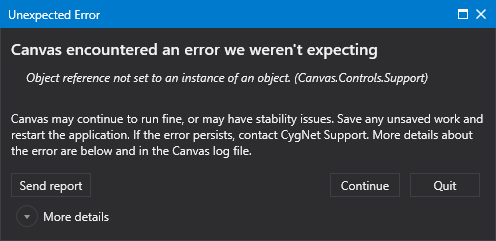
When an "unhandled exception" issue occurs in Canvas, an exception report may be created. You can then optionally send that report to CygNet Software, to aid in our development of the application. If an exception such as this occurs, a dialog like the following opens:
|
Unexpected error message |
You can use the More details drop-down link to expand the Unexpected Error dialog box and see the full exception report details. Examining the report details may help you to quickly identify the cause of the error. Or you can opt to send the report to CygNet Software so that we can identify the cause of the issue, troubleshoot your screen, and make improvements in future versions of the software.
Click Continue to close the dialog box without sending the report and continue working in Canvas or click Quit to close Canvas completely.
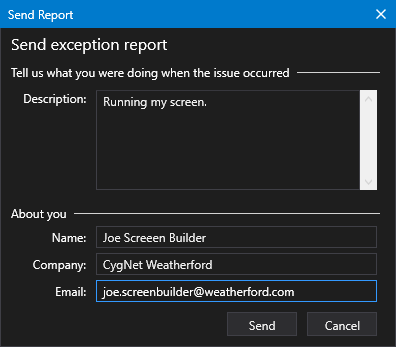
Click Send report to open the Send Report form, which lets you add a description of what you were doing when the issue occurred and your contact information. Adding information to the Send Report form is optional, but if you do, it will be saved for future submissions. Contact information is not required for submission. Click Send to send the exception report to the CygNet Software reporting server or Cancel to close the form without sending.
|
Send exception report |
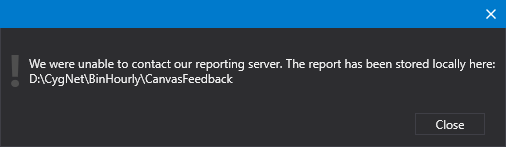
If the Exception Report submission fails, for whatever reason, you will be presented with an error message notifying you that the report will be saved locally. You could zip up the report and manually send it to CygNet Software if desired.
|
Submit exception report failure message |
|
|
|