The Canvas search box supports numerous actions on selected search results: facility sender, facility navigation, facility scripted, and custom searches. This topic describes how to script a custom search using the Search Box control.
- See To configure a search box as a facility sender
- See To configure a search box to navigate to another screen
- See To configure a search box to execute a scripted selection action
Custom Searches
|
Custom searching is supported via script to allow you to query whatever you want, for example, a SQL database, a .csv file, even a website. When a full or partial search term is entered in the search box, a custom script method is fired to search a specified item or object, and any matching terms are returned in a search results list. Further custom actions can be executed when selecting a search result.
|
|
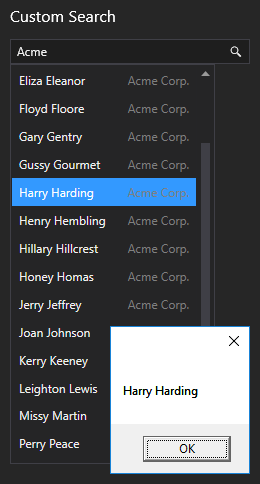
Custom Search Example
The following code example shows how to query a .csv list of meeting attendees to find any results that match a Primary and Secondary value, as shown in the image above.
- The script defines the custom search method
DoCustomSearchwhich is passed as an argument to theObjects.Search2.CustomSearchproperty. - When a full or partial string is entered in the search box, the
DoCustomSearchmethod is fired parsing the specified .csv file. - The custom search results
CustomSearchBoxResultare returned in a list, or if the search results are empty, an error message (No results found) is returned. - When one of the search results is selected, a
MessageBoxis popped displaying the Primary value (Name).
|
namespace Screen { public class Attendee { public string Name { get; set; } public string Company { get; set; } public string Title { get; set; } } public class ScreenClass { private List<Attendee> Attendees { get; set; } = new List<Attendee>(); public bool DoCustomSearch(string query, out List<CustomSearchBoxResult> results, out string error) { error = string.Empty; results = new List<CustomSearchBoxResult>(); var queryResults = Attendees.Where(x => x.Name.ToUpper().Contains(query.ToUpper()) || x.Company.ToUpper().Contains(query.ToUpper()) || x.Title.ToUpper().Contains(query.ToUpper())); foreach (var result in queryResults) { results.Add(new CustomSearchBoxResult() { Primary = result.Name, Secondary = result.Company }); } return true; } private void ParseCsvFile(string path) { Attendees.Clear(); using (TextFieldParser parser = new TextFieldParser(path)) { parser.SetDelimiters(new string[] { "," }); // Skip over header line. parser.ReadLine(); while (!parser.EndOfData) { string[] fields = parser.ReadFields(); Attendees.Add(new Attendee() { Name = fields[0] + " " + fields[1], Company = fields[3], Title = fields[4] }); } } }
public static void Main() { ScreenClass c = new ScreenClass(); } /// <summary> /// Constructor for screen. Used to hook-up event handlers and for any custom initialization code /// </summary> public ScreenClass() { // control event handler code goes here -- do not modify Objects.Search2.Initialize += new EventHandler(this.Search2_Initialize); Objects.Search2.SearchResultSelected += new EventHandler(this.Search2_SearchResultSelected); // add your custom initialization code here } #region Search2 private void Search2_Initialize(object sender, EventArgs args) { Objects.Search2.CustomSearch = DoCustomSearch; ParseCsvFile(@"C:\Temp\RSVPs.csv"); }
private void Search2_SearchResultSelected(object sender, EventArgs args) { var searchResultArgs = args as Canvas.Controls.SearchBox.CanvasSearchBoxSearchResultSelectedEventArgs; MessageBox.Show(searchResultArgs.Result.Primary); } #endregion } } |


