Use the Alarm Sounds dialog box to configure a sound file (a WAV file) that will play when an unacknowledged alarm displayed in the alarm notifier falls within the configured alarm priority range.
Alarm sounds will still play in a screen, even if the alarm notifier is disabled. Alarm sounds can be disabled via a command-line parameter for the instance of Canvas View or Canvas View Lite.
These settings are saved in XML format as part of the global settings file (.gsf) for your Canvas application and applied to all instances of Canvas. If no global settings file is available, none of these settings will be configurable, but a message will provide a link to the Backstage view where you can configure one.
Configure Alarm Sounds
When you have an alarm notifier open on any Canvas screen, it can be configured to play a WAV file to notify you of any unacknowledged alarms. You can use any of the standard Microsoft Windows sounds or record your own WAV files. You can also configure a delay between sounds.
- In the Backstage view, go to Alarm Notifier, and click Alarm sounds
 to open the Alarm Sounds dialog box.
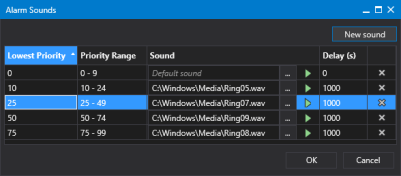
Alarm sounds configuration
- Click New sound to add a new alarm sound to the list of priorities. Configure the desired priority and associated sound for each range:
- Lowest Priority — Type a value to represent the lower end of the priority range. If you are using the CygNet Standard Point Scheme, the total valid range is 0 to 99, with 0 being the lowest and 99 the highest.
- Priority Range — This read-only column will automatically update to display the range based on the low value you entered, up to the bottom of the next configured range. For example, 0-24, 25-49, 50-74, 75-99 to represent four ranges from 0 to 99.
- Sound —
- Default sound — Use the default sound provided in Canvas.
- Browse to add a new WAV file for the selected priority. Click
 to select a path and file from the Open dialog box, where you can access a CygNet APPS or BSS folder or a local or network Windows file-system folder.
 - Click
 (Play alarm sound) to play the sound file.
- Delay (s) — Type a value in seconds to delay the playing of the sound.
- Or click
 (Delete row) to remove a selected row as necessary.
 - Click New sound again to add another priority range and repeat the steps described above.
- Click OK to accept the priority order, priority ranges, sound file, and save the configuration to the global settings file.
- Or click Cancel to close the dialog box without modification.
CygNet Help:
For more information about alarm priority, see the Alarm Priority, Alarm Priority Category, and Alarm Category topic in the CygNet Help:
- Alarms > Alarms Overview > Alarm Priority, Alarm Priority Category, and Alarm Category
For more information about point state attributes, see the Point State Definitions topic in the CygNet Help:
- Points > Points Overview > CVS Metadata File > PointStateDefinitions
For more information about alarm sounds and priority ranges,see the Audible Alarm Notifications topic in the CygNet Help:
- Alarms > Audible Alarm Notifications


