Canvas supports navigation to a specific screen by selecting a CygNet facility. You can also specify optional facility record properties to be included when the navigation is triggered. This Navigation by Facility feature requires global configuration of the facility attribute that contains the path to the screen that will be displayed when the navigation via facility is requested.
Any Canvas screen, the Alarm Notifier, and the Search Box control use navigation by facility to link to a facility's associated screen.
These settings are saved in XML format as part of the global settings file (.gsf) for your Canvas application and applied to all instances of Canvas. If no global settings file is available, none of these settings will be configurable, but a message will provide a link to the Backstage view where you can configure one.
Configure Facility Navigation
You must tell Canvas the facility attribute that contains the associated screen. In the same dialog box, you can configure other facility record properties to send along when the navigation is triggered. The facility attribute is configured on the Backstage view, Settings page.
- In the Backstage view, go to Settings, and click Facility navigation
 to open the Facility Navigation dialog box.
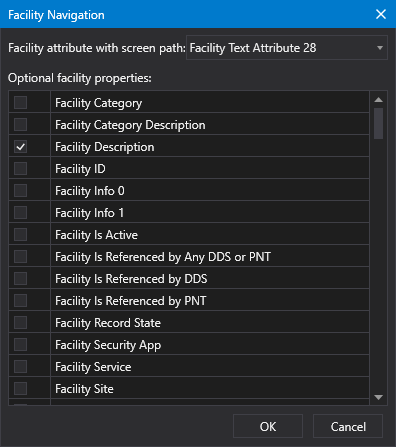
Facility navigation configuration
- Select the facility attribute previously configured in the facility record in the Facility attribute with screen path drop-down menu.
- Optionally, select any other facility record properties that you want to send when the navigation is triggered.
- Once the facility attribute is configured, click OK to save the configuration to the global settings file.
- Or click Cancel to abort and close the Facility Navigation dialog box.


