Configuring IIS for CygNet Web
The following steps describe how to set up Microsoft Internet Information Services (IIS) 7.5 and are provided for reference only. Newer versions of IIS support different user interfaces and APIs for IIS administration and management.
Note: Refer to the Microsoft Internet Information Services documentation for more information about features, administrative tools, installation, and configuration.
To Add a Web Server (IIS) Role
- Turn off User Account Control (UAC). (Control Panel > System and Security > Change User Account Control settings).
- Open the Server Manager, add the Web Server (IIS) role to your server. The required settings are as follows:
|
Web Server Common HTTP Features Static Content Default Document HTTP Errors Application Development ASP ISAPI Extensions Server Side Includes Health and Diagnostics HTTP Logging Request Monitor Security Windows Authentication Request Filtering Performance Static Content Compression Management Tools IIS Management Console
Windows Process Activation Service Process Model Configuration APIs |
- Click Install.
- On the Results page, your options should look like this:
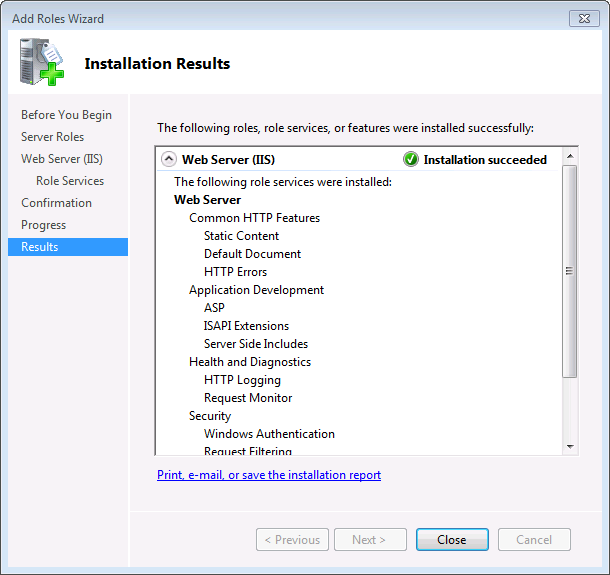
- Click Close.
To Configure IIS
- From within Server Manager, open the IIS Manager and select the server.
- Configure Authentication. Right-click on the Authentication icon (
 ) and select Open Feature.
- Disable Anonymous Authentication.
- Enable Windows Authentication.
- Go back to the server home.
- Configure ASP. Right-click on the ASP icon (
 ) and select Open Feature.
- Under Behavior, set "Enable Parent Paths" to True.
- Under Debugging Properties:
- Set "Run On End Functions Anonymously" to False.
- To make viewing any ASP error messages that may occur easier for debugging, set "Send Errors To Browser" to True.
- Set "Script Language" to VBScript.
- Go back to the server home. Save changes when prompted.
- If you’re on a 64-bit system, you’ll need to force it to run 32-bit IIS. You can do this in one of two ways: via a Command Prompt or via the IIS Manager, as described in the following procedures.
|
Command Prompt
IIS Manager
|
- Select the server again.
- Restart IIS.
- Click Restart in the Actions pane on the far right.
- Or open a command prompt and type the following:
|
iisreset |
Logging CygNet Web Activity
See Logging for information about how to turn on logging and View Log for log viewing information for CygNet Web.


