This topic describes how to configure relative facility definitions via the Canvas user interface.
- See Using Relative Facilities in Canvas for more information about this feature, including examples, design suggestions, and configuring relative facility definitions via script.
Configure a Relative Facility Definition
- On the Relative Facilities dialog box, click
 (Edit definition set) to open the Relative Facility Definitions for '<name of definition set>' dialog box.
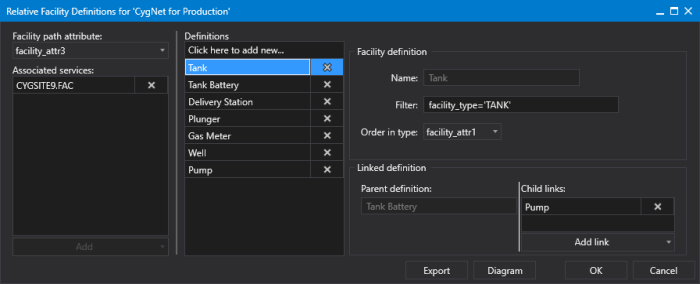
Relative Facilities Definition Configuration
- In the Facility path attribute field, select the facility attribute containing the facility Link from the drop-down menu. Options include a list of enabled text attributes including facility_info0, facility_info1, and facility_attr0 to facility_attr39.
- In the Associated services field, click Add to select the Facility service(s) from the drop-down menu that are associated with this definition. Multiple Facility services can be associated with the same relative facility definition.
- In the Definitions pane, click in the area titled Click here to add new... to add a facility type to the definition for the selected facility link. Type a name for your definition and press Enter. The Facility definition and Linked definition fields appear to the right.
- In the Facility definition area, specify a Name and Filter for your facility definition:
- In the Name field, type facility type name (such as Meter, Well, Tank Battery, etc.).
- In the Filter field, define a filter that identifies, in CygNet, the facility type you named in the previous step.
This Filter describes the facilities in the data hierarchy that can be used as starting facilities for linked facility paths. It also provides a path to terminal facilities.
Filter values may include facility attribute names, facility attribute values, and the operators AND and OR, =, <, and >.
The syntax for Filter is:
facility_attribute {= | <> | < | <= | > | >=} 'value'
[{ AND | OR } facility_attribute {= | <> | < | <= | > | >=} 'value'] [...]Examples:
facility_type = 'METER_RUN'
facility_type = 'METER' AND facility_attr1 = 'Water'
facility_type='TANK' AND facility_attr1='3' AND facility_table7='OIL'
- In the Order in type field, select a facility attribute from the drop-down menu to indicate the facility attribute used to represent the order in type (the facility ordinal) for this relative facility definition. The Order in type is used to account for multiple children of a certain type. For example, in a Tank Battery with multiple tanks, this attribute would specify the order of the child tanks in the tank farm. A blank attribute value means that the property is not to be used and will not be configurable when specifying a relative link on a Canvas screen or control. Options include a list of enabled text attributes including facility_info0, facility_info1, and facility_attr0 to facility_attr39. Note the following: Specifying an Order in type attribute reduces the number of relative facility definitions. Resolution must be the last resolved facility in the path or chain. Order-in-type-based definitions can allow for the creation of multi-parent configuration; this should be avoided. See Design Considerations for more information about creating Order-in-type-based definitions.
- Each relative facility definition requires a Linked definition, which includes a read-only Parent definition (unless the definition is the top of the hierarchy) and one or more Child links. Note that the Parent Definition is populated based on the configuration of other definitions. In the Linked definition area add appropriate child links for each definition:
- Click Add Link below the list of Child links to define the children for any selected definition by choosing an existing facility definition from the drop-down menu. Only the direct Child links need be defined.
- Repeat steps 3 to 6 for every relative facility definition.
- Use the
 (Delete associated service / Delete definition / Delete child link) to remove any item as necessary.
 - Click Export to export your relative facility definitions to an XML file. Browse to a known location, enter a file name, and click Save.
- Click Diagram to see a graphical representation of the relative facility definitions configured for this definition set.
- Click OK to save or Cancel to abort to return to the Relative Facilities dialog box.
- Click OK to save the configured relative facilities to the global settings file.
- Or click Cancel to abort and close the Relative Facilities dialog box.
Dialog Box Properties
The Relative Facility Definitions dialog box contains the following options and properties:
| Option | Description |
|---|---|
|
Facility path attribute |
Specifies the facility attribute containing the facility link. Options include a hard-coded list of enabled text attributes including facility_info0, facility_info1, and facility_attr0 to facility_attr39. |
|
Associated services |
The list of Facility service(s) associated with this definition. Multiple Facility services can be associated with the same relative facility definition. |
|
Definitions |
A list of the definitions configured for this definition set. Click Click here to add new... to add a facility type and populate the necessary fields. |
|
Facility definition |
Each relative facility definition requires a Name , a Filter, and an Order in Type, described below. |
|
Name |
Specifies the facility type name (such as Meter, Well, Tank Battery, etc.). |
|
Filter |
Specifies the filter that identifies, in CygNet, the named facility type. The filter is used to limit the facility definition and describes the facilities in the data hierarchy that can be used as starting facilities for linked facility paths. For example: |
|
Order in Type |
Specifies the facility attribute used to represent the order in type (the facility ordinal) for this relative facility definition. The Order in type is used to account for multiple children of a certain type. For example, in a Tank Battery with multiple tanks, this attribute would specify the order of the child tanks in the tank farm. A blank attribute value means that the property is not to be used and will not be configurable when specifying a relative link on a Canvas screen or control. Options include a list of enabled text attributes including facility_info0, facility_info1, and facility_attr0 to facility_attr39. Note the following: Specifying an Order in type attribute reduces the number of relative facility definitions. Resolution must be the last resolved facility in the path or chain. Order-in-type-based definitions can allow for the creation of multi-parent configuration; this should be avoided. See Design Considerations for more information about creating Order-in-type-based definitions. |
|
Linked definition |
Each facility definition displays a Parent definition and requires one or more Child links, described below. |
|
Parent definition |
Displays a read-only field showing the parent facility for the selected definition. If the definition is the top of a hierarchy, no Parent definition is shown. |
|
Child links |
A list of child links defined for any selected definition. |
|
Export |
Click Export to export your relative facility definitions to an XML file. Browse to a known location, enter a file name, and click Save. |
|
Diagram |
Click Diagram to see a graphical representation of the relative facility definitions configured for this definition set. |


