Installing the CygNet OPC UA Server
The CygNet OPC UA Server accesses CygNet services via an instance of CygNet Bridge API, in order to access data via HTTP. The following topic describes the OPC UA server system requirements, links to information about installing CygNet Bridge and CygNet Bridge API, the OPC UA log files, and how to install the OPC UA Server, and a list of files required by the server.
OPC UA Server System Requirements
CygNet's OPC UA Server is installed as a Windows service on a computer in your CygNet environment. The following CygNet components must also be installed in the same environment:
- CygNet SCADA Services
- CygNet Bridge API
- CygNet OPC UA Server
We recommend that the CygNet OPC UA Server be installed on a different computer from the machine where the CygNet SCADA system is running. CygNet Bridge and CygNet OPC UA Server may or may not be on the same server. It is recommended that these components be installed on separate servers to optimize performance.
There is more flexibility as to where the CygNet OPC UA server is installed. Since it communicates through CygNet Bridge, the server can be located on a computer that isn’t necessarily in the CygNet environment, since it does not require CygNet messaging or RUDP communication, as the server only needs to communicate over an HTTPS network connection. However close network proximity between the CygNet OPC UA Server, CygNet Bridge, and the CygNet SCADA system is recommended, to lower network latency and maximize performance.
Install CygNet Bridge API
Before you install the CygNet OPC UA Server you will need to install and configure CygNet Bridge API. See the following topics for more information:
Information about Installing CygNet Bridge
- CygNet Bridge (an Overview)
- Preparing Your System for CygNet Bridge (includes enabling .NET Framework, installing IIS, and activating HTTPS)
- Installing and Updating CygNet Bridge (includes installing, starting, and updating CygNet Bridge)
- Troubleshooting CygNet Bridge
Information about Configuring CygNet Bridge API
- CygNet Bridge APICygNet Bridge API (an Overview)
- Preparing Your System for CygNet Bridge API (includes licensing, ACS security settings, and optional two factor authentication)
- Accessing and Updating CygNet Bridge API (includes accessing and updating CygNet Bridge)
- Troubleshooting CygNet Bridge API
CygNet OPC UA Server Log Files
The CygNet OPC UA Server log files are found in the following default storage location:
- C:\ProgramData\Weatherford\CygNetOpcUaServer\Logs
Consult the log file to view any issues or errors related to the OPC UA service itself, installation, or its operational functions.
See the <LoggingConfiguration> element in the CygNetOpcUaServer.Config.xml file for more information about configuring logging for the OPC UA server.

Install the CygNet OPC UA Server
Accomplish all prerequisite system preparation tasks before attempting to install CygNet OPC UA Server. Preparation tasks include the following:
- Acquire and install CygNet OPC UA license. Note that you do not need a CygNet Bridge API license to use the CygNet OPC UA Server. See CygNet OPC UA Server Licensing.
- Start the CygNet Bridge API website.
- Configure the BRDGAPI/ACCESS security event in the CygNet ACS. This will be required for the OPC UA Server default user (configured via <CygNetBridgeUsername> in the CygNetOpcUaServer.Config.xml file), as well as for any users who will be connecting to the CygNet OPC UA Server using User Authentication. See CygNet Bridge API Access.
After you have prepared your server(s) and system to meet all requirements, install and configure CygNet OPC UA Server as follows.
To Install CygNet OPC UA Server
- Install the CygNet OPC UA Server:
- Obtain the product source files from the CygNet Software Download Website on the Weatherford software support portal (login required).
- Copy the CygNet OPC UA Server installer file (CygNetOpcUa.Setup.msi) to the staging location on the computer where you plan to install the service.
- Use the setup program to install the OPC UA service on the computer:
- Start the CygNet OPC UA installer, and click Next.
- Read (follow the link) and accept the terms in the End-User License Agreement (EULA), and click Next.
- Select the setup type that best suites your needs: Typical, Custom, or Complete.
- On the Ready to install page, click Install to install the CygNet OPC UA service.
- On the Completed … page, click Finish.
- Configure the CygNet OPC UA Server. Open the installed CygNetOpcUaServer.Config.xml file and configure it to your specifications. Save and close the file.
Note:
The CygNetOpcUaServer.Config.xml file is located in C:\ProgramData\Weatherford\CygNetOpcUaServer.
See Configuring the CygNet the OPC UA Server for more information about the settings in this file. - Encrypt the CygNet Bridge password. To encrypt the password, start the server using the "-encrypt" parameter. The server will stop after the password is encrypted. See CygNet OPC UA Server Password Encryption for more information about this step.
- Run the model builder script, GenerateCygNetModel.ps1, to generate the CygNetModel.json file, which is required to create the OPC UA internal node hierarchy (the address space). CygNet Bridge must be running. See Maintaining the CygNet OPC UA Address Space for more information about this process.
- Restart the the CygNet OPC UA Server. After editing the CygNetOpcUaServer.Config.xml file and building the CygNetModel.json file, you will need to restart the CygNet OPC UA Server, as described next.
Start CygNet OPC UA Server
Any time you finish installing or updating OPC UA Server, complete the following steps to initialize and launch the server.
To Start CygNet OPC UA Server
- Open Windows Task Manager (run TaskMgr.exe).
- Click on the Services tab.
- Find CygNetOpcUaServer in the list; the description is Weatherford CygNet OPC UA Server.
- Right-click and select Start.
Important Note:
You will need to restart the service each time you encrypt the password, edit the CygNetOpcUaServer.Config.xml file, or rebuild the address space.
CygNet OPC UA Server Startup Time
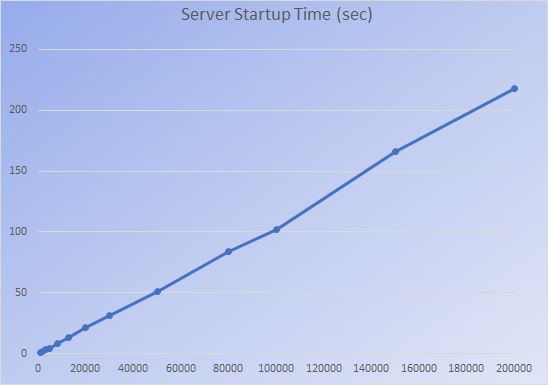
When the CygNet OPC UA Server starts, it first builds its internal node hierarchy from the contents of the CygNetModel.json file. The time required for this startup process to complete will depend upon the number of CygNet points represented in the CygNetModel.json file. The following chart estimates the number of seconds that the CygNet OPC UA Server will take to build its internal node hierarchy based upon the number of CygNet points included in the CygNet model. Your results will vary depending on attributes of your host machine and network environment such as CPU, memory, and network latency. See CygNet OPC UA Server Memory Usage for more information about how the server uses system memory.
|
CygNet OPC UA Server Startup Time |
Update CygNet OPC UA Server
The CygNet OPC UA Server can be updated any time a new version is released. Update the CygNet OPC UA Server files as follows.
- Stop CygNet OPC UA Server in the Task Manager.
-
Obtain the product source files from the CygNet Software Download Website on the Weatherford software support portal (login required).
- Copy the CygNet OPC UA Server installer file (CygNetOpcUa.Setup.msi) to the staging location on the computer where you previously installed the service.
- Open the CygNet OPC UA Server installer file, and follow the prompts to install the software.
- Start CygNet OPC UA Server in the Task Manager, as described above.
Required Files
The following table lists some of the important files you will need to run or configure when using the CygNet OPC UA Server and CygNet Bridge API.
| File | Folder | Purpose |
|---|---|---|
|
CygNetModel.json |
The location for this file is determined by the <CygNetModelFilePath> element in the CygNetOpcUaServer.Config.xml file. The default path is C:\ProgramData\Weatherford\ |
A file generated by the model builder script (GenerateCygNetModel.ps1) that encapsulates the address space. The CygNet OPC UA Server uses the CygNetModel.json file on startup to populate its node hierarchy. The CygNetModel.json is created when the model builder script is first run. Each subsequent time the script is run the existing CygNetModel.json is backed up, and either archived (on success) or restored (on failure). Backups are stored in C:\ProgramData\Weatherford\CygNetOpcUaServer\CygNetModelBackups. The CygNetModel.json file should never be modified manually or deleted. |
|
CygNetOpcUa.Setup.msi |
Available from the CygNet Software Download Website on the Weatherford software support portal (login required) |
The CygNet OPC UA installer file. |
|
CygNetOpcUaServer.Config.xml |
C:\ProgramData\Weatherford\ |
The CygNet OPC UA Server configuration file. The server must be restarted each time you modify this file for changes to take effect. See Configuring the CygNet OPC UA Server for more information. |
|
CygNetOpcUaServer.exe |
C:\Program Files\Weatherford\ |
The CygNet OPC UA Server executable. There is no need to interact with this file, unless you plan to start the server or encrypt the password CygNetBridgePassword manually. See CygNet OPCUA Server CLI for more information. |
|
CygNetOpcUaServer.log |
C:\ProgramData\Weatherford\ |
The log file(s) generated by the CygNet OPC UA Server. See Configuring the CygNet OPC UA Server for more information about configuring logging. |
|
GenerateCygNetModel.ps1 |
C:\ProgramData\Weatherford\ |
The model builder script that generates the address space. Schedule this file to execute regularly, to pick up changes in your CygNet system. See Maintaining the CygNet OPC UA Address Space for more information. |

