CygNet FMS Balance Control
Important:
This topic has been updated to include additional functionality provided subsequent to the CygNet Software v9.6 release by "Required" FMS patches available in the 96_Patch_Composite.zip via the CygNet Software download site.
These Help documents assume installation of required patches.
Visit the Weatherford software support portal (login required), and access the CygNet Software Download Website to obtain and install required patch files and update your CygNet Measurement system to access the new features (from the support portal select CygNet Software > CygNet Software Download Site [login] > Software > SCADA and Measurement Products > 9.6 > Patches > 96_Patch_Composite.zip). See CygNet Software Downloads for additional access information.
 The CygNet FMS Balance Control is an ActiveX control used to view measurement data in order to understand the material and energy balances at various Node levels within the system. Each row represents a record time period, which can be expanded or contracted to customize the current view. Each column represents a data field.
See Using the Balance Control for more information about configuring and using this control.
See CxFmsBalanceCtrl Object in the Scripting section for more information about scripting this control.
Adding a Balance Control to a Screen
To Add and Configure a CygNet FMS Balance Control in CygNet Studio
- Create a new CygNet Studio screen.
- Click the ActiveX tool
 on the Standard Tools palette.
 - Click and drag the outline of a box on the screen. When the mouse button is released, an Insert OLE Control dialog box appears.
- In the dialog box, double-click on CygNet FMS Balance Control to place a Balance control on your screen.
- Right-click the control to open its property sheet.
- On the ActiveX page, click ... or double-click (OCXProperties) to access the CygNet FMS Balance Control Properties dialog box.
- The CygNet FMS Balance control contains a General tab, a Balance tab, and a Commands tab.
- Configure each page as desired, click Apply, and then click OK.
- Close the property sheet, save, and then switch to Run mode to use the control.
General Properties
The General page of the CygNet FMS Balance Control Properties dialog box contains the following properties. The Balance control displays data in Contract time (C) with one exception, therefore time format selection is not available in this control. The Last Modified timestamp is viewed in Local time (L).

| Property | Description |
|---|---|
| General | |
|
FMS service |
Type the name of the Site.Service to which to connect in the control's Chooser, or click ... to access the Select Service dialog box. |
|
Use Point in Time mode |
Click the check box to select/clear the option to use the Point in Time mode. |
|
PIT (C) |
If Use Point in Time mode is selected, do one of the following.
Default value is T, date and time today. See Using the Home Menu for more information about PIT mode. |
|
Use Session Node |
Click the check box to select/clear the option to Use Session Node instead of using the chooser. Default value is cleared. |
|
Use Session options |
Click the check box to select/clear the option to Use Session options instead of entering a time window and time format. Default value is cleared. |
|
Show Chooser pane |
Click the check box to select/clear the option to display the Chooser pane in the control. Default value is selected. |
|
Show Options pane |
Click the check box to select/clear the option to display the Options pane in the control. Default value is selected. |
| Node Chooser | |
|
Allow FMS service selection |
Click the check box to select/clear the option to show the FMS service selector in the control's Chooser. |
|
Group |
Select the desired Node Group type to display in the control's Chooser from the drop-down menu. Options are as follows.
|
|
Filter |
Select a filter. First type a partial string of known Node name/description/ID characters to populate the filter text box in the control's Chooser. Wildcard values * (multiple character) and ? (single character) are supported. Default value is * (multiple character wildcard) - all. Note: Wildcards can be used only when filtering by Name or Desc, not when filtering by ID. Then select a Node option to filter for results. Options are as follows.
|
|
Primary column |
Select the desired primary sort column in the control's Chooser from the drop-down menu. Options include the following
Default value is Name ascending |
| Date | |
|
Start |
Date selections are in Contract days (C). Enter the starting date (absolute or relative date) in the text box or click ... to access the Select Date dialog box. See Selecting Date and Time for more information. |
|
End |
Date selections are in Contract days (C). Enter the ending date (absolute or relative date) in the text box or click ... to access the Select Date dialog box. See Selecting Date and Time for more information. |
See Using the Balance Control for more information about configuring these properties.
Balance Properties
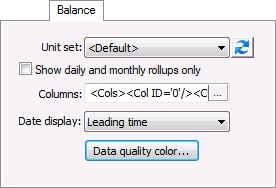
The Balance page of the CygNet FMS Balance Control Properties dialog box contains the following properties.
| Property | Description |
|---|---|
|
Unit set |
Select a Unit set in which to view the data. Options appear in the drop-down menu, which is populated by the unit sets defined in the service, and includes a default unit set. |
|
|
Click to Refresh the available unit set list |
|
Show daily and monthly rollups only |
Click the check box to select/clear the option to only view daily and monthly rollups in the grid. Selection of this option enhances speed and efficiency for usages where constant access to hourly data is not required. When this option is selected, hourly data views are available via the control context menu by selecting the "View hourly data" option. |
|
Columns |
Click ... to access the Balance Columns dialog box to select columns for display in the control. Options include a variety of data fields that can be displayed as applicable to your Node types and business purposes. See Using the Balance Control for more information about columns. |
|
Date display |
Click to select a date display convention from the drop-down menu. Options are as follows.
|
|
Click Data quality color to access the Data Quality Color dialog box, to set cell coloring options based on data quality. Note: Options on the drop-down menu are populated by the values configured for your system on the Admin menu > Options button > Data Quality Settings page. The default data quality value is as configured for Quality for device data that validates. See Configuring Data Quality Settings for more information. |

See Using the Balance Control for more information about configuring these properties.
Commands Properties
The Commands page of the CygNet FMS Balance Control Properties dialog box contains the following options.
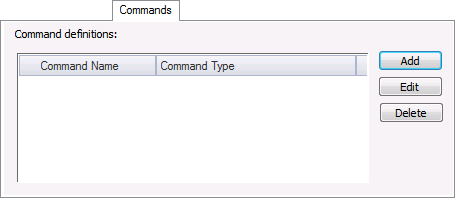
See Managing Node Commands for more information about configuring commands for the FMS Balance control.
More:
 CygNet FMS Balance Control – Properties, Methods, and Events


