 The Map control is a CygNet-aware tool that can be used to give geographical context to your facility data. The map supports multiple map layers, which can be used to display CygNet facility location data via three types of visual items, which represent what will be displayed for the facility at the specified coordinate, including:
- Image — an image or an icon, for example, an oil droplet image shown at a well site
- Shape — a customized geometric shape, for example, a diamond showing information about the facility

- Object — a Canvas object containing, for example, a Donut or Linear Gauge showing information about the facility
Some preconfiguration is required in the Facility service to store a facility's latitude and longitude location coordinates in facility attributes.
Map settings must be configured in the Backstage view and include the map provider (for the Canvas Native view the supported map providers are Bing and OpenStreet; for CygNet TWC web view the supported map providers are Azure and OpenStreet), the API key, and the facility attributes used to store the location data. These values are stored in the Canvas global settings file.
The Map requires Internet connectivity on the computer where Canvas or CygNet Thin Web Client is viewed to access the map providers.
Other configurable properties include the map units, map mode, zoom level, and the map's center when first displayed. You can also restrict a map layer’s visual items to a zoom range, meaning you can display different visuals as you zoom in and out of a map. The facility source for each map layer can be explicitly configured and filtered, or received from the screen. A specific map layer can act as a facility sender, which can be designated as the facility source on any other control configured to receive it. Whenever the visible items are updated (via pan, zoom, etc.) the dependent control’s facilities are updated accordingly. A specific map layer can act as a facility receiver, so the layer can receiver its facility information from another control on the screen. The map supports hyperlinking to other screens from an image or a shape visual () via configuration or scripting. A single click action will send any configured facility to the receiving screen. Hyperlink supports the following operational modes: Open, Modal open (a subordinate popup window), and Replace. Other run-mode features include a map view control, a navigation control for panning around the map, a zoom level control, a mini map, mouse position coordinates, and a map scale.
This control is supported in the Canvas Native view and the CygNet TWC web view.
Map Example
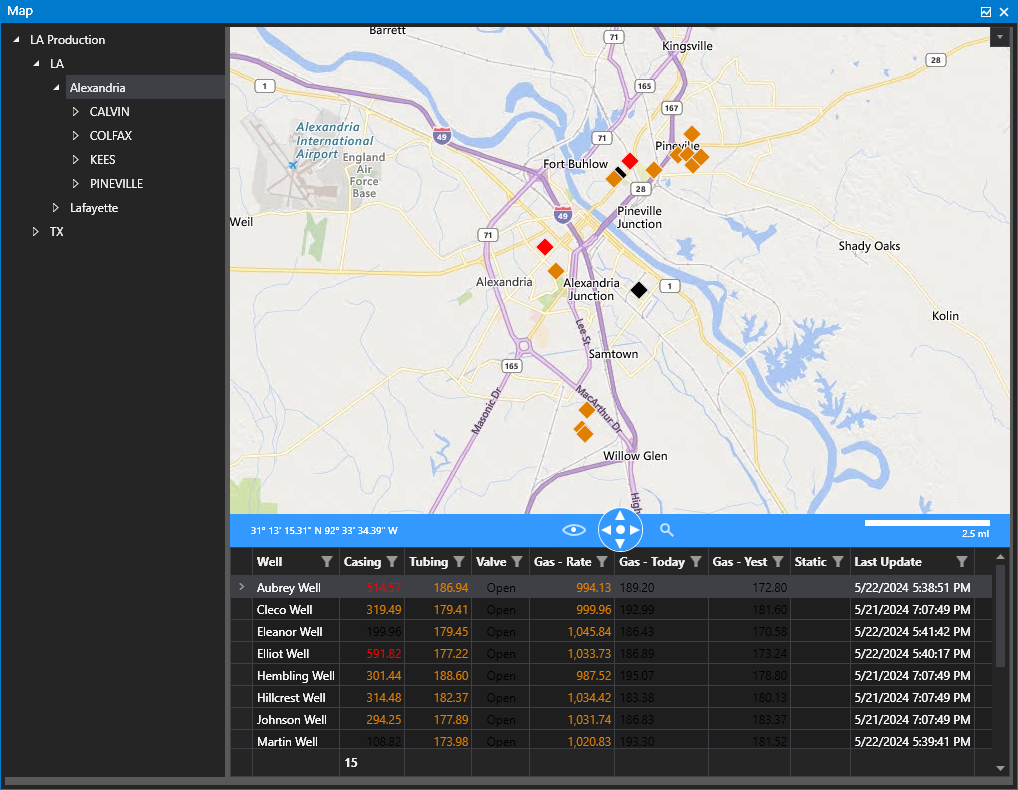
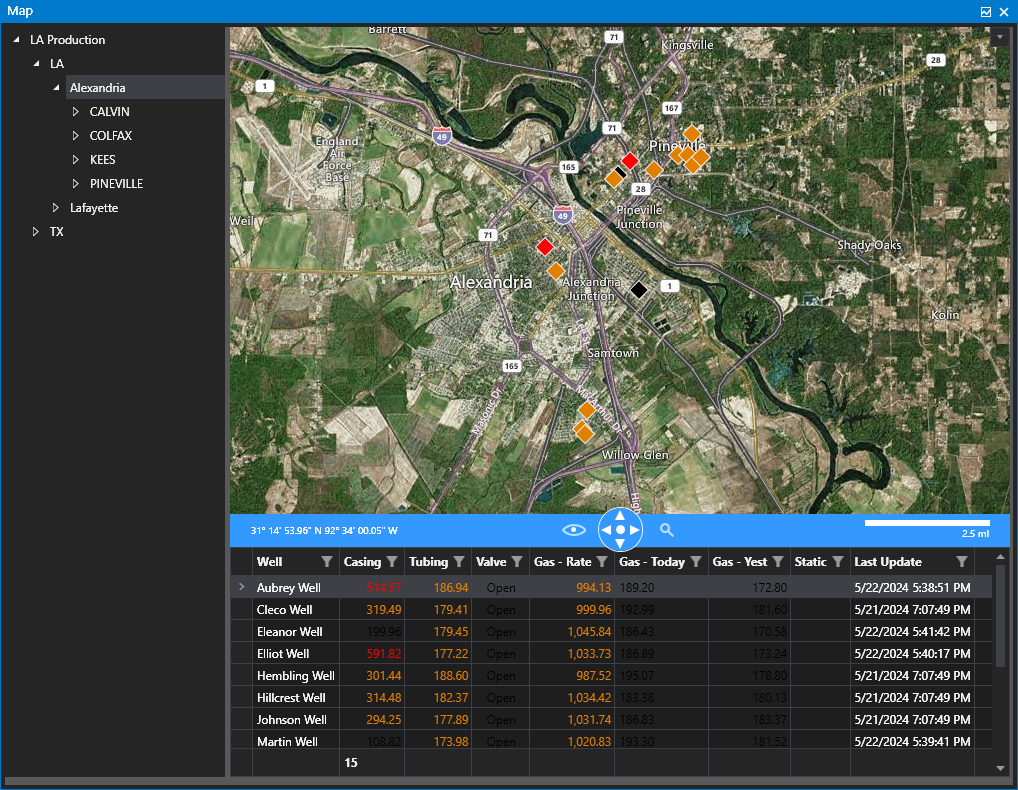
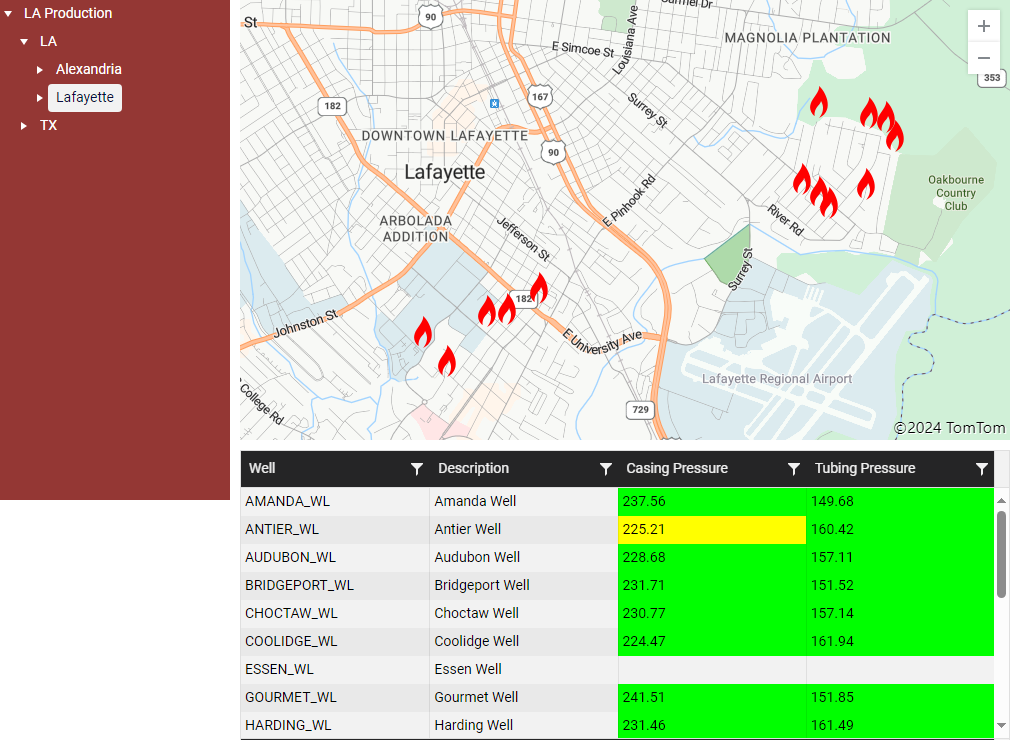
The following images show a map control driven by a Tag Chooser along with an associated CygNet Grid displaying data from the facilities shown on the map.
|
Click the thumbnail to see |
Click the thumbnail to see |
Click the thumbnail to see |
Map Configuration
Before adding a map control to a Canvas screen, you must first configure the global map settings in the Backstage view. Global map settings include the map provider, API key, and the CygNet facility attributes where latitude and longitude coordinates are stored. See Configuring Map Settings for more information.
Property Inheritance
Property Inheritance
Property inheritance, or sending and receiving, is a widely used concept in Canvas. The application supports an explicit relationship between screens, objects, and controls, where certain property values, such as facilities and SiteService details, are passed from one element to another via an inheritance framework. Screens, objects, and controls can be configured as property senders or property receivers and provide configuration options where you can explicitly define the source of the facility and SiteService. Depending on how you have your screens, objects, and controls configured, the facility and SiteService may be received from any one of the following sources:
- from itself — indicated by selecting <Self> and then explicitly configuring the property
- received from the screen — indicated by selecting Screen, which is always present as a sender
- received from another control — indicated by selecting the Name of the sending control.
Broadcasting
Screens and objects support an additional notification option to broadcast their facility and SiteService selection changes to other open screens. If configured, a <Broadcast> option is available to source the screen's facility and SiteService properties from another open screen.
For example, a Text Tool can be configured to get its facility from the screen and the screen can be configured to get its facility from a Tag Chooser. Or Screen_A might source its facility from Screen_B, which gets its facility from a Tag Chooser.
Receiver or Sender
The Map control supports property inheritance as a sender of its layer's facility:
| Receive from | Send to | ||
|---|---|---|---|
| SiteService | Facility | SiteService | Facility |
| screen | screen other controls (layer) |
none | screen other controls (layer) |


