The following steps describe how to install the CygNet Thin Web Client services for the first time. You can install CygNet Thin Web Client on an existing or new CygNet Software installation.
Install CygNet Thin Web Client
Perform the following steps to install the TWC services.
- Update the CygNet host to the latest version and install any patches. See the
 CygNet v9.7 Upgrade Procedure for upgrade instructions.
 - Download and install the required Canvas patch that matches the version you are running from the CygNet Download Site (login required) site.
- Download the TWC Services Installer from the CygNet Download Site (login required) site.
- CygNet services can remain running. Close Canvas if it is running.
- Run TWC.Installer.SetUp.exe as an administrator.
- Terms and Conditions
- Click license terms to view the Weatherford Terms and Conditions.
- Click I agree to the license terms and conditions.
- Click Install to launch the CygNet Thin Web Client Setup Wizard.
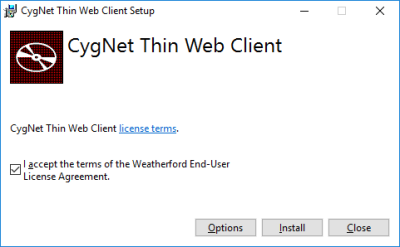
CygNet Thin Web Client Installer
- CygNet Thin Web Client Setup Wizard
- Wait for the installer to gather requirements. Click Next to start the setup wizard.
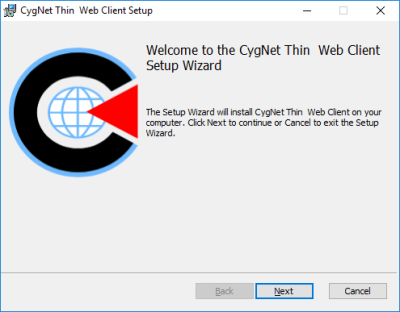
CygNet Thin Web Client Setup Wizard
- Destination Folder
- Specify the location where the service files will be installed. The default destination is C:\CygNetTWC.
- Or click Change to specify a different destination. Use Look in to browse to or create a new destination folder. Click OK.
- Click Next to accept the Destination Folder.
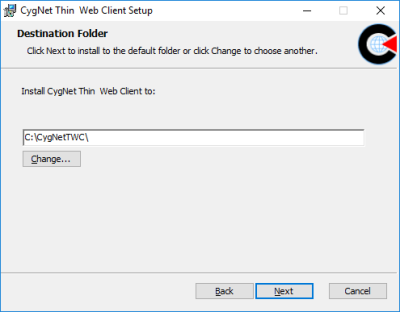
Destination Folder
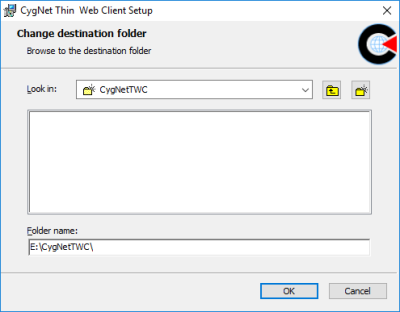
Change Destination Folder
- CygNet Properties
- Specify the following CygNet Properties:
- The CygNet Domain ID where the CygNet services are hosted. This is the same domain you configured in CygConn in Preparation Steps > Run CygConn.
- The name of the Access Control Service (ACS), which handles security access to CygNet data, in SITE.SERVICE format. Make sure the ACS event is configured in Preparation Steps > Allow Access in the ACS.
- The name of the Metrics Site Service, which will receive the server metrics data from the TWC server(s). This is usually the UIS on the same site as the ACS. See Monitoring the Performance of your TWC Servers for more information.
- The Certificate Subject of the SSL Certificate configured for your TWC system. This is the certificate configured in Preparation Steps > Install a Certificate.
These values are written to the Config\Configuration.json file during the installation process.
- Click Next.
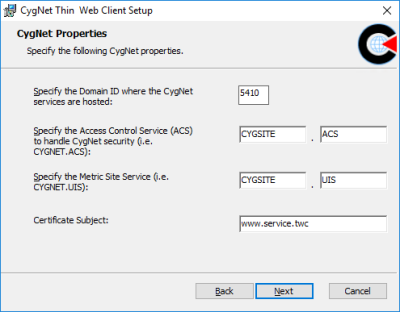
CygNet Properties
- Specify the following CygNet Properties:
- User Credentials
- Click Use the local system credentials to use local credentials.
- Or specify a dedicated Username (in domain\name.user format) and Password. This is the user configured in Preparation Steps > Create User.
Note: If the user doesn’t have proper permissions, the Installer will produce an error indicating the user doesn’t have the required permissions. You can fix it and resume the installation steps. Or if you ignore the error (it will happen multiple times), you will have to manually configure the Log on user in the Windows Services dialog box.
- Click Next.
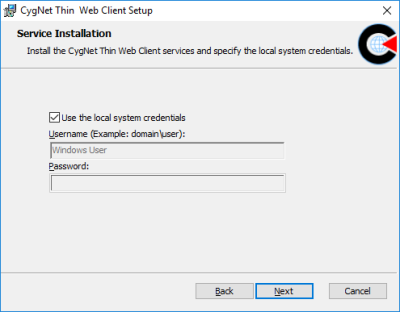
User Credentials
- Ready to Install
- You are now ready to install the CygNet Thin Web Client.
Click Install to copy TWC files, install, validate, register components, and start the TWC services.
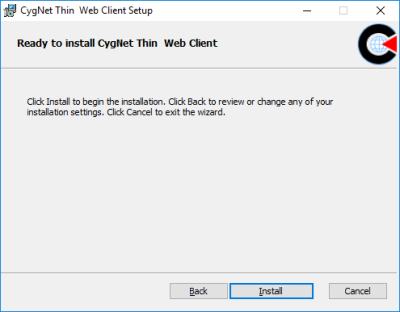
Ready to Install
- You are now ready to install the CygNet Thin Web Client.
- Setup Wizard Completed
- The CygNet Thin Web Client Setup Wizard is completed. Click Finish.
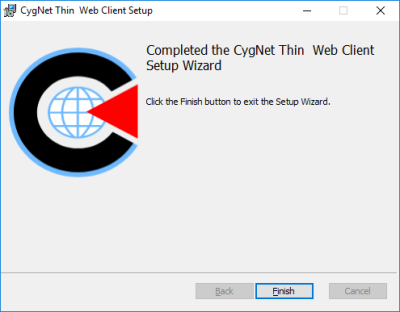
CygNet Thin Web Client Setup Wizard Completed
- Installation Successfully Completed
- The CygNet Thin Web Client Installation is completed. Click Close.
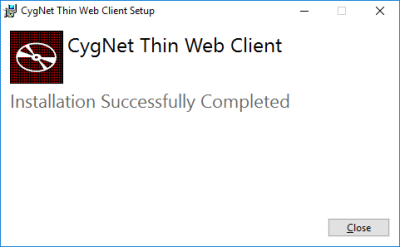
CygNet Thin Web Client Installer Completed
- Use Canvas to Create and Publish Applications
- Once the CygNet Thin Web Client services are installed, start Canvas and set up the Target environment.
- Go to the Web Settings and enter the Publishing service.

Refresh the Publishing service
- Use Canvas to create your user screens.
- Configure your applications — Use the Application page to configure settings for each TWC active application: name, friendly name, icon start page, menu items, Blob folders, and folder management. This is the page where you publish (or force publish) the active application.
- Publish your applications.
- Access your applications in your favorite web browser.
Troubleshooting TWC Installation
During the TWC installation or upgrading process, the TWC.Installer.SetUp.exe program adds or updates two Windows services (TWC.Service.Server and TWC.PublishingService.Server), grants or confirms the supplied user with "Log on as a service" permission, and then starts or restarts the services.
During this process, if the setup program is unable to grant or confirm permissions, or start the services, the user will be notified. If one or both of the services fail to start, you can attempt to manually start or restart the service(s) from the Windows Services dialog box. Manually starting or restarting the services will yield log details in the Services log files, which may be useful in troubleshooting installation or upgrade issues. One of the possible reasons a service won’t start is not being able to communicate with the CygNet server.
The relevant log files are found in the CygNetTWC installation directory.
-
\TWC.PublishingService.Server\logs
-
\TWC.Service.Server\logs
If you encounter installation or upgrade issues, and manually restarting the services doesn’t fix the problem, review the Services log files, and contact CygNet Support at the Software Support portal (login required), via phone at 1-866-4CYGNET (1-866-429-4638), or via email at CygNet Support.


