Alarm Priority, Alarm Priority Category, and Alarm Category
An alarm is internally identified by its bit number.
Alarm Priority is the number assigned to the alarm records for a point. This number may be used to sort and filter alarms in the alarm view, and for setting audible alarm notifications. If you are using the CygNet Standard Point Scheme, the valid range is 0 to 99, with 0 being the lowest and 99 the highest. There are four alarm priorities ranges, shown in the table below.
Alarm Priority Category is the category into which the Alarm Priority falls. Each category is a group of priorities. The CygNet Standard Point Scheme has four categories, shown in the table below: Low, Medium, High, and Critical. The Alarm Priority Category has both a description and an enumerated value, which is its numerical value, shown in the table below: None is 0 (applies only when a point is not in alarm), Low is 1, Medium is 2, High is 3, and Critical is 4.
Alarm Category specifies the alarm category for the point. This property applies to all alarms for a given point and is used for sorting and filtering alarms in the Alarm View. The alarm categories are defined in the PNTALCAT table in the Table reference Service (TRS).
This information is contained in the Point Scheme. The CygNet Standard Point Scheme (0) defines the following Alarm Priorities and Alarm Priority Categories:
| Alarm Priority (0-99) | Alarm Priority Category (Description) | Alarm Priority Category (Enumerated Values) |
|---|---|---|
| - | None (point is not in alarm, nothing is shown) | 0 |
| 0-24 | Low | 1 |
| 25-49 | Medium | 2 |
| 50-74 | High | 3 |
| 75-99 | Critical | 4 |
Analog High Alarm Example
In the following example, the point MESA_PSTATIC has an Analog High Alarm configured in the PNT Editor. The configurable bit for a high alarm for an analog point is "Configurable Bit 05." Some dialog boxes in CygNet Software (for example, the PNT Editor) show the name of the alarm (High Alarm), while other dialog boxes show the Configurable Bit number (Configurable Bit 5). In this example, the high alarm has a priority of "30", which falls into the "Medium" priority category.
You can see the Configurable Bit Number and Calculation Type for an alarm by hovering the mouse pointer over the Enable CVS Calculation column on the Analog/Digital/Enumeration/String page in the PNT Editor. The Alarm Category Description is shown as the Alarm Category for Point on the PNT Editor; in this example the alarm category description is "Operations."
|
Alarm Category for Point |
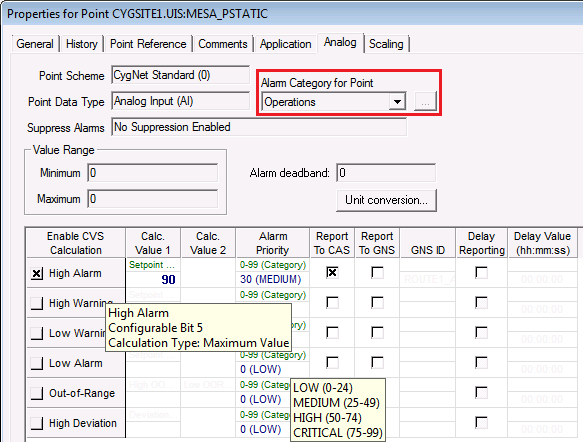
What is not shown directly in the PNT Editor is the enumeration value for the Alarm Priority Category. The "Medium" category is defined as alarm priorities 25 to 49 and the enumerated value is "2." You can see the Alarm Priority Description and Alarm Priority ranges for a point by hovering the mouse pointer over the Alarm Priority column on the Analog/Digital/Enumeration/String page in the PNT Editor.
Don't confuse Alarm Priority with the Alarm Priority Category enumeration, which are two different values and can be viewed in the Alarm View, as illustrated below.
|
Alarm Priority and Alarm Priority Category |
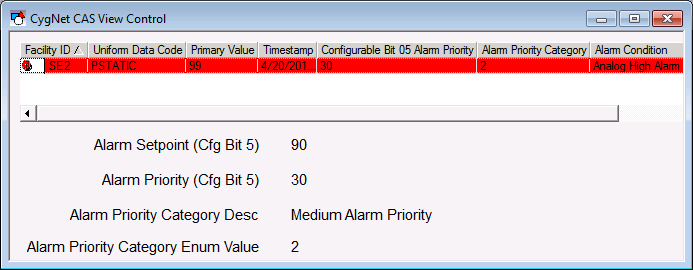
With an Analog High Alarm for which the Alarm Priority is "30," when the alarm is set, the Alarm Priority Category is "Medium" (for which the enumerated value is "2"). However, notice that the Configurable Bit 05 Alarm Priority is still "30."
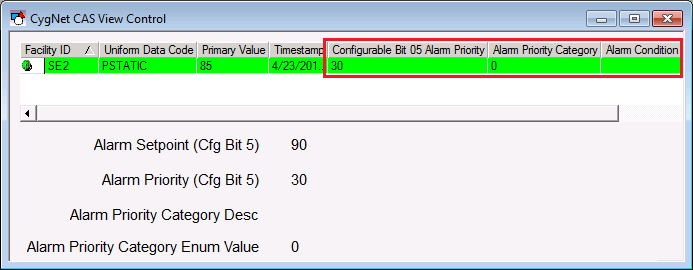
When the alarm is cleared , as illustrated below, the Alarm Priority Category is set to "None" (for which the enumerated value is "0"). However, notice that the Configurable Bit 05 Alarm Priority is still "30." The Alarm Priority did not change, just the Alarm Priority Category. The point is no longer in alarm so the Alarm Condition does not display.
|
Alarm Priority Category Cleared Alarm |
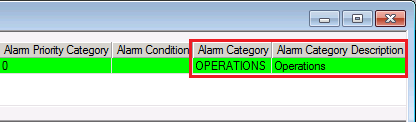
In this example, the Alarm Category and Alarm Category Description are shown in the last two columns of the view. The Alarm Category column is the PNTALCAT table entry (OPERATIONS) and the Alarm Category Description column is the table description (Operations).
|
Alarm Category and Alarm Category Description |
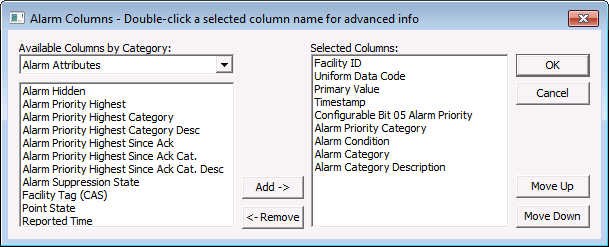
The Alarm Columns configuration for the Alarm View for this example would be as follows:
|
Alarm Columns |