Suppressing Alarms
When you suppress an alarm, it is suppressed until it returns to normal or a specified period of time has elapsed. Suppression can be set up for a point so that any alarm that is reported is suppressed or can be performed on an ad hoc basis (that is, suppression is an action you can take on the alarm in the alarm view). Suppression applies to all alarms for a point, not individual alarms.
|
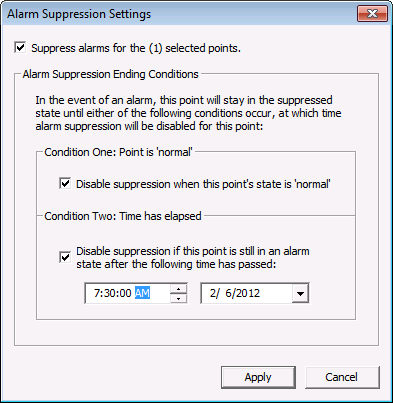
Alarm Suppression Settings Dialog Box |
To Suppress an Alarm on an Ad Hoc Basis
- Click to select the alarm(s) that you want to suppress. Use Ctrl+Click to select non-contiguous alarms and Shift+Click to select contiguous alarms.
- Right-click in the Alarm dialog box and select Suppress.
- Click to enable Suppress alarms for the (n) selected points. (The number of selected points is shown in parentheses.)
- Click to enable one or both suppression ending conditions.
- Click Yes to the confirmation message. Another message box appears giving the status of the suppression settings.
- Click Done.
To Configure a Point for Alarm Suppression
- Right-click on the alarm in the alarm view and select Properties.
- Click Point Configuration to open the PNT Editor.
- Click on the page that contains alarm information (Analog, Digital, String, or Enumeration).
- Click the Suppress Alarms browse button.
- Click to enable Suppress all alarms for this point.
- Click to enable one or both suppression ending conditions.
- Click Apply.
- Click Yes to the confirmation message. Another message box appears giving the status of the suppression settings.
- Click Done.
To Unsuppress an Alarm on an Ad Hoc Basis
- Set the filter of the alarm view to show suppressed alarms.
- Click to select the alarm(s) that you want to unsuppress. Use Ctrl+Click to select non-contiguous alarms and Shift+Click to select contiguous alarms.
- Right-click in the Alarm dialog box, and select Suppress.
- Click to uncheck Suppress alarms for the (n) selected points. (The number of selected points is shown in parentheses.)
To Remove Alarm Suppression from a Point Configuration
- Set the filter of the alarm view to show suppressed alarms.
- Right-click on the alarm in the alarm view and select Properties.
- Click on Point Configuration.
- Click on the page that contains alarm information (Analog, Digital, String, or Enumeration).
- Click the Suppress Alarms browse button.
- Click to uncheck Suppress all alarms for this point.
- Click Apply.
- Click OK.
Alarm Suppression and Notifications
If a point has alarm suppression active and one or more of its alarms are configured to send a notification, the notification will not be sent when the alarm is set due to the suppression. However, the Return to Normal message will be sent if: 1) the notification is configured to send a message when the point returns to normal; and 2) the suppression "end condition" is Point is Normal.
If an alarm is suppressed on an ad hoc basis and the point is configured with a notification, the notification message will have been sent. This is because the suppression was not active when the alarm occurred.


