Viewing Cards
Dynagraph cards are viewed in the card plot area as a data plot of load versus position. When a card is selected, its information, including minimum and maximum values, is displayed below the device status in the details panel. Although only one card can be selected at a time, it is possible to select a set of cards to overlay in the card plot area.
|
Sample Overlaid Dynagraph Cards: Surface and Downhole |
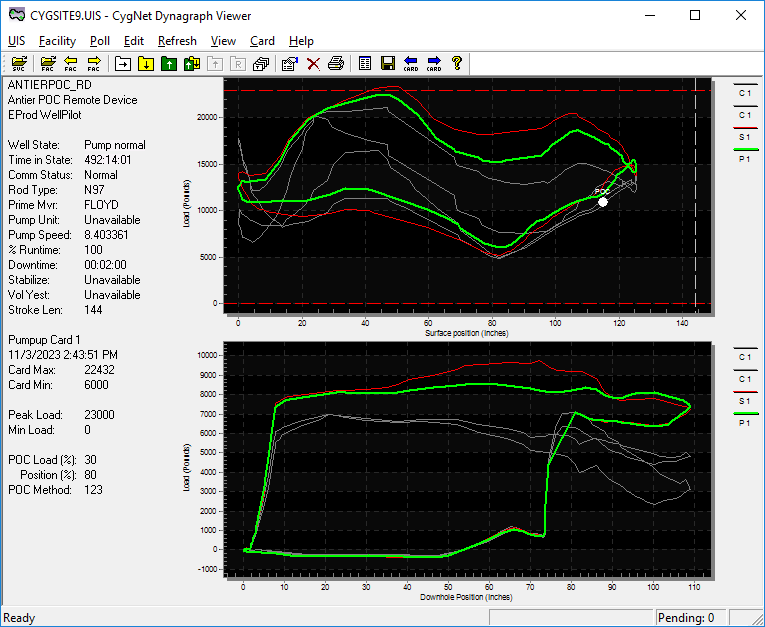
Retrieving cards from a device is simply a matter of issuing DDS commands. The Dynagraph Viewer simplifies this process with its toolbar commands and the Poll menu.
More than one card can be "on hand" at once in the Viewer. The View Set is the set of cards currently loaded. When you request a card, it is automatically added to the view set. Options exist to select previously retrieved cards stored in history to add to the view set, to select certain cards within it, to page forward and backward among the cards, and to clear all cards in the view set. View sets do not persist across Dynagraph Viewer sessions.
There are two ways to add a card to the view set:
- By executing a poll request
- By selecting a card from a previous transaction
When a card is added, it is appended to the view set. This means that paging through the view set using the Next and Previous commands does not translate to paging chronologically through the cards by timestamp.
A link for each card in the view set is created below the plot (or to the right of the plot when both surface and downhole cards are visible). These links show a bar filled with the card’s status color and a short label. You can click on a label to select the card. When a card is selected, the colored bar will appear slightly larger. Below is a sample of card labels in a view set.
|
Card Labels in a View Set |

More:


