CygNet Explorer
 CygNet Explorer is the main administration and configuration application for CygNet Software. It provides an overview of your entire CygNet implementation and provides an interface for modifying the records contained in the various services and viewing data. The CygNet Explorer executable is stored in the CygNet\Clients\CEXPLORE directory (CExplore.exe) on your host server.
|
Click the thumbnail to see |
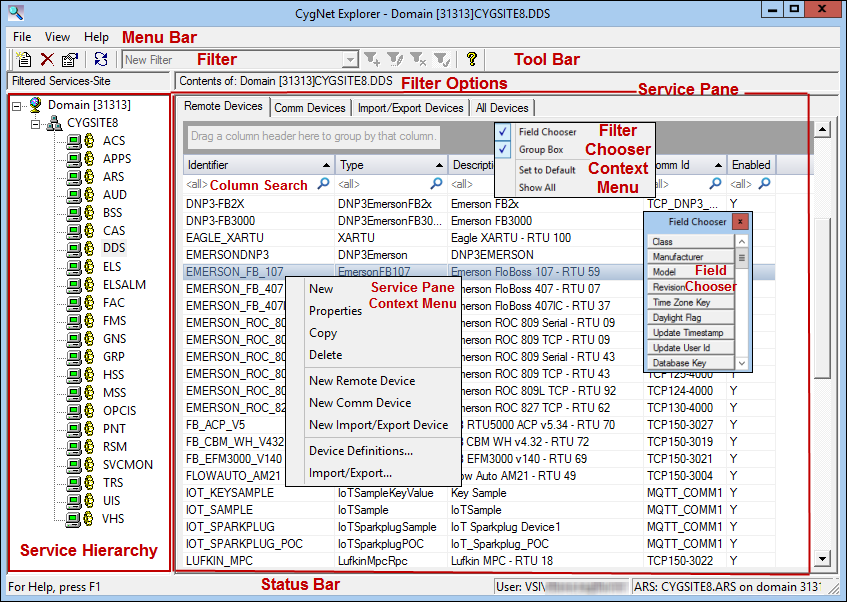
CygNet Explorer is composed of two panes: the service hierarchy (left pane) and the service pane (right pane).
- The service hierarchy shows the site and service names.
- The service pane shows the records of the selected service.
- The color of the icon in the service hierarchy indicates the state of the services:
Service Icon Color Status Description  Magenta
Defined
The service has been added to the ARS, but has never been started.
 Green
GreenOK
The service is running.
 Yellow
Out of Service
The service was stopped normally, or the restart of a previously running service failed.
 Red
RedFailed
The service stopped abnormally.
Host Activation and CAL Issues
You will be warned if CygNet explorer detects any Host Activation and/or CygNet Access License (CAL) issues. See Notification Bar.
Filter the Service Hierarchy
You can filter the services listed in the service hierarchy. See Filtering the Service Hierarchy.
Display the Records in a Service
To show the records in a service, click on the service in the service hierarchy (left pane). The records will be shown in the service pane (right pane). The contents of the service pane depends on the nature of the service. See Selecting a View.
Display Properties of a Record
To show the properties of a record, select the record and click the Properties button  or on the File menu click Properties. You can also double-click on the record or right-click on a record and select Properties from the context menu.
Refresh the Panes
CygNet Services can be configured to automatically refresh status by selecting the Auto Refresh check box on the View menu or on the context menu for the top-level domain node of the Service Hierarchy tree control. Note that the ARS and the RSM do auto refresh by default.
To refresh data records displayed in the service pane you must initiate the refresh. To refresh the contents of a pane, click in the pane and press F5 or click the Refresh button  .
.
CygNet Explorer is similar to Windows Explorer insomuch as the left and right panes do not refresh together. You must refresh each pane individually.
Restart a Service
You can Start, Stop, Kill, or Restart a service or services (Ctrl+Click to select multiple services) via the Context Menu for the ARS and RSM entries in the service pane.
To address questions or circumstances beyond the scope of the CygNet Help, Additional CygNet Resources are available.
More:
 CygNet Explorer User Interface
Filtering the Service Hierarchy
Using the Field Chooser in the DDS View


