Configuring Close Period Commands
For each eligible Node the Close Period command resolves to, use the Close Period command to close (or test close) open records through a date specified in the command parameters, if the records meet the close period requirements set up in your CygNet Measurement administrative system options. See the Close period section in Configuring Systems Options for more information about setting close period conditions.
Note: In the close period process, the "closed through" date of the previously closed record determines the starting date of the time range to close. If a Node has never been closed previously, the start of the closed period is the timestamp when the Node first started receiving data.
See FMS Commands and Close Period for more information about this command.
See FMS ActiveX Controls and CxHmiFms for more information about using commands via FMS ActiveX controls on CygNet Studio or CygNet Vision screens.
Configuring a Close Period Command
To Configure a Close Period Command
- Open the Command menu in FMS Explorer.
- Click Manage to access the FMS Command Definitions dialog box and then click Add to access the Create New FMS Command Definition dialog box.
|
Create New FMS Command Definition |
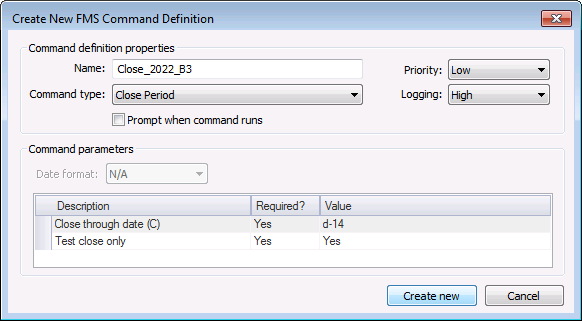
- Define the command definition properties.
- Type a Name for the command into the text box. Maximum character count is 50.
- Select the Command type from the drop-down menu.
- Select a processing Priority from the drop-down menu.
- Select a Logging level from the drop-down menu, to determine the level of logging details reported when viewing command logs. Options include Low, Medium, and High. See Viewing Command Logs for more information.
- Click to select/clear the check box to Prompt when command runs.
- Define the command parameters. The parameters for the Close Period command are described in the Command parameters box, which includes the Description, a Required indicator, and a configurable Value field. Set the value for each required parameter, as indicated in its Value field.
- Click Create New. The new command will appear in the list of FMS Command Definitions.
Command Definition Properties
The following command definition properties apply to Close Period commands.
| Property | Description |
|---|---|
|
Name |
Type in a Name for the new command. |
|
Command type |
Select the desired Command type from the drop-down menu. See FMS Commands for more information about available command types. |
|
Priority |
Select a processing queue Priority for the command from the drop-down menu. Options from least to greatest priority are as follows.
Default value is Low level processing queue priority. |
|
Logging |
Select a Logging level for the command results from the drop-down menu. Options are as follows.
Default value is High level logging. |
|
Prompt when command runs |
Click to select/clear the check box to Prompt when command runs. Selecting this option means you will receive a prompt asking if you want to modify the parameters before the command is executed. |

Command Parameters
The following command parameters apply to Close Period commands when creating or editing commands via FMS Explorer.
| Description | Value |
|---|---|
|
Close through date (C) |
The date through which to close data, in Contract time (C) Click ... to access the Select Date dialog box. See Selecting Date and Time for more information. This parameter is required. Default value is <Current> |
|
Test close only |
Indicates if this action will test the close period process to identify any outstanding issues or errors. Options are Yes or No. See Testing and Closing Periods for more information. This parameter is required. Default value is Yes |
Editing or Deleting a Close Period Command
See Managing Node Commands for information about editing or deleting this command.
Running a Close Period Command
See Running Node Commands for information about running this command from elsewhere in FMS Explorer.

