Configuring Dashboard Display Properties
Data displayed on the Dashboard can be customized using the Display editor. Edit color options in the display editor to customize the appearance of data shown in the grid, contributing to a clearer initial understanding of the data at a glance. You can configure the display of options for FG Color (foreground color), BG Color (background color), and selected categories of Cell Value, or use the default values provided.
If the selected property does not apply for a specific Node, the dashboard will display [NS] (not supported) in the record cells.
On the Options pane, click Configure colors to access the Display Properties dialog box.
|
Dashboard Display Properties |
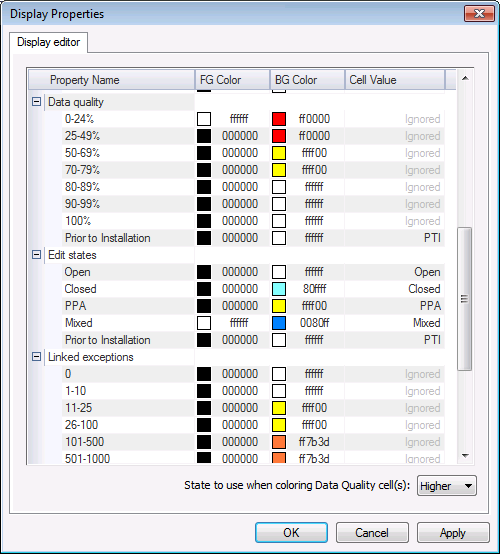
Set cell color and text values as you want them to be displayed in the grid. Configurable properties available in the display editor include the following.
| Property | Options |
|---|---|
|
Analyst overview |
Optionally select foreground and background display colors, and cell value text (10 character limit), for each of the following types of records. Note: Available configuration options are dependent on your system's operational mode (FULL or REPOSITORY) and the selected data mode (Device or Station), as described below. FULL mode systems display the following options. Note: All listed options may not appear (e.g. exceptions, low data quality, PPAs) if configured otherwise in the administrative options. See Configuring System Options for more information. (Device) mode only:
(Station) mode only:
(Device/Station) modes:
REPOSITORY mode systems display the following options. (Device) mode only:
(Station) mode only:
(Device/Station) modes:
Note: Type desired text into the editor's Cell Value fields to customize the cell values to display for this property. |
|
Collection details |
Optionally select foreground and background display colors to display for each of the following collection detail statuses.
See Data Collection Details in the CygNet Measurement Concepts section for more information about these values. |
|
Collection status |
Optionally select foreground and background display colors, and cell value text, to display for each of the following collection statuses.
See Data Collection Status in the CygNet Measurement Concepts section for more information about these values. Note: Type desired text into the editor's Cell Value fields to customize the cell values to display for this property. |
|
Configuration poll |
Optionally select foreground and background display colors, and cell value text, to display for each of the following configuration record statuses.
Note: Type desired text into the editor's Cell Value fields to customize the cell values to display for this property. |
|
Data quality |
Optionally select foreground and background display colors to display for each of the following data quality ranges.
|
|
Edit state |
Optionally select foreground and background display colors, and cell value text, to display for each of the following edit states.
Note: Type desired text into the editor's Cell Value fields to customize the cell values to display for this property. |
|
Linked exceptions |
Optionally select foreground and background display colors to display for each of the following number of linked exception(s) ranges.
|
|
Open exceptions |
Optionally select foreground and background display colors to display for each of the following number of open exception(s) ranges.
|
|
Raw data export |
Optionally select foreground and background display colors, and cell value text, to display for each of the following raw data export statuses.
Note: Type desired text into the editor's Cell Value fields to customize the cell values to display for this property. |
Configuring Display Properties
Configure the way you want various properties to appear in your Dashboard control. The settings will be saved to your workspace when you save the control.
To Configure Dashboard Display Properties
- In the Options pane, click Configure display to access the Display Properties dialog box.
- In the Display editor, click on a color field cell to edit FG Color or BG Color. See Configuring Color for more information.
- Edit applicable text value fields, as desired. Text in some cell value fields (analyst overview, collection status, configuration poll, edit states, and raw data export) can be customized. Click to select the Cell Value field, type in the cell value display desired, and then click OK to save the setting.
- Select which State to use when coloring Data Quality cell(s) from the drop-down menu. Options are for the color of the data quality cell, to reflect either the Lower or the Higher available value. The Lower value is shown by default.
- Click OK to save the settings.


