Configuring Data Quality Settings
Use the Data Quality Settings page to configure system data quality settings. Each data quality setting specifies an influence ranking and an acceptability percentage, that indicate the likelihood that the data at this quality is accurate, so that an analyst can use that information to understand the overall confidence in all measurement data values for any given period of time. See Data Quality for more information about this concept. You can also access audit history information from this page.
You must have proper security authorization to configure Data Quality settings. See FMS Security (and ACCESS security event) for information about configuring security access to administrative options.
Note: When changing security levels for a custom data quality security event, security will be effective after making the change, but you will need to restart FMS Explorer for the changes to take effect for that client. See FMS Security Events for more information about custom data quality events.
On the Admin menu, click Options, then Data Quality Settings to access the Data Quality Settings configured for your system.
|
Data Quality Settings |
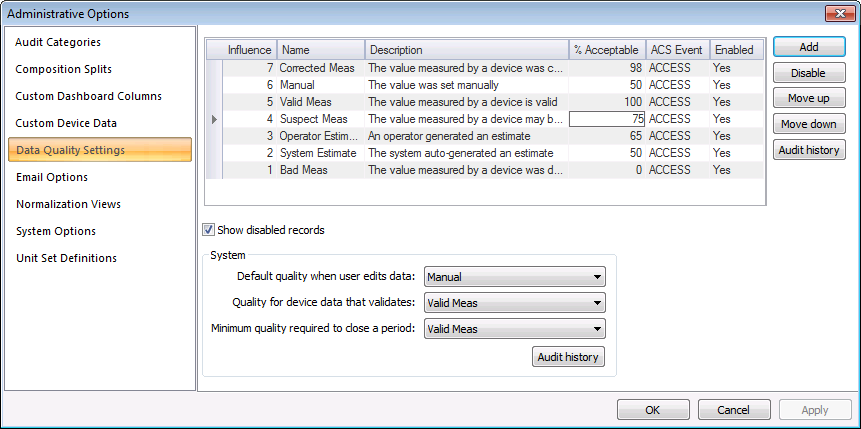
The properties for the Data Quality Settings page of the Administrative Options dialog box are described below.
Settings
The grid displays a list of the data quality settings defined for the measurement system in a descending order of influence. Use the buttons to manage the settings.
Note: Average Acceptability is not dynamically updated at the station level. When the data quality acceptability percentage is changed, average acceptability for the station will not be updated until the next time data is rolled up.
| Parameter | Description |
|---|---|
| [Data Quality Settings list] | |
|
Influence |
Specifies the Influence or order of precedence of the data quality settings. Use the Move up and Move down buttons to change the precedence. Items at the top of the list have a higher priority. |
|
Name |
The Name of the data quality setting Type a name for each data quality setting, as desired to correspond to its described characteristics. These names will then appear wherever "data quality" options can be selected. |
|
Description |
Specifies a Description of the data quality setting. Type a description to clearly identify each data quality setting. |
|
% Acceptable |
Specifies the percent of acceptability of data at the selected data quality setting. % Acceptable provides you with a level of confidence for each data record. Type a numerical value between 0 and 100, to indicate the likelihood that the data at this quality is accurate. Note: You can have higher precedence data with a lower % acceptability setting. |
|
ACS Event |
Specifies the Security Event in the Access Control Service (ACS) required by users to access data records of the selected data quality setting. Users must have a minimum access level to set data records to this data quality setting, and must have a higher access level to edit records with this data quality setting. Type the name of the ACS event type to govern security for each data quality setting. When modifying records that have an attached data quality flag (gas device & gas station), system administrators will be able to customize who can edit which records based on the quality of the data. Each data quality record will have a configured ACS Security Event. See FMS Security for more information. Note: For data quality ACS event changes to take effect, you must restart FMS Explorer. |
|
Enabled |
When Show disabled records is selected, specifies if the data quality setting is enabled. |
|
Add |
Click to Add a new data quality setting to the top of the list. |
|
Disable Enable |
Click to Disable/Enable a selected data quality setting. Note: Disabled records are not removed from the system, only from the default view. When Show disabled records is selected, all data quality settings will be displayed, and the Enabled column will indicate each data quality setting's status. |
|
Move up |
Click Move up to reorder selected data quality settings by moving the selected setting up in the list. |
|
Move down |
Click Move down to reorder data quality settings by moving the selected setting down in the list. |
|
Audit history |
Click Audit history to view the Audit History for the selected data quality setting. See Viewing Audit History for more information. |
|
Show disabled records |
Click the check box to also show any disabled data quality settings in the list. |
System
In order to configure data quality across the system, select the appropriate data quality state to use in each of the following well-known conditions. Data quality options in the drop-down menus appear as they have been configured in the data quality settings table, above.
| Parameter | Description |
|---|---|
|
Default quality when user edits data |
Whenever you edit device data, you will be prompted to choose a data quality for the new data record. This setting determines the default data quality selection, although the setting can always be changed. Select the default data quality setting to use when a user edits data, from the options available in the drop-down menu. |
|
Select the data quality to use when device data is validated successfully. Note: If a data record fails validation it will be assigned the data quality setting associated with the validation rule. If the record fails multiple validation rules, it will be assigned the data quality setting with the lowest influence (from the rules that failed). See Validation Rules for more information. |
|
|
Minimum quality required to close a period |
Note: This setting appears only in systems operating in FULL mode This setting defines the minimum data quality that all device data must meet in order to be closed. Select the minimum data quality setting from the drop-down menu. Notes: This setting is used only if the Close period Admin system options require that the Data meets or exceeds the minimum data quality. Otherwise, the value for Quality for device data that validates is used. See Close period on the Admin System Options page for more information. |
|
Audit history |
Click Audit history to view the Audit History for the system data quality settings. See Viewing Audit History for more information. |


