Configuring Normalization Views
Note: This functionality is only available in systems licensed for FULL mode.
Use the Normalization Views page to access a series of dialog box pages in which you can create, view, or delete normalization views. You can also access audit history information from this page. Multiple normalization views can be created to facilitate the publishing of data to the widest possible audience, via exports and report generation. Because they are associated with published data, normalization views are read-only once created, and cannot be edited.
Data normalization is the process of converting data to a common form so that it can be quickly retrieved for viewing and reporting purposes such as production accounting. Without using a normalization view, data retrieved from different Nodes cannot always be easily viewed together because the data is often based in different settings.
Example
Data collected from various Nodes contains different time spans, base conditions, and unit sets. A normalization view can be used to normalize all of the data to a uniform time span (e.g. hourly, daily, or monthly), base condition, and unit set. The data can then be published in a consistent view to the system database and/or to the SCADA system.
Virtual station groups also utilize normalization views to roll up and normalize data using a common time format setting. See Normalization Views in the CygNet Measurement Concepts section for more information.
You must have proper security authorization to manage normalization views. See FMS Security (and ACCESS security event) for information about configuring security access to administrative options.
Normalization Views
Data is normalized in CygNet Measurement via the Update Normalization Views command, which references a previously defined normalization view to associate with the data and determine how it will be viewed. The normalization view must therefore exist in the system before the data normalization command can be run. Normalization views are one of many options defined via the Admin menu.
On the Admin menu, click Options, then Normalization Views to access the normalization views configured for your system.
|
Normalization Views |
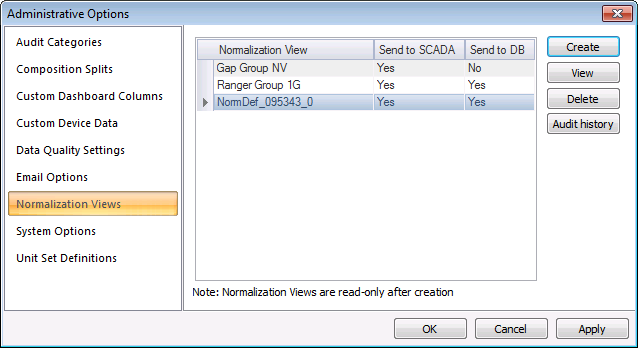
The properties for the Normalization Views page of the Administrative Options dialog box are described below.
| Parameter | Description |
|---|---|
| [Normalization View list] | |
|
Normalization View |
The name of the normalization view. |
|
Send to SCADA |
Indicates if data for this normalization view will be sent to the SCADA system. See Storage below. Note: The Node must be configured with a valid Site.Service and Facility to be able to normalize data to SCADA. |
|
Send to DB |
Indicates if data for this normalization view will be sent to the system database. See Storage below. |
|
Create |
Click Create to add a new normalization view. The Create New Normalization View dialog box will appear. See Creating a New Normalization View for more information. |
|
View |
Click View to view the properties of a previously created normalization view. A read-only version of the Normalization View dialog box will appear. |
|
Delete |
Click Delete to delete a normalization view. Note: Any data associated with the selected normalization view will be retained in the database &/or SCADA, when the normalization view is deleted. |
|
Audit history |
Click Audit history to view the Audit History for the selected normalization view. See Viewing Audit History for more information. |

Viewing a Configured Normalization View
Each currently configured normalization view is listed in the Normalization Views list in the Admin options.
To View a Configured Normalization View
- On the Admin menu, click Options, then Normalization Views to access the normalization views configured for your system.
- Click the desired normalization view from the list of currently configured views and then click View to view details of the selected normalization view.
Creating a New Normalization View
Each new normalization view describes a discrete set of parameters governing how the selected data will be viewed, and can be given a precise name to help identify it easily within the system.
Note: Normalization views are read-only once they have been created, therefore they cannot be edited.
To Create a New Normalization View
- On the Admin menu, click Options, then Normalization Views to access the normalization views configured for your system.
- Click Create to access a series of tabbed pages containing normalization view parameters.
|
Create a New Normalization View |
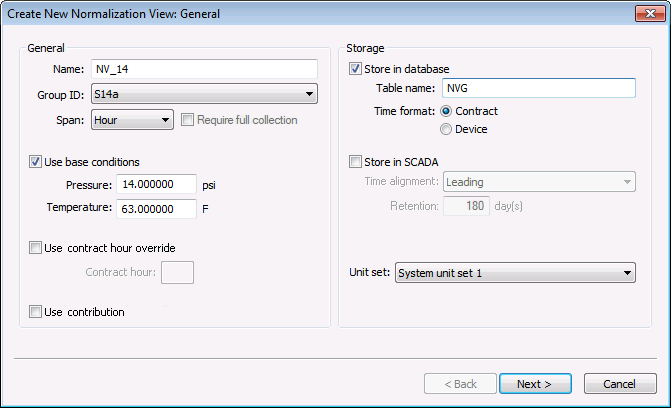
- Define the parameters on each of the following pages.
- Click OK.
General
The properties for the Create New Normalization View: General page are described below.
|
Create New Normalization View: General |
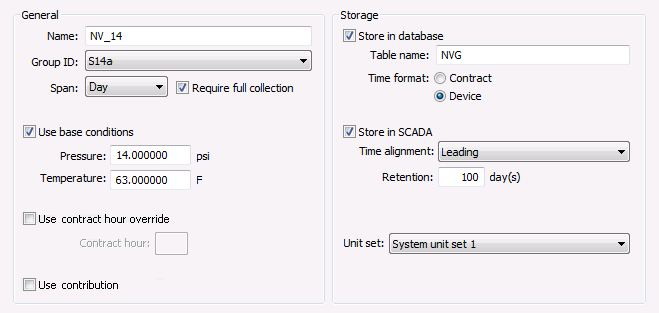
| Parameter | Description |
|---|---|
| General | |
|
Name |
The name to assign to the new normalization view |
|
Group ID |
Select a Group ID from the drop-down menu. This value must be a General Group. All eligible Nodes contained within the selected group will have their data normalized and published. Any ineligible Nodes in the general group will be ignored. If the General Group contains a virtual station group then the data will only be normalized and published for the virtual station, not for any of the stations within the virtual station. Note: If the normalization view is being pushed to the SCADA system, the reporting Site.Service and Facility ID of member Nodes in the group (direct children) must be set. |
|
Span |
Select the time span for the normalization view. Options are as follows.
Note: For Normalization View data exports utilizing the Avg Acceptability value, the record span affects how the value is displayed. See Configuring Normalization View Data CSV Exports for more information. |
|
Require full collection |
Available for daily and monthly spans. If selected, data will only be normalized if the span contains no missing data. |
|
Use base conditions |
For station-level data (station meters or station groups), click to select the Use base conditions check box to normalize the volumetric base conditions for this normalization view. If used, specify the base Pressure and Temperature override values. |
|
Pressure |
If selected, indicate the Base Pressure override value to use, in psi. |
|
Temperature |
If selected, indicate the Base Temperature override value to use, in degrees F. |
|
Use contract hour override |
Click to use the contract hour override value instead of the contract hour configured in the Node properties. Specify the desired contract hour value. |
|
Contract hour |
If selected, indicate the contract hour value to use for the offset (in number of hours) from the 00:00:00 (midnight) Device time. |
|
Use contribution |
Click to use configured receipt (+) or delivery (-) contribution values. |
| Storage | |
|
Store in database |
Click to store the normalization view in the system database. |
|
Table name |
Indicate the table name where the normalized data will be saved. The table name will be created by the Measurement system. Note: The table name must adhere to established Microsoft SQL Server table naming rules. Refer to the following MSDN websites for assistance: Rules for Regular Identifiers and Reserved Keywords for the keywords to avoid. |
|
Time format |
Select the time format in which to normalize the data. Options are as follows.
|
|
Store in SCADA |
Click to store the normalization view in the SCADA system. Note: When selecting to store normalization data in SCADA points, data is stored in Device time (D), as an offset from UTC time. |
|
Time alignment |
Select the time alignment for the timestamp used for data published to the SCADA system. Options are Leading or Trailing. |
|
Type the number of days for the data to be retained for the SCADA system (Keep Values Within Days for the points). Options are as follows.
Notes: Data purge behavior for expired normalization views is determined by the value of the DATA_RETENTION keyword configured in the FMS configuration file (CygNet\Services\FMS\fms.cfg) Database retention periods for commands are configured per command type (number of days) via the Configuring Database Maintenance Retention Periods dialog, accessed from the Commands menu ribbon. |
|
|
Unit set |
Select the desired unit set to use for normalizing process variables, for the measurement database and/or the SCADA system. Important: The unit sets used for a normalization view must be marked as Read-Only so that a user cannot change the meaning of the data after the view has been created. The units defined for each unit set (and their Read-Only property) are configured on the Unit Set Definitions page of the Admin Options. Notes: If publishing to SCADA and creating new points, the points will have these units. If the points already exist, the data will be converted, if necessary. The normalization view Unit set drop-down menu will contain all available read-only unit sets, with the exception of the <Default> unit set, which is a system-constructed set and not available for normalization views. |
Details
The properties for the Create New Normalization View: Details page are described below.
|
Create New Normalization View: Details |
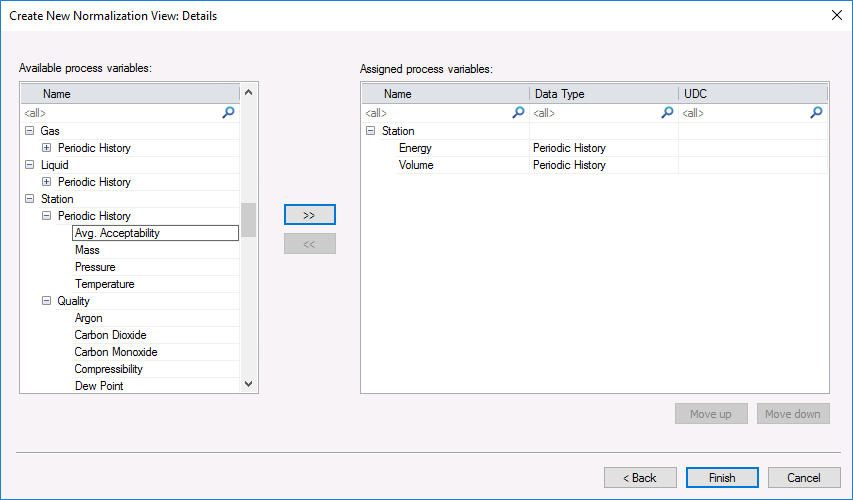
| Parameter | Description |
|---|---|
| Available Process Variables | |
|
Name |
Lists the names of the data items available to be assigned to the new normalization view, organized by FMS data type All available data item options appear by default. Use the filter bar
Multi-item selection is supported. |
|
Click >> to move the selected data item from the available list to the assigned list |
|
|
Click << to remove the selected data item from the assigned list and place it back on the available list |
|
| Assigned Process Variables | |
|
Name |
Lists the names of the data items that have been assigned to the new normalization view All assigned data items appear in this list. Use the filter bar To add data items to the new normalization view, select items from the available list and use the >> button to shift the items to the assigned list. To remove data items from the new normalization view, select items from the assigned list and then use the << button to shift the items back to the available list. Multi-item selection is supported. |
|
Data Type |
Click to store the normalization view in the SCADA system. Use the filter bar Note: When selecting to store normalization data in SCADA points, data is stored in Device time (D), as an offset from UTC time. |
|
UDC |
Type the UDC for the data item into the field. Use the filter bar |
|
Move up / Move down |
Normalization will be performed in the specified order of data item precedence. Click Move up to move the selected data item further up in the list of assigned process variables to be used earlier in the normalization process. Click Move down to move the selected data item further down in the list of assigned process variables to be used later in the normalization process. |
 to sort items within the following data types and locate specific items more quickly.
Click the Active check box to select each process variable you want to publish, and type a value to specify the SCADA system UDC name.
If you are pushing normalized data to the SCADA system, you must specify a UDC for each data point. The Update Normalization Views command will create the points and facilities automatically if they do not already exist. The Site.Service and facility that are used will be the Reporting CVS and Reporting facility for the record. See Viewing and Editing Gas Meter Node Properties for more information.
The Keep values within last value for the point will be set to the Retention days configured in the normalization view.
Deleting a Normalization View
Normalization views are read-only once created, therefore they cannot be edited. They can however be deleted from the system when no longer required. When a normalization view is deleted, the data associated with the selected normalization view remains in the database &/or SCADA, but it is no longer associated with that normalization view.
To Delete a Normalization View
- Verify that the normalization view is no longer required for any data purposes.
- On the Admin menu, click Options, then Normalization Views to access the normalization views configured for your system.
- Click the desired normalization view name from the list of currently configured views, and then click Delete to remove the selected normalization view from the system.
Rollup of Virtual Station Group Data for Normalization
Virtual station group data is rolled up for normalization based on the time setting of the associated normalization view. This applies whether you are normalizing virtual station data to hourly, daily, or monthly values; data will be rolled up accordingly.
In order for virtual station group data to be rolled up successfully, all member Node entries of the group must have the same settings for each of the following.
- Contract hour
- Time zone
- Daylight saving time
Storage in the Database
When storing data in the database, time settings for all data will be rolled up to one of the following time formats, as specified in the normalization view.
- Device time
- Contract time
Storage in SCADA
When storing data in SCADA, time settings for normalization views are specified by Device time, as an offset from UTC time.
All child station Node data is rolled up from the original Device time zone to the normalization view time zone, in UTC time. Data is always rolled up as it happens, for an instance in time.
Normalization Views and Security
If data values aren't being published to the VHS in the SCADA system, check the security application for the FMS. See Troubleshooting CygNet Measurement for more information.

