Configuring Unit Set Definitions
Use the Unit Set Definitions page to configure measurement data unit sets (for configuration, gas, liquid, or shared data types) so that you will be able to apply a complete set of consistent units to your data views. This includes the ability to designate a "user default" unit set to automatically apply in your CygNet Measurement client applications unless you select otherwise.
Each unit set you define prescribes the unit types to use for every applicable configuration data item or process variable that requires units. Unit set definitions configured in this manner are then available for selection throughout FMS, unless disabled. You can select the unit set definition in which you want to view data in many locations throughout the CygNet Measurement system, including the Exceptions, History Grid, History Graph, Configuration, Prior Period Adjustment, and Balance data controls. You can also access audit history information from this page.
You must have proper security authorization to configure parameters for unit set definitions. See FMS Security (and ACCESS security event) for information about configuring security access to administrative options.
Viewing and Configuring Unit Set Definitions
On the Admin menu, click Options, then Unit Set Definitions to view and configure unit types to comprise the unit sets defined in your system, and optionally designate a user default unit set. A system <Default> unit set is also installed with a base CygNet Measurement installation.
|
Unit Set Definitions |
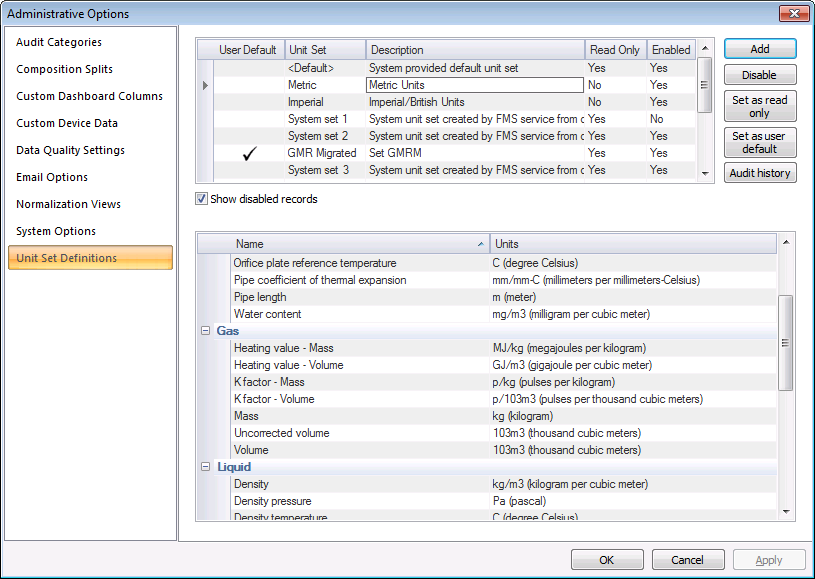
The properties for the Unit Set Definitions page of the Administrative Options dialog box are described below.
| Parameter | Description |
|---|---|
| [Unit Set list] | |
|
User Default |
If used, indicates which unit set has been designated as the user default, using the Set as user default button. |
|
Unit Set |
The name of the unit set. Click to configure its units in the Data Items list below. Note: CygNet Measurement uses the <Default> unit set to normalize all imported data. |
|
Description |
Specifies a description for the selected unit set. |
|
Read-Only |
Specifies whether the selected unit set is read-only or not. Once a unit set is marked as read-only, it cannot be edited, and the meaning of any data associated with that unit set is protected from change. The read-only unit sets are used in Normalization Views, as the unit set assigned for normalizing data. See Set as Read-Only below. |
|
Enabled |
When Show disabled records is selected, specifies if the unit set is enabled or not. |
|
Add |
Click Add to add a new unit set. Type in a name for the unit set and a useful set description. |
|
Disable Enable |
Click Disable/Enable to disable/enable a selected unit set. To view disabled units sets, select the Show disabled records check box. The <Default> unit set cannot be disabled. Note: Disabled unit sets are not removed from the system, only from the default view. When Show disabled records is selected, all unit sets will be displayed, and the Enabled column will indicate each unit set's status. |
|
Click Set as read-only to make a selected unit set read-only. Once a unit set is marked as read-only, it can be used in a normalization view, but no further change can be made to it. See Read-Only above. |
|
|
Click Set as user default to select a unit set to appear as the default selection for your CygNet Measurement clients (FMS Explorer, CygNet Studio/Vision). |
|
|
Audit history |
Click Audit history to view the Audit History for the selected unit set. See Viewing Audit History for more information. |
|
Show disabled records |
Click to select/clear this check box to show/hide any disabled unit sets in the list. Disabled records will not show up as a choice in any FMS controls. |
| [Data Items list] | |
|
Configuration |
If the selected unit set is not set to read-only, select an item and then specify the associated units, for each data item in the selected unit set. For each data item Name, click the Units cell and then click the Down arrow to access available unit options (for items that have multiple possibilities) and then click to select the units desired. Note: Shared items can apply to both configuration and metering items, or to both gas and liquid items. The shared items use gas quality units that can be stored either in the configuration record or in the live history record. See FMS Data Items Units for more information. |
|
Gas |
|
|
Liquid |
|
|
Shared |
|
More:


