Deleting Nodes and Purging Records
 Use the Delete Nodes button to either delete a Node from a point in time, or to completely purge a Node and its records from the system. Consider any Node dependencies before initiating a delete/purge action.
Note: Do not confuse the actions accessed via the Delete Nodes button (deleting Nodes or purging Node records) with purging device data, which is a distinct and separate action. See Purging Device Data for more information about purging a Node's historical device data records.
This action contains the following two options.
- Delete from a Point in Time - removes (effectively deactivates) the selected Node record from a specified point in time (PIT), going forward indefinitely, and historizes the change. The Node still exists in the system, and its properties can still be edited. Selecting this option causes the action button at the bottom of the dialog box to read Delete.
- Purge from system - removes the selected Node and its data records from the system entirely. The Node will no longer exist.
Selecting this option causes the action button at the bottom of the dialog box to read Purge.
Note: The Purge from system action cannot be undone. Be certain of any decision to purge records from your system, as the Node and all its associated data will be completely purged.
You must have proper security authorization to perform these actions. See FMS Security (and NODE security event) for information about configuring security access for deleting Nodes and purging Node records.
Security authorization can sometimes get a little tricky when dealing with Nodes that have been deleted from a specific point in time, since having Node level security authorization for a Node that no longer exists at a specific point in time will not allow you to take action against it (such as then purging the Node).
Example
In PIT mode, in Contract time (C), you may be able to view a particular Node you want to purge. If that Node has been deleted however, you will be unable to purge it using your current Node security application. You would therefore need to have the required Service security application in order to successfully purge the Node. See FMS Security Applications for more information.
Deleting Nodes or Purging Records
To take either Node deletion action, open the Nodes menu FMS Explorer, and then click Delete Nodes to access the Delete Nodes dialog box. In the Node list, use the Node chooser to filter and select Nodes to include in your selected action.
Note: If you are using CygNet Dispatch to integrate field information with CygNet Measurement, be aware that the action of deleting Nodes or purging records also permanently and completely removes all associated CygNet Dispatch job information from the system.
|
Delete Nodes |
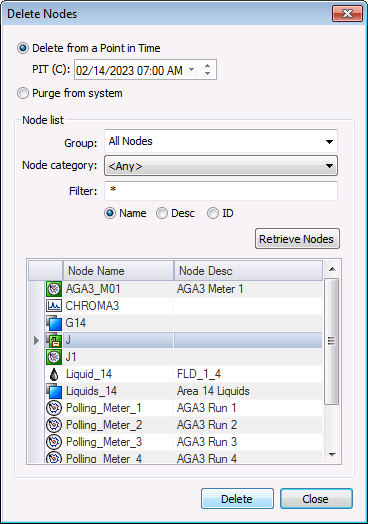
The following table describes options found on the Delete Nodes dialog box.
| Option | Description |
|---|---|
|
Delete from a Point in Time |
Click to delete (or deactivate) the selected Node(s) from a specified point in time. This will historize the change in the system. Selecting Delete from a Point in Time causes the action button at the bottom of the dialog box to read Delete. |
|
PIT (C) |
If Delete from a Point in Time is selected, enter the Point in Time, in Contract time, (PIT (C)) into the text box. Default value is the current date and time. See Selecting Date and Time for more information about date/time values. See Using the Home Menu for more information about PIT mode. |
|
Purge from system |
Click to purge the selected Node records from the system entirely. This will completely remove the Node and its records from the system. Selecting Purge from system causes the action button at the bottom of the dialog box to read Purge. |
|
Node list (See Using the Node Chooser Control for more information about Node selection.) |
|
|
Group |
Click to select the Group filter from the drop-down menu. Options are as follows.
Default value is All Nodes. |
|
Node category |
Click to select the Node category filter from the drop-down menu. Options are as follows.
Default value is <Any>. |
|
Filter |
Type a filter into the text box, and click the filter type desired. Options are as follows.
Defaults are * (multiple character wildcard) and Name. |
|
Retrieve Nodes |
Click to apply the filters selected in the Group, Node category, and Filter fields and view the results. |
|
Delete/Purge |
The button indicates the action initially selected, either Delete or Purge.
A message will appear asking you to confirm you wish to delete/purge the selected Node(s). Select Yes or No. Note: Be certain of your selection, as there is NO "undo" for this action. |
|
Close |
Click Close to close the dialog box. |
To Delete Nodes from a Point in Time
- In the Delete Nodes dialog box, click Delete from a Point in Time.
- In the date/time selector box, PIT (C), type the Point in Time, in Contract time, or click ... to access the Select Date and Time dialog box. See Selecting Date and Time for more information about date/time selection.
- In the Node list, select the Nodes to delete with this action. The Node list contains an imbedded Node Chooser with which to filter and select the desired Node(s).
- Click Delete.
To Purge Nodes and Associated Node Records from the CygNet Measurement System
- In the Delete Nodes dialog box, click Purge from System.
- In the Node list, select the Nodes to purge from the system with this action. The Node list contains an imbedded Node Chooser with which to filter and select the desired Node(s).
- Click Purge.
Note: The Purge records from system action cannot be undone. Be certain of any decision to purge records from your system, as the Node and all its associated data will be completely purged.
Nodes with Dependencies
Nodes with dependencies cannot be purged. If multiple Nodes are selected, Nodes without dependencies can be purged successfully, but Nodes with dependencies will not be purged. When a purge action is unsuccessful, an error will be logged. Errors can be viewed in the log file or the service console window.
See Viewing Command Logs for more information.


