Executing CygNet Measurement Commands
Commands in CygNet Measurement are executed by the FMS service, and a history of command actions is logged by the system.
CygNet Measurement commands can be executed in the following ways.
- Via the FMS Explorer user interface
- Via the CygNet Explorer application
- Via ActiveX controls
- Via scripting
The FMS retrieves available data for valid requests. Requests can only be sent for Node(s) which are configured to support the requested data. See Creating Nodes for more information.
See FMS Commands for more information about commands used in CygNet Measurement.
Executing Commands Using FMS Explorer
In FMS Explorer, commands can be executed through several locations in the user interface.
See Locations for Executing Commands in FMS Explorer for more information about options for command execution within FMS Explorer.
Executing Commands Using CygNet Explorer
In CygNet Explorer, commands can be executed through the following services.
- Master Scheduling Service (MSS) (scheduled commands only)
- Flow Measurement Service (FMS) (<Quick Command> only)
Master Scheduling Service
The Master Scheduling Service can be used to schedule CygNet Measurement command tasks. See Scheduling FMS Command Tasks in the MSS for more information.
Flow Measurement Service
The Flow Measurement Service can be used to run a <Quick Command> against a selected Node, using the following procedure.
To Execute a <Quick Command> from the Flow Measurement Service (FMS)
- Open CygNet Explorer.
- In the service hierarchy for your site, click FMS (Flow Measurement Service) to display your FMS Nodes in the Contents pane.
- In the Contents pane, use the filters to narrow your Node selection as desired, and then click Retrieve Nodes to display a list of FMS Nodes meeting the filter criteria.
- Right-click on a Node name from the list to access the context menu, click Execute FMS command, and then click <Quick Command> to access the Run FMS Command Definition dialog box for the selected Node.
|
Run FMS Command Definition |
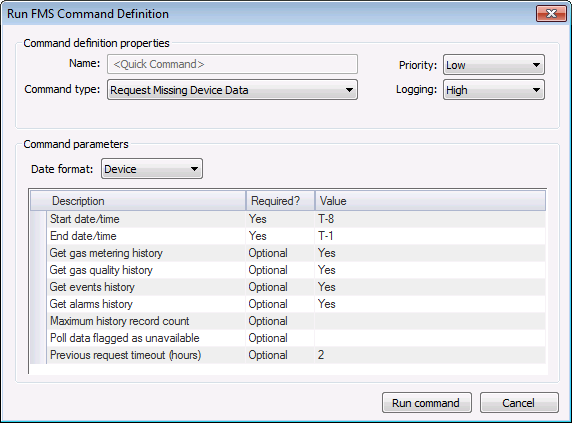
- Configure the command as desired. See Managing Node Commands for more information about configuring Node commands.
- Click Run Command.
Note: There is no option to cancel the command request. Wait for the command to finish processing before proceeding.
- Command results will be displayed in the FMS Command: <Quick Command> dialog box. Click on the Node name in the top pane to display command results in the bottom pane.
- Optionally reissue failed commands against selected Nodes.

Executing Commands Using ActiveX Controls
In CygNet Studio or CygNet Vision, commands can be executed through ActiveX controls placed on user interface screens.
See FMS ActiveX Controls for more information.
Executing Commands Using Scripting
In CygNet Software, scripting reference libraries are provided to help you customize your system. Scripting libraries provided for CygNet Measurement include CxFms for FMS automation objects and CxHmiFms for FMS control user-interface objects.
See Scripting for general information about scripting in CygNet Software.
See CxFms for more information about automation objects related to CygNet Measurement.
See CxHmiFms for more information about user interface objects related to CygNet Measurement controls.

