Managing Group Nodes
 Use the Manage Groups button to access a list of all group Nodes configured in your system. From this groups overview, you can view, manage, or edit group Nodes and modify group Node assignments. You can filter the groups you want to manage by group type, and then further select any group to view its member groups or Nodes, as applicable. Filtered results are displayed in a table. Each row in the table represents a group Node meeting the filter criteria, and each column in the table represents a property of that group.
See Group Nodes in the CygNet Measurement Concepts section for a more detailed discussion of group Nodes and group Node membership.
Viewing Groups
To view or manage Node groups, open the Nodes menu in FMS Explorer, and then click Manage Groups. A series of dialog boxes will appear.
|
Manage Groups |
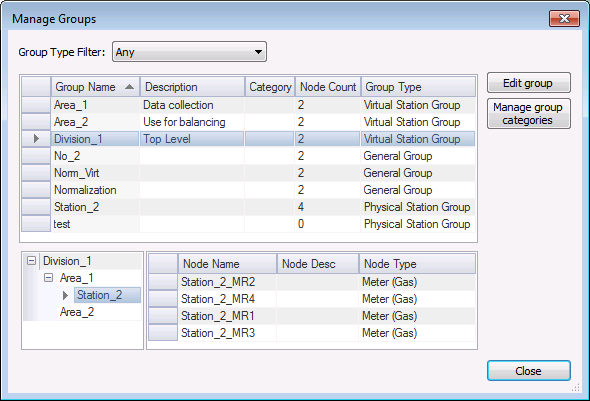
Managing Groups
The following table describes options found on the Manage Groups dialog box.
| Option | Description |
|---|---|
|
Group Type Filter |
Select the Group Type Filter from the drop-down menu, to see a list of all group Nodes meeting the filter criteria. Options are as follows.
|
|
Lists the group Nodes meeting the group type filter criteria |
|
|
Edit Group |
Click Edit Group, or double-click on a Group Name in the results list, to access the Edit Group dialog box. See Editing Groups for more information. |
|
Manage Group Categories |
Click the corresponding button icon to add New (Insert) or Delete (Delete) group categories. See Manage Group Categories for more information. |
|
Lists the member Nodes of the selected group |
|
|
Close |
Click Close to exit the Manage Groups dialog box when all edits are complete. |
Group Node List
The filtered group Node list appears in the top pane. The columns in the results are in fixed position within the row. Click on any column header to sort the viewed results based on that property, in either ascending or descending order.
Results include the following information for each group.
| Column | Description |
|---|---|
|
Group Name |
Lists the name(s) of the groups meeting the selected group type filter |
|
Description |
Lists the description of the group, if any |
|
Category |
Lists the group category, if any Note: If using CygNet Dispatch, this value must be Job for all Nodes included in Dispatch. |
|
Node Count |
Lists the Node count within the selected group |
|
Group Type |
Lists the group type of the selected Node |
Member Node List
Click on a Group Name within the group Node list (in the upper half of the dialog box) to display the member Nodes of the selected group (in the lower half of the dialog box). The left pane contains the group Node name and its group member Nodes (if any), and the right pane contains device member Nodes. Click on any group Node name in the left pane to view its device Node members in the right pane. Click on any column header in the right pane to sort the listed Nodes by that column.
Results will include the following information for each device Node belonging to the selected group.
| Column | Description |
|---|---|
|
Node Name |
Lists the name(s) of the Nodes belonging to the selected group |
|
Node Desc |
Lists the description of the selected Node |
|
Node Type |
Lists the Node type of the selected Node |
Editing Groups
To edit a group configuration, click a group name to select it, and then click Edit Group to access the Edit Group dialog box.
|
Edit Group |
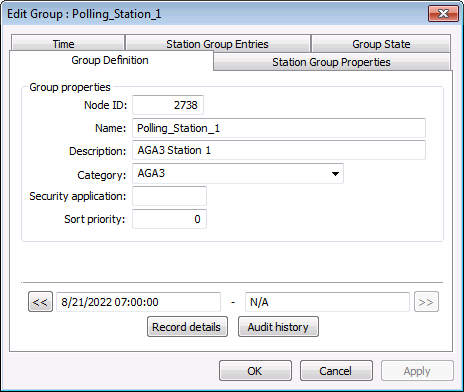
See the applicable group properties topic for descriptions of the fields shared by the Edit Group dialog box, as applicable.
Managing Group Categories
The group Category is an optional field that can be assigned to help further describe and filter group Nodes.
Click Manage group categories to access the Manage Group Categories dialog box to view, create, or edit the list of categories retained in the system.
|
Manage Group Categories |
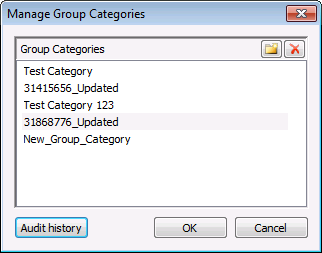
| Option | Description |
|---|---|
|
(Insert) |
Click Note: See Guidelines for Naming Group Categories, below. |
|
(Delete) |
Click a Group Category name and then click |
|
Group Categories |
Lists the Group Categories in the system Note: If using CygNet Dispatch, you must define a category named Job and assign it to applicable group Nodes in order to integrate with the FMS service. |
|
Audit history |
Click to view Audit History for the selected Group Category. |
 New
New  Delete
 Guidelines for Naming Group Categories
The following guidelines apply to creating or editing group category names.
- The maximum character count for a group category name is 20.
- Each group category name must be distinct, and a new group category name cannot be created if it already exists.
- Entry of the group category name into the Category field of the Edit Group dialog box is case insensitive, but for subsequent use and display, the system defaults to the case of the group category name as it was first entered into the system.
- The case of an existing group category name can only be edited via the Manage Group Categories dialog box.
When all edits are made, click OK to save the list of Group Categories.


