Managing Report Template Files
Report template files are .xlsx files that describe how the various reports defined in your system will be formatted and what data each report displays. The FMS uses a distinct template file to define each report command in the system, so the templates must exist prior to running any FMS reports. CygNet Measurement provides a variety of sample report template files, which users with proper security access to the host server can use to create additional, customized templates.
Note: For the reports feature to function, the CxFmsStandardReport.dll file must be included in the Support folder on the computer hosting the FMS. See Installing CygNet Measurement for more information.
See FMS Commands for more information about the reports commands supported by CygNet Measurement.
See Managing Report Definitions for information about the report definitions that reference template files.
See Using the Reports Control for information about viewing, saving, printing or emailing reports.
Sample Report Template Files
When the FMS is run, the sample report template files are extracted to the CygNet\Services\FMS\ReportTemplates\Samples folder on your host server. If previous sample templates exist in this folder, they will be overwritten.
|
Sample Report Template Files |
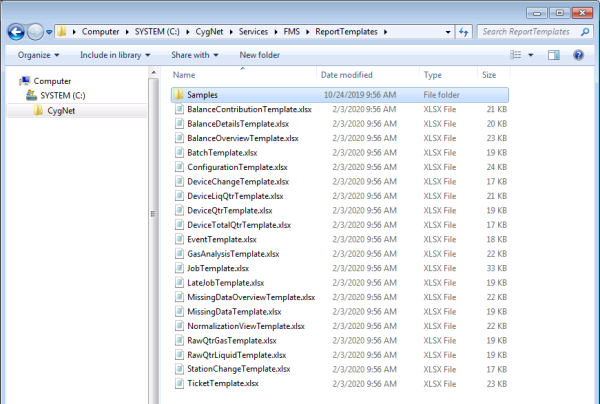
Report Template Files Location
When you run a report command, the FMS looks for the report template file in the location specified in the FMS configuration file (CygNet\Services\FMS\fms.cfg), and uses the file that is present in the specified location to populate the available report command options.
If not specified otherwise, the default report template file location is the CygNet\Services\FMS\ReportTemplates folder on your host server. To change the file location, change the value of the REPORT_TEMPLATES keyword in the configuration file. See FMS Configuration File Keywords for more information about specifying keywords.
To Change the Report Template File Location
- On your host server, Open the service configuration file CygNet\Services\FMS\fms.cfg.
- In the Other section, if the REPORT_TEMPLATES line is commented out, remove the pound sign (#) to uncomment the line.
- Replace the existing REPORT_TEMPLATES keyword value with the new file path name.
The report template files saved to the location specified in the fms.cfg file will determine the report options available in the following locations.
- In the Type drop-down menu, when creating report definitions through the Admin menu in FMS Explorer.
See Managing Report Definitions for more information.
- In the Report Type drop-down menu on the Options pane, when creating ad hoc reports using the Reports control in FMS Explorer.
See Using the Reports Control for more information.
- In the Command drop-down menu, when running scheduled reports through the MSS in CygNet Explorer.
See Scheduling FMS Command Tasks in the MSS for more information.
Report Template Files
Report template files define and describe both the report command definition parameters and the formatting and content of the information within the specific report. Templates contain a ReportDefinition sheet that uses parameters to describe the command, and a ReportSheet that contains formatting and data tokens used to replace data values in the report at runtime.
Use report templates to customize any report type. To achieve this, there are several parameters and types of tokens that can be used, depending on the type of report you are generating.
Example
A report using header tokens and style tokens, would respectively define the values for the report header and the format for the report body, for the values represented by the tokens. Another report may use header tokens, footer tokens and several sets of subsection tokens. These token sets are specific to the report type, and can be configured in the report sheet of the corresponding report template file.
Header tokens are replaced at runtime with the corresponding values to appear in the report header, and provide a list of basic information identifying the report. The report header can also contain static information such as the report name, a company logo, graphics, or any additional information you would like to appear above the body of the report.
In all reports, additional tokens are used in various subsections of applicable report types to represent the report definition, specific types of text and data within the report body, and determine how that data will be displayed. The report body can thus be customized by cell type to show the data, number format, text characteristics, colors, etc. you want to see in your report.
Creating and Editing Report Template Files
Copy and edit the CygNet sample report template files to create your own report templates for multiple custom reports. DO NOT modify or rename the sample templates. Instead, copy a desired sample template file to another location (e.g. the ReportTemplates folder), and use it to create and edit as many new report template files of that type as are needed. When the service scans the directory for files, each template file found can generate a distinct reports command.
The following guidelines apply to editing and creating report template files.
Sample Report Template Files
- Each Sample report template file must remain unchanged, so that it can be found by the service. (The file names of new report template files that you create and save elsewhere can be renamed as desired.)
- The ReportDefinition page of each sample template contains all elements necessary for you to define the parameters for one report command type.
- The ReportSheet page of each sample template contains all sections necessary for you to describe the formatting and content details for one report type.
New Report Template Files
- The ReportDefinition page of each template accesses report parameters and worksheet parameters. Define the parameters in the #ReportParameters# and #Worksheet# sections of the template to customize the report definition.
- The ReportSheet page of each template accesses tokens and formatting information for the report. Describe formatting and content details in the various sections of the template to customize the report content and formatting.
- All report header information will appear before the #EndReportHdr# row in the template.
- All content in an individual cell containing a Report Header token must be uniformly formatted in order for the token value to be retrieved.
- The body of the report will begin after the #EndReportHdr# row in the template.
- All tokens for a specific report area must appear between the #Section Label# and #End# lines for that section.
- It is acceptable to place blank cells between token cells.
- Column widths are static in the report template. If you must adjust column widths within the template, make sure the new column width is based on the information that will be displayed in that column of the report body (and not based on the location/length of the tokens within the template).
To Create a New Report Template File from a Sample Report Template File
Use the following procedure to create report template files for each report type option you want to make available in your system.
- In your CygNet directory, browse to the Services\FMS\ReportTemplates\Samples folder. Copy the default report template file of the type desired, and place it in the location referenced in the FMS configuration file (CygNet\Services\FMS\fms.cfg on your host server, REPORT_TEMPLATES keyword value) so the FMS Service can find it.
- Open the copied report template file.
- In the template copy, open the ReportDefinition page and make desired changes to the following areas, as applicable.
- Make edits to the #ReportParameters# section.
- The value entered for ReportName will appear in the command options in your system. Enter the report name as you want it to appear in your system.
- The value entered for CommandName is used by the service to identify which reports command to execute, e.g. STN2. Enter the command name parameter value. It must be unique within the system, with a maximum character count of 7. Acceptable characters are letters and/or numbers; no spaces are allowed.
- Make edits to, or add any additional parameters to, the #Worksheet# section.
- The value of the #Worksheet# parameter must be equal to the name that appears on the worksheet tab it is referencing, e.g. ReportSheet. If you change the name in one location, also change the name in the other.
- Add any optional parameters desired (e.g. RptStDate, RptEndDate, RptUnitSet).
Note: If you choose to include these optional parameters in your report template, they will no longer appear for configuration in FMS Explorer or CygNet Explorer.
- In the template copy, open the ReportSheet page and make desired changes or additions to the following areas, as applicable.
- Edit or add any additional elements to the Report Header section, above #EndReportHdr#.
- Replace the [ReportTitle] token with the actual title of the report. Adjust font size and formatting as desired.
- Edit or add any additional elements desired, such as logo, graphics, etc.
- Edit token cells for the #StyleTokens# section of the report, if present.
- Edit token cells for each #SubSection# area used in the report body.
- Edit cell content/text for the #SubSection#ReportFooter section of the report, if present.
- Adjust column widths, if desired.
- Click to focus on a cell near the beginning of the report body (to set where the focus will be when you open the file again).
- Click Save As to rename and save the new report template file.
- Click OK.
Using Report Template Worksheets
Each report template contains report worksheets that define the format and content of a specific report type. The ReportDefinition worksheet uses parameters to define the report type, and the ReportSheet worksheet uses a variety of token sets to define the format and content for that report. Tokens appear as [Token] in the tables provided.
The topics listed below contain tables listing the available parameters and token sets applicable for each report type.
More:
 Balance Contribution Report Templates
Balance Details Report Templates
Balance Overview Report Templates
Changed Device Data Report Templates
Changed Station Data Report Templates
Configuration Report Templates
Device Total QTR Report Templates
(Gas) Device QTR Report Templates
Gas Device Raw QTR Report Templates
Liquid Device QTR Report Templates
Liquid Device Raw QTR Report Templates
Missing Data Overview Report Templates
Normalization View Report Templates


