Managing Workspaces
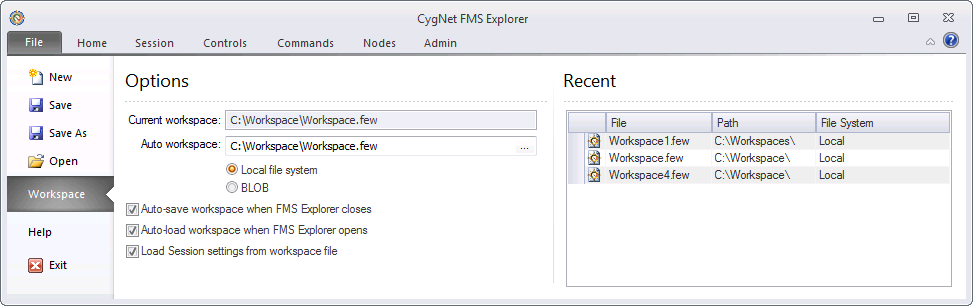
Use the following Workspace options to manage settings for Session options, controls, reports, and FMS commands in customized FMS Explorer workspaces. Workspace access settings can be viewed and configured in the Options pane and recently accessed workspace files can be viewed or accessed in the Recent pane.
|
Managing Workspaces |
Setting Workspace Options
The Options pane contains the following file options for accessing your FMS Explorer workspace settings.
| Option | Description |
|---|---|
|
Current workspace |
Displays the path and file name for the workspace file currently in use |
|
Auto workspace |
Displays the path and file name for the workspace file used when you select to auto-save and/or auto-load the workspace Specify the directory location to/from which to automatically save/load the workspace file. Type the location into the text box or click ... to access the Auto Workspace dialog box and browse to the desired location. Click Open. Select one of the following locations to save the file.
|
|
Click to select/clear the check box to automatically save your workspace settings when FMS Explorer closes. |
|
|
Note: If no workspace (.few) file is present when launching FMS Explorer, you will be offered the option to create a new workspace file. If selected, FMS Explorer will open using the newly created file; if not selected, FMS Explorer will open in read-only mode. Click to select/clear the check box to automatically load your workspace settings when FMS Explorer opens. Note: When necessary, this setting can be overridden. See Troubleshooting CygNet Measurement for more information. |
|
|
Load Session settings from workspace file |
Note: If no workspace (.few) file is present when launching FMS Explorer, you will be offered the option to create a new workspace file. If selected, FMS Explorer will open using the newly created file; if not selected, FMS Explorer will open in read-only mode. Click to select/clear the check box to load your Session settings from the workspace file when FMS Explorer opens. See Using the Session Menu for more information. |
Accessing Recent Workspaces
The Recent pane lists recently used workspace files. Double-click a file name to open that workspace.
Note: View the Home menu to verify the current Site.Service and Point in Time filters applied to your system. View the Session menu to verify the Node, time window, and time format settings for your current working session.
| Option | Description |
|---|---|
|
File |
Lists the name of the recently used workspace file |
|
Path |
Lists the path to the recently used workspace file |
|
File System |
Lists the file system, Blob or Local, in which the workspace file is found |


