Running Detect New Devices Commands
 Use the Detect New button to access the dialog box to run the Detect New Devices command to trigger the service to automatically detect new EFM devices in your system that meet the configured criteria and user-defined parameters, and then automatically create new FMS Nodes of the corresponding device type (gas meter, chromatograph, or liquid device) and configuration settings (e.g. collection method, supported data group types, etc.) appropriate for the device type. These settings will be created according to user-specified parameters. You also have the option to choose to poll the device once the Node is created.
The device detection criteria and Node creation parameters must be configured prior to running the Detect New Devices command. Use the Extended Options button on the Commands menu to access configuration details. See Configuring Extended Command Options and Configuring Detect New Devices Options for more information.
The command can also be initiated by scheduling the Detect New Devices command in the Master Scheduling Service (MSS) in CygNet Explorer (most common usage), or via scripting.
See FMS Commands and Detect New Devices for more information about this command.
See Scheduling FMS Command Tasks in the MSS for more information about scheduling commands.
See FMS ActiveX Controls and CxHmiFms for more information about using commands via FMS ActiveX controls on CygNet Studio or CygNet Vision screens.
See CxFms for more information about scripting commands.
Managing Detect New Devices Commands
Prior to running a Detect New Devices command, verify or configure the criteria and options referenced by the command.
Click Commands > Extended Options on the Commands menu to access the Detect New Devices dialog box to view, add, edit, or delete criteria and parameters for the Detect New Devices command.
See Configuring Detect New Devices Options for more information.
Running a Detect New Devices Command
Most Detect New Devices commands will be run via scheduled tasks. See Scheduling FMS Command Tasks in the MSS for more information.
Use the following procedure to run a Detect New Devices command manually.
To Run a Detect New Devices Command
- Configure or verify device detection criteria and Node creation parameters via the Extended Options button. See Configuring Detect New Devices Options for more information.
- On the Commands menu, click New Devices to access the Run FMS Command dialog box for the Detect New Devices command.
|
Run FMS Command |
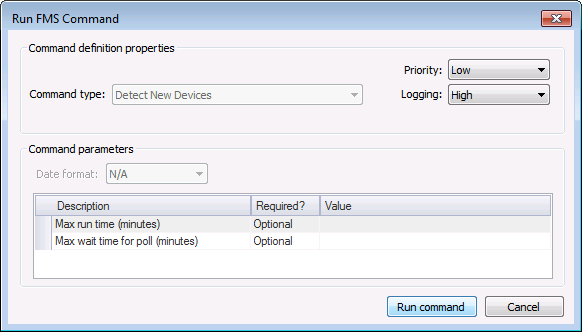
- Define the command definition properties.
- Select a processing Priority from the drop-down menu. Options include Low, Medium, High, User, and Admin.
- Select a Logging level from the drop-down menu, to determine the level of logging details reported when viewing command logs. Options include Low, Medium, and High. See Viewing Command Logs for more information.
- Define the command parameters.
- Parameters for the Detect New Devices system command are described in the Command parameters box, which includes the Description, a Required indicator, and the Value field. For each parameter, the Value can be set if you are going to include the selected parameter in the command. These parameters are optional.
Note: Additional parameters exist to configure device detection criteria and Node creation parameters for the Detect New Devices system command. Because they are too extensive to be described in the Command parameters box, they are configured through the Extended Options button on the Commands menu. See Configuring Detect New Devices Options for more information.
- Click Run Command.

Command Definition Properties
The following command definition properties apply to Detect New Devices commands.
| Property | Description |
|---|---|
|
Command type |
For system commands, this property will be read-only and will display the selected command type. See FMS Commands for more information about command types. |
|
Priority |
Select a processing queue Priority for the command from the drop-down menu. Options from least to greatest priority are as follows.
Default value is Low level processing queue priority. |
|
Logging |
Select a Logging level for the command results from the drop-down menu. Options are as follows.
Default value is Low level logging when scheduling a command in the MSS. Default value is High level logging when creating or running an ad-hoc command in FMS Explorer. |
Command Parameters
Note: Additional Detect New Devices options are defined through the Commands menu via the Extended Options button, prior to running the command. See Configuring Detect New Devices Options for more information.
The following command parameters apply to Detect New Devices commands.
| Description | Required | Value |
|---|---|---|
|
Maximum runtime (minutes) |
Optional |
If used, type the number of minutes after which the request will timeout if it hasn't been completed. If the runtime of the command exceeds this limit, then the command will be terminated and the search for new devices will stop. Default value is 30 minutes. Note: If Node creation is in progress, the Node creation process for the current device will be completed before the command is terminated. |
|
Maximum wait time for poll (minutes) |
Optional |
If used, type the maximum time (in minutes) to wait for a configuration poll. If the wait time for the configuration poll exceeds this limit, then it will stop requesting the configuration. Default value is 5 minutes. Note: This wait time parameter does not apply to the extended command option to automatically Poll configuration after creation for each new Node; those polls are separate automatically triggered commands used as part of the device definition. |

