Running Node Commands
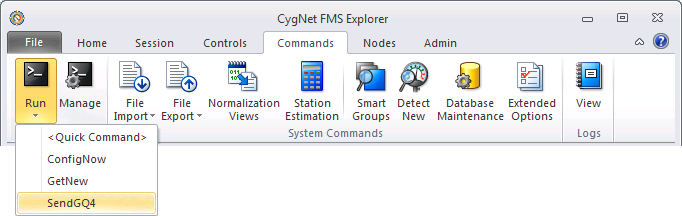
 Use the Run button to access and run FMS Node commands against the Session Node, directly from the FMS Explorer Commands menu. Commands that have already been configured in your system will appear in the list of available Node commands, along with a <Quick Command> option to configure and run a Node command on an ad hoc basis.
|
FMS Explorer Running Node Commands |
Note: Verify the time period for which you are requesting data. If a device doesn't exist "now" it cannot be polled.
Configuring Node Command Parameters
See the corresponding command configuration topics for more information about device eligibility and command parameters specific to each Node command type. Available Node command types may include the following.
- Close Period
- Request Current Configuration
- Request Data (get current configuration data prior to the initial poll using this command)
- Request Missing Data
- Request New Data (get current configuration data prior to the initial poll using this command)
- Request Product Data
- Send Gas Quality
- Validate Data
- Export: Flow-Cal Data CFX (if installed)
- Export: Flow-Cal Ticket Data TFX (if installed)
- Export: Flow-Cal Transaction Queue (if installed)
- Export: PGAS Data XML (if installed)
See Managing Node Commands for more information about creating, editing, or deleting FMS Node commands.
Running a Node Command
Once the Node command is configured as desired, Node commands can be run against the Session Node, directly from the Commands menu, as well as against a selected Node from the following locations within FMS Explorer.
- Node Choosers, via the context menu
- Dashboard control data grid, via the context menu
You also have the option to configure and run a <Quick Command> from any of these locations, on an ad hoc basis.
The following procedures describe how to run Node-level commands, either a configured command or a <Quick Command>, from the Commands menu.
Running Configured Commands
To Run a Configured Node Command
Note: Prior to the initial poll using a Request Data or a Request New Data command, it is important that you first have current configuration data for the Node.
- Set the Session Node.
- Open the Commands menu, and then click Run to access the sub-menu of available commands for the Session Node selected.
- Find the name of the command you want to run in the submenu list.
Note: Be certain of the command you select to run, as there is no option to cancel the request.
- Click on the command name to run the command. The FMS Command dialog box will appear.
Note: Wait for the command to finish processing before proceeding.
|
FMS Command |
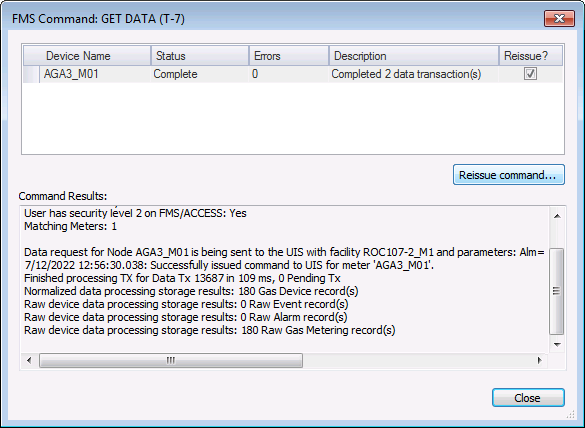
- Results will be shown in the Command Results text box. Click on the Node name in the top pane to display command results in the bottom pane.
- Optionally reissue failed commands against selected Nodes.

Running Quick Commands
To Create and Run a <Quick Command>
- Set the Session Node.
- Open the Commands menu, and then click Run to access the sub-menu of available commands for the Session Node selected.
- Click <Quick Command> to access the Run FMS Command Definition dialog box.
|
Run FMS Command Definition |
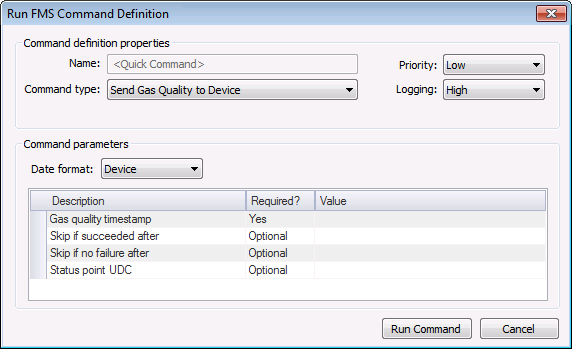
- Configure the command as desired. See Managing Node Commands for more information about configuring Node commands.
- Click Run Command.
Note: There is no option to cancel the command request. Wait for the command to finish processing before proceeding.
- Command results will be displayed in the FMS Command: <Quick Command> dialog box. Click on the Node name in the top pane to display command results in the bottom pane.
- Optionally reissue failed commands against selected Nodes.
To Reissue a Failed Node Command
- In the FMS Command dialog box, click to select/clear the check box in the Reissue? column for each device for which you desire to reissue the command. The check box is selected by default for each device for which the previous command failed.
- Click Reissue command to reissue the failed Node command for the selected devices. The Reissue FMS Command dialog box will appear, where you can optionally adjust command parameters.
- Command parameters appear with the same settings that were previously executed. Verify or edit the command parameters, as desired.
- Click Run command to reissue the Node command against the selected Node(s) and access the FMS Command dialog box.
Note: Wait for the command to finish processing before proceeding.
- Command results will be shown in the Command Results text box. Click on the Node name in the top pane to display command results in the bottom pane.
- Repeat steps 1 - 5 as necessary to obtain successful results.

