Scheduling FMS Command Tasks in the MSS
Use the Master Scheduling Service (MSS) to schedule FMS command tasks to run on a defined schedule. The MSS is a CygNet SCADA service, accessed through CygNet Explorer, that automates the execution of command tasks under defined conditions.
See FMS Commands for more information about commands available in CygNet Measurement.
See Scheduler for more information about scheduling tasks in CygNet.
Note: You must have proper security authorization to access certain command functionality. See FMS Security for information about configuring security access to command functions.
FMS commands can also be executed through the FMS Explorer, via ActiveX controls, or via script.
See Using the Commands Menu for more information about running and managing commands via FMS Explorer.
See FMS ActiveX Controls and CxHmiFms for more information about using commands via FMS ActiveX controls on CygNet Studio or CygNet Vision screens.
See CxFms for more information about scripting commands.
Adding a New FMS Command Task to the MSS
To schedule an FMS command task, use CygNet Explorer to add the new task to the MSS.
To Add a New FMS Command Task to the Master Scheduling Service
- Using CygNet Explorer, click Master Scheduling Service in the service hierarchy.
- Right-click in the Tasks service pane, then select New > FMS Command Task to access the New Schedule Task dialog box. Two tabs appear in the dialog box, Schedule and FMS Command Task, providing access to pages where you can provide command and scheduling information to the MSS.
|
New Schedule Task |
- On the Schedule page, define the scheduling properties to describe when the FMS command task will occur.
- Define properties for job information, cycle, blackouts, recurrence pattern, and notification, and view the status of the scheduled task.
- See Scheduling a Task in the Scheduler section for more information about defining these properties.
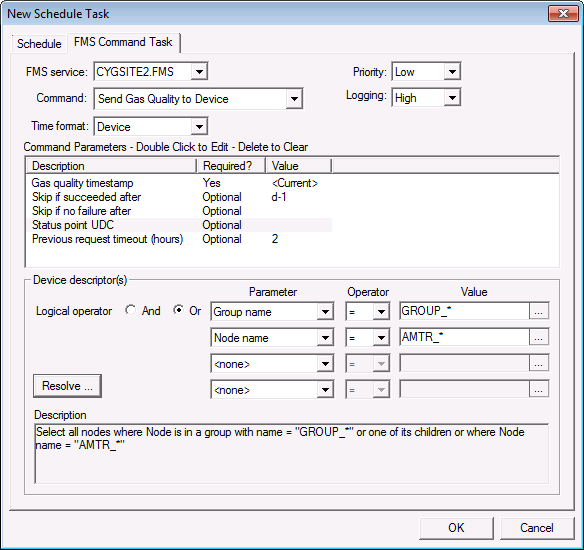
- On the FMS Command Task page, define the command properties, command parameters, and device descriptor(s) to describe the selected FMS command task and the FMS Nodes against which it will be run.
- Define the FMS command task properties.
Property Description FMS service
From the drop-down menu, click to select the name of the FMS service that will process the command task.
Command
Click to select the Command you wish to schedule from the drop-down list box. The list is populated by the commands supported by the FMS.
Options are as follows.
Device Communication
- Request Current Configuration
- Request Data
- Request Missing Data
- Request New Data
- Request Product Data
- Send Gas Quality
- Flow-Cal Request Missing Data (if installed; via MSS/scripting only)
- Flow-Cal Send Gas Quality (if installed; via MSS/scripting only)
Export
- Completed Jobs (via MSS/scripting only; operates in conjunction with CygNet Dispatch)
- Device Data CSV (via MSS/scripting only)
- PPAs CSV
- Normalization View Data CSV
- Flow-Cal Data CFX (if installed)
- Flow-Cal Ticket Data TFX (if installed)
- Flow-Cal Transaction Queue (if installed)
- PGAS Data XML (if installed)
Import
- Alarms CSV
- Configuration CSV
- EmersonRoc Laptop File
- Events CSV
- Gas Analysis CSV
- Gas Quality CSV
- History CSV
- Totalflow Laptop File
Reports
- Balance Contribution
- Balance Details
- Balance Overview
- Batch
- Changed Device Data
- Changed Station Data
- Configuration
- Device QTR
- Device Total QTR
- Event
- Gas Analysis
- Gas Device Raw QTR
- Job (operates in conjunction with CygNet Dispatch)
- Late Job (operates in conjunction with CygNet Dispatch)
- Liquid Device QTR
- Liquid Device Raw QTR
- Missing Data
- Missing Data Overview
- Normalization View
- Ticket
System
- Archive Data (if enabled; via MSS/scripting only)
- Detect New Devices
- Estimate Station Data
- Generate Smart Groups
- Perform Database Maintenance
- Precalculate Calibration Data (operates in conjunction with CygNet Dispatch)
- Schedule Jobs (via MSS/scripting only; operates in conjunction with CygNet Dispatch)
- Update Normalization Views
User
- Close Period (via FMS Explorer / FMS ActiveX Controls only)
- Validate Data
Time format
Click to select a Time format from the drop-down menu, if enabled for the command selected.
Possible options are as follows.
- Device
- Contract
Priority
Select a processing queue Priority for the command from the drop-down menu.
Options from least to greatest priority level are as follows.
- Low level
- Medium level
- High level
- User level - user initiated transaction
- Admin level - administrator initiated transaction
Default value is Low processing queue priority.
Logging
Select a Logging level for the command results from the drop-down menu.
Options are as follows.
- Low - displays errors
- Medium - displays errors and warnings
- High - displays errors, warnings, and additional information applicable to the command
Default value is Low level logging.
- Define the Command Parameters for the selected FMS command task.
Double-click to edit a parameter. Click to select, and then press the Delete key to clear a previously set parameter value.
Note: Right-click on the Command Parameters table header to access the context menu and select/clear the option to Show Hidden Columns (hidden by default). The hidden columns contain the Parameter name, Type, and Value (Msg) values valid for scripting.
Parameter Description Parameter
Lists the name of each available command parameter (script value)
Note: This column is hidden by default
Description
Lists the descriptions of the available command parameters
Type
Lists the type of valid parameter values, e.g. integer, string, file path, etc.
Note: This column is hidden by default
Required
Indicates whether the selected parameter is required (Yes) or not (Optional)
Double-click a command parameter from the list to access a value entry dialog box
Depending on the selected command parameter, possible Value entry options are as follows.
- Type an appropriate value into the text box
- Enter date values into the date/time selector
- Select a value option from the drop-down menu
The following list contains links to specific topics containing information about each command and its possible parameters and values.
Device Communication
- Request Current Configuration
- Request Data
- Request Missing Data
- Request New Data
- Request Product Data
- Send Gas Quality
- Flow-Cal Request Missing Data (if installed; via MSS/scripting only)
- Flow-Cal Send Gas Quality (if installed; via MSS/scripting only)
Export
- Completed Jobs (via MSS/scripting only; operates in conjunction with CygNet Dispatch)
- Device Data CSV (via MSS/scripting only)
- PPAs CSV
- Normalization View Data CSV
- Flow-Cal Data CFX (if installed)
- Flow-Cal Ticket Data TFX (if installed)
- Flow-Cal Transaction Queue (if installed)
- PGAS Data XML (if installed)
Import
- Alarms CSV
- Configuration CSV
- EmersonRoc Laptop File
- Events CSV
- Gas Analysis CSV
- Gas Quality CSV
- History CSV
- Totalflow Laptop File
Reports
- Balance Contribution
- Balance Details
- Balance Overview
- Batch
- Changed Device Data
- Changed Station Data
- Configuration
- Device QTR
- Device Total QTR
- Event
- Gas Analysis
- Gas Device Raw QTR
- Job (operates in conjunction with CygNet Dispatch)
- Late Job (operates in conjunction with CygNet Dispatch)
- Liquid Device QTR
- Liquid Device Raw QTR
- Missing Data
- Missing Data Overview
- Normalization View
- Ticket
System
- Archive Data (if enabled; via MSS/scripting only)
- Detect New Devices
- Estimate Station Data
- Generate Smart Groups
- Perform Database Maintenance
- Precalculate Calibration Data (operates in conjunction with CygNet Dispatch)
- Schedule Jobs (via MSS/scripting only; operates in conjunction with CygNet Dispatch)
- Update Normalization Views
User
- Close Period (via FMS Explorer / FMS ActiveX Controls only)
- Validate Data
Value (Msg)
Lists the scripting value equivalent for the parameter value entered/selected in the value entry dialog box
Note: This column is hidden by default
- Define the Device Descriptor(s) to specify or filter the Nodes to which the scheduled FMS command task will apply.
Descriptor Description Logical operator
If you want to use more than one descriptor, specify a Logical operator to govern the relationship between the descriptors you define.
Options are And or Or.
- If you use the And operator, the results will be narrowed to all devices that match all Descriptors specified.
- If you use the Or operator, the results will be broadened to include all devices that match any of the Descriptors specified.
Default value is And.
Parameter
Click to select Node name or Group name from the drop-down menu.
Select Node name to retrieve all Nodes matching the Operator and Node name value specified.
Select Group name to retrieve all Nodes, including their member Nodes, matching the Operator and Group name value specified.
Default value is <none>.
Operator
Click to select the desired Operator from the drop-down menu. The operator shows the relationship between a parameter and its value.
Options are as follows.
- = Equals
- > Greater than
- > = Greater than or equal to
- < Less than
- <= Less than or equal to
- <> Not equal to
Default value is =.
Value
Type a name Value in the text box, or click ... to access the Select Node dialog box.
Wildcard values * (multiple character) and ? (single character) are supported in this field.
...
Click ... to access the Select Node dialog box, then browse to the desired Node value and click to apply it to the text box.
Resolve
Click Resolve to display a list of devices that match the descriptors currently defined.
Note: The Resolve results will show any device(s) defined by the device descriptors, but the command can only be sent to those listed devices for which the command is defined.
Description
Describes the currently selected device descriptors.
- Click OK.


