Using an Import Definition File
Use an import definition file to customize how data is imported into your system via CSV file import commands. The process requires two files: the source data file (.csv) and the import definition file (.idf), which is referenced via the import command parameters. Sample .idf files are provided by CygNet to use as templates, along with the sample .csv files, and are located in the CygNet\Services\FMS\ImportSamples folder on your host server.
The .idf file is an XML file used to define custom conditions for a .csv file import. Use an .idf file during the import process to set the data source to show whether the imported file contains raw data or not, to specify what columns are required for the import, to define or override units for specific items (not applicable to all imports), or to customize column header names by mapping each default column header name (FMS enumeration value) to a new column header name (user-provided value).
For history import files, a file collection time can also optionally be defined using the .idf file, and data aggregation must be defined using the .idf file for certain conditions.
You must use an import definition file if:
- you have opted not to specify a unit set in the history or configuration import command parameters.
- you have columns in your history import .csv file for which both of the following are true:
- Your imported records will be rolled down.
- Your history import file contains columns for the following data items.
- For gas periodic history import files, columns for custom device data items (eFMS_PV_PQ_CUSTOM 1-5 or eFMS_PV_PM_CUSTOM 1-5) or %Air (eFMS_PV_AIR).
- For ticket history import files, columns for custom device data items (eFMS_TICKET_CUSTOM*_STRING or eFMS_TICKET_CUSTOM*_FLOAT).
See the following command configuration topics for more information about preparing and importing .csv files that may utilize an .idf file.
- Configuring File Import Commands: Alarms CSV
- Configuring File Import Commands: Configuration CSV
- Configuring File Import Commands: Events CSV
- Configuring File Import Commands: Gas Analysis CSV
- Configuring File Import Commands: Gas Quality CSV
- Configuring File Import Commands: History CSV
Setting Up Import File Folders
If you will be performing more than one type of file import, a simple way to set up your import folders is to make parallel folders in your chosen directory location, to accommodate each import type.
Create a separate folder for each CSV file type you will be importing, and clearly name each folder to reflect the appropriate type of data (shown in the following example as Alarms, Configuration_Gas, Configuration_Liquid, Events, Gas_Analysis, Gas_Quality, History_Gas_Periodic, History_Liquid_Periodic, and History_Ticket). Each folder would then contain its own "Failed" sub-directory, "Processed" sub-directory, and a properly configured data-type-specific IDF file, renamed to match the data type as necessary (for configuration or history data).
Note: For Configuration_Gas and Configuration_Liquid, you must rename the IDF to CxFmsImportCsvConfig.idf. For History_Gas_Periodic, History_Liquid_Periodic, and History_Ticket, you must rename the IDF to CxFmsImportCsvHistory.idf. The FMS expects these specific filenames.
Example
|
Import Definition Files |
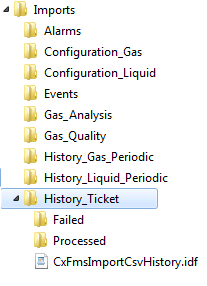
Renaming a Configuration or History Import Definition File (IDF)
CygNet Measurement provides separate samples of configuration and history IDF files, to be used for the various types of data you are importing. Although the sample files are given distinct names for identification purposes, the files must be titled CxFmsImportCsvConfig.idf and CxFmsImportCsvHistory.idf in order for the service to find the file. Therefore the words "Gas" or "Liquid" (for configuration data) or "GasPeriodic" or "LiquidPeriodic" or "Ticket" (for history data) must ultimately be deleted from your working IDF file name(s). For configuration data, sample files are provided for gas (CxFmsImportCsvConfigGas.idf) and liquid (CxFmsImportCsvConfigLiquid.idf) data. For history data, sample files are provided for gas periodic (CxFmsImportCsvHistoryGasPeriodic.idf), liquid periodic (CxFmsImportCsvHistoryLiquidPeriodic.idf), and ticket (CxFmsImportCsvHistoryTicket.idf) data.
Creating the Import Definition File (IDF)
CygNet provides sample files you can adjust and use to create IDFs for new imports. Sample .idf files are located in the CygNet\Services\FMS\ImportSamples folder on your host server.
General Import Definition File Requirements
The following general requirements apply to Import Definition Files.
- The IDF must be specifically named for the import file type, so that the service can find it by the expected name:
- The Alarms IDF must be named CxFmsImportCsvAlarms.idf
- The Configuration IDF must be named CxFmsImportCsvConfig.idf
- The Events IDF must be named CxFmsImportCsvEvents.idf
- The Gas Analysis IDF must be named CxFmsImportCsvGasAnalysis.idf
- The Gas Quality IDF must be named CxFmsImportCsvGasQuality.idf
- The History IDF must be named CxFmsImportCsvHistory.idf
Note:
History IDF - Sample history .idf files are provided for gas periodic (CxFmsImportCsvHistoryGasPeriodic.idf), liquid periodic (CxFmsImportCsvHistoryLiquidPeriodic.idf), and ticket (CxFmsImportCsvHistoryTicket.idf) history data, but for each type you must rename the file to CxFmsImportCsvHistory.idf before it is used.
Configuration IDF - Similarly, sample configuration .idf files are provided for gas (CxFmsImportCsvConfigGas.idf) and liquid (CxFmsImportCsvConfigLiquid.idf) configuration data, but for each type you must rename the file to CxFmsImportCsvConfig.idf before it is used.
- The .csv file can be imported as a Device file (raw data) or User file (not raw data), using the setting defined in the .idf file (textFilesTrusted="true" for Device files, or "false" for User files).
Note:
Not applicable to Events file imports; events are imported only as raw records (textFilesTrusted= "true") therefore textFilesTrusted= "false" is not a supported value in the CxFmsImportCsvEvents.idf file.
- Set the value of textFilesTrusted equal to "true" to import data via the .csv as a Device file (raw data). With this setting, records can be viewed in the Raw Data control as well as in controls displaying normalized data.
- Set the value of textFilesTrusted equal to "false" to import data via the .csv as a User file (not raw data). With this setting, records can be viewed only in controls displaying normalized data.
- A new ColumnMapping name can be mapped to the default column name (the FMS enumeration string). Once the column is mapped, it will only be expected under the new name; the FMS enumeration name will no longer be recognized.
- Non-required columns that have a value in the source file, but are not listed in the .idf file, will use the default enum column name. If a non-required column does not exist in the source file, the column will be skipped.
- Required columns, those for which required="true" in the .idf file, must have a value in the source file. If a column required for the import does not exist in the source file, the import will fail.
Import Definition File Structure
Partial examples of sample import definition files for various import types are shown below to provide a view into the file structure.
Alarms - The structure of an .idf file for importing alarm data is shown in the following partial example. Note that alarm imports are only supported for gas Nodes.
|
<FileImportDefinition textFilesTrusted="true"> <ColumnMapping name= "Device" enum= "Device" required="true"/> <ColumnMapping name= "DateTime" enum= "AlarmDateTime" required="true"/> <ColumnMapping name= "Units" enum= "EntryUnits" required="true"/> <ColumnMapping name= "State" enum= "AlarmState" required="true"> <ValueMapping name= "ClearAll" enum= "eFMS_ALARM_STATE_CLEAR_ALL"/> <ValueMapping name= "Set" enum= "eFMS_ALARM_STATE_SET"/> <ValueMapping name= "SetLowWarning" enum= "eFMS_ALARM_STATE_SET_LOW_WARNING"/> <ValueMapping name= "SetLowAlarm" enum= "eFMS_ALARM_STATE_SET_LOW_ALARM"/> <ValueMapping name= "SetHighWarning" enum= "eFMS_ALARM_STATE_SET_HIGH_WARNING"/> <ValueMapping name= "SetHighAlarm" enum= "eFMS_ALARM_STATE_SET_HIGH_ALARM"/> <ValueMapping name= "SetRateChange" enum= "eFMS_ALARM_STATE_SET_RATE_CHANGE"/> <ValueMapping name= "Clear" enum= "eFMS_ALARM_STATE_CLEAR"/> <ValueMapping name= "ClearLowWarning" enum= "eFMS_ALARM_STATE_CLEAR_LOW_WARNING"/> <ValueMapping name= "ClearLowAlarm" enum= "eFMS_ALARM_STATE_CLEAR_LOW_ALARM"/> <ValueMapping name= "ClearHighWarning" enum= "eFMS_ALARM_STATE_CLEAR_HIGH_WARNING"/> <ValueMapping name= "ClearHighAlarm" enum= "eFMS_ALARM_STATE_CLEAR_HIGH_ALARM"/> <ValueMapping name= "ClearRateChange" enum= "eFMS_ALARM_STATE_CLEAR_RATE_CHANGE"/> </ColumnMapping> ... </FileImportDefinition> |
Configuration - The structure of an .idf file for importing gas configuration data is shown in the following partial example. Note that gas configuration .idf files must be renamed to CxFmsImportCsvConfig.idf before use.
|
<FileImportDefinition textFilesTrusted="true"> <ColumnMapping name="Device" enum="Device" required="true"/> <ColumnMapping name="DateTime" enum="ConfigDateTime" required="true"/> <ColumnMapping name="AGA3ExpRange" enum="eFMS_CFG_AGA3_EXPANDED_RANGE" required="true"> <ValueMapping name= "Yes" enum= "eYESNO_YES"/> <ValueMapping name= "No" enum= "eYESNO_NO"/> </ColumnMapping> <ColumnMapping name="RelativeDensity" enum="eFMS_CFG_RELATIVE_DENSITY" required="true"/> <ColumnMapping name="Methane" enum="eFMS_CFG_METHANE" required="true" units="%"/> <ColumnMapping name="Nitrogen" enum="eFMS_CFG_NITROGEN" required="true" units="%"/> ... </FileImportDefinition> |
Configuration - The structure of an .idf file for importing liquid configuration data is shown in the following partial example. Note that liquid configuration .idf files must be renamed to CxFmsImportCsvConfig.idf before use.
|
<FileImportDefinition textFilesTrusted="true"> <ColumnMapping name="Device" enum="Device" required="true"/> <ColumnMapping name="DateTime" enum="ConfigDateTime" required="true"/> <ColumnMapping name="EndDateTime" enum="EndDateTime" required="false"/> <ColumnMapping name="AtmPress" enum="eFMS_CFG_ATMOSPHERIC_PRESSURE" required="true" /> <ColumnMapping name="CalibrationFactor" enum="eFMS_CFG_CALIBRATION_FACTOR" required="true"/> <ColumnMapping name="ContractHour" enum="eFMS_CFG_CONTRACT_HOUR" required="true"/> <ColumnMapping name="DPAlarmHigh" enum="eFMS_CFG_DP_ALARM_HIGH" required="true"/> <ColumnMapping name="DPAlarmLow" enum="eFMS_CFG_DP_ALARM_LOW" required="true"/> <ColumnMapping name="DPBackflowAlarm" enum="eFMS_CFG_DP_BACKFLOW_ALARM" required="true"/> <ColumnMapping name="DPCalibrateHigh" enum="eFMS_CFG_DP_CALIBRATE_HIGH" required="true"/> <ColumnMapping name="DPCalibrateLow" enum="eFMS_CFG_DP_CALIBRATE_LOW" required="true"/> <ColumnMapping name="DPTapsType" enum="eFMS_CFG_DP_TAPS_TYPE" required="true"> <ValueMapping name= "Flange" enum= "eFMS_CFG_DP_TAPS_TYPE_FLANGE"/> <ValueMapping name= "Pipe" enum= "eFMS_CFG_DP_TAPS_TYPE_PIPE"/> </ColumnMapping> ... </FileImportDefinition> |
Events - The structure of an .idf file for importing event data is shown in the following partial example. Note that events are only imported as raw data (textFilesTrusted="true") and the import is not supported for user files (textFilesTrusted="false").
|
<FileImportDefinition textFilesTrusted="true" <ColumnMapping name= "Device" enum= "Device" required="true"/> <ColumnMapping name= "DateTime" enum= "EventDateTime" required="true"/> <ColumnMapping name= "Units" enum= "EventUnit" required="true"/> <ColumnMapping name= "Category" enum= "EventCategory" required="true"> <ValueMapping name= "Configuration Events" enum= "eFMS_EVENT_CAT_CONFIG"/> <ValueMapping name= "Device Events" enum= "eFMS_EVENT_CAT_DEVICE"/> <ValueMapping name= "Custom Events" enum= "eFMS_EVENT_CAT_CUSTOM"/> <ValueMapping name= "Process Variable Events" enum= "eFMS_EVENT_CAT_PV"/> <ValueMapping name= "Calibration Events" enum= "eFMS_EVENT_CAT_CALIBRATION"/> <ValueMapping name= "Special Configuration Events" enum= "eFMS_EVENT_CAT_CONFIG_SPECIAL"/> <ValueMapping name= "Verify Calibration Events" enum= "eFMS_EVENT_CAT_VERIFY_CALIBRATION"/> <ValueMapping name= "Freeze Events" enum= "eFMS_EVENT_CAT_FREEZE"/> </ColumnMapping> <ColumnMapping name= "Type" enum= "eFMS_EVENT_TYPE" required= "true"> <ValueMapping name= "BasePressure" enum= "eFMS_CFG_BASE_PRESSURE"/> <ValueMapping name= "BaseTemperature" enum= "eFMS_CFG_BASE_TEMPERATURE"/> </ColumnMapping> ... </FileImportDefinition> |
History - The structure of an .idf file for importing gas periodic history data, using the fileCollectionTime property, is shown in the following partial example. Note that gas periodic history .idf files must be renamed to CxFmsImportCsvHistory.idf before use.
|
<FileImportDefinition textFilesTrusted="false" fileCollectionTime="T-3"> <ColumnMapping name="DataNode" enum="Device" required="true"/> <ColumnMapping name="SampleDate" enum="BeginDateTime" required="true"/> <ColumnMapping name="PressDiff" enum="eFMS_PV_DIFF_PRESSURE" required="false"/> <ColumnMapping name="PressStatic" enum="eFMS_PV_LINE_PRESSURE" required="false"/> <ColumnMapping name="Air%" enum="eFMS_PV_AIR" aggregation="Average" required="false"/> ... </FileImportDefinition> |
History - The structure of an .idf file for importing liquid periodic history data, using the fileCollectionTime property, is shown in the following partial example. Note that liquid periodic history .idf files must be renamed to CxFmsImportCsvHistory.idf before use.
|
<FileImportDefinition textFilesTrusted="false" fileCollectionTime="T-3"> <ColumnMapping name="Meter" enum="Device" required="true"/> <ColumnMapping name="BeginDate" enum="BeginDateTime" required="true"/> <ColumnMapping name="EndDate" enum="EndDateTime" required="true"/> <ColumnMapping name="IV" enum="eFMS_PV_INDICATED_VOLUME" required="false"/> <ColumnMapping name="BaseDensity" enum="eFMS_PV_BASE_DENSITY" required="false"/> <ColumnMapping name="ObservedDensity" enum="eFMS_PV_OBSERVED_DENSITY" required="false"/> <ColumnMapping name="DensityPressure" enum="eFMS_PV_DENSITY_PRESSURE" required="false"/> <ColumnMapping name="DensityTemperature" enum="eFMS_PV_DENSITY_TEMP" required="false"/> <ColumnMapping name="PulsesBegin" enum="eFMS_PV_PULSES_BEGIN" required="false"/> <ColumnMapping name="PulsesEnd" enum="eFMS_PV_PULSES_END" required="false"/> <ColumnMapping name="SWPercent" enum="eFMS_PV_SW_PERCENT" required="false"/> ... </FileImportDefinition> |
History - The structure of an .idf file for importing ticket history data, using the fileCollectionTime property, is shown in the following partial example. Note that ticket history .idf files must be renamed to CxFmsImportCsvHistory.idf before use.
|
<FileImportDefinition textFilesTrusted="false" fileCollectionTime="T"> <ColumnMapping name="Node" enum="Device" required="true"/> <ColumnMapping name="TicketDate" enum="TicketDateTime" required="true"/> <ColumnMapping name="TicketName" enum="eFMS_TICKET_NAME" required="false"/> <ColumnMapping name="TicketType" enum="eFMS_TICKET_DEVICE_TYPE" required="false"/> <ColumnMapping name="TransportType" enum="eFMS_TICKET_TRANSPORT_METHOD" required="false"/> ... </FileImportDefinition> |
Import Definition File Elements
The following .idf file elements can be used to custom define options in your configuration file import.
Note: XML elements used in .idf files are case sensitive, unless noted otherwise.
The FileImportDefinition element is the root element of the XML file. The properties of this element are as follows.
- textFilesTrusted —defines whether or not the text files you are importing are trusted as a raw data source. Possible values are ="true" (file trusted; raw data) or ="false" (file not trusted; user or not raw data).
- fileCollectionTime — for history .csv imports (not applicable to configuration, events, or alarms .csv imports), can optionally be used to define the collection date/time of the data file. If left blank, the value will default to the date/time of the file import.
The ColumnMapping element defines each column header. The properties of this element are as follows.
- name — the name of the column header as you want it to appear. The ColumnMapping name element is user defined.
- enum — the FMS enumeration name, which appears as the column header name by default if not mapped otherwise. The enum elements are defined in FMS.
See FMS Alarms Data Items, FMS Configuration Data Items, FMS Events Data Items, FMS History Data Items and FMS Ticket Data Items for more information about supported EFM data items.
- required — defines whether or not the column is required to have a value in the source data file in order to perform the import. Possible values are ="true" (required) or ="false" (not required). The required element is user defined.
- units - defines the units to be used for the enumerated item. This property can be used for either of the following purposes.
- To override the units to use for specific items, even though a unit set has been specified as a command parameter (not applicable to Alarms and Events imports, where units can be overridden in the .csv file)
- To provide the units to use for each item requiring units, when no unit set has been specified as a command parameter (not applicable to Alarms and Events imports, where units can be overridden in the .csv file)
- aggregation — defines how the import data was aggregated, so that imported records can be rolled down. This element is required when both of the following circumstances are true.
- Your imported records will be rolled down
- Your import file contains columns for custom device data items (eFMS_PV_PQ_CUSTOM 1-5, or eFMS_PV_PM_CUSTOM 1-5) or %Air (eFMS_PV_AIR)
Possible values are ="Average" or ="Sum". Acceptable values are case insensitive. Invalid values for this element will cause the import to fail.
See Configuring Custom Device Data for more information about mapping custom device data items.
- ValueMapping — for certain columns (e.g. HeatingValueBasis in Gas Analysis IDFs, or CalcMethodFPV in Configuration IDFs), defines which enumeration values to map to given inputs, without inserting the numerical representation of the value type option; a meaningful user-defined name can optionally be entered and used instead of the supplied default name.
Example
When mapping HeatingValueBasis values for a Gas Analysis IDF, the numbers 1, 2, and 3 represent the value type options of Wet, Dry, and As delivered, respectively. Without looking these values up, you can specify either Wet, Dry, or As delivered (the default name values), OR enter a user-defined term for each of these name values, and the correct heating value basis type will be inserted into the CSV file column.
<ColumnMapping name= "HeatingValueBasis" enum= "eFMS_CFG_GAS_ANALYSIS_HEATING_VALUE_BASIS" required="false">
<ValueMapping name= "Dry (or user-defined name)" enum= "eFMS_CFG_HEATING_VALUE_BASIS_DRY">
<ValueMapping name= "Wet (or user-defined name)" enum= "eFMS_CFG_HEATING_VALUE_BASIS_WET">
<ValueMapping name= "As delivered (or user-defined name)" enum= "eFMS_CFG_HEATING_VALUE_BASIS_AS_DELIVERED">
</ColumnMapping>


