Using the Alarm Control
 Use the Alarm control to view, create, and edit* alarm logs for a single selected Node. You can create up to eight instances of this control.
*Note: Editing functionality is only available in systems licensed for FULL mode.
Alarm data for Gas Device Nodes is available for viewing in this control (not supported for liquid device Nodes). Further filtering of results is available by selecting what data sources to show. You can view data for one Node at a time, selected from the filtered Node Chooser results.
Each row of the alarm data grid displays a single alarm log. Each column represents a category of data. Use the context menu to access additional options to edit, add, and view alarm entries. The records are always filtered by date, so the top row displays the last record before the current time window. (The top row is locked so that it cannot be edited.) By default, the Alarm control is set to use the Session Node and Session options. You cannot set the Session Node from this control.
You must have proper security authorization to perform these actions. See FMS Security (and DEVALA security event) for information about configuring security access for the Alarm control.
See Import: Alarms CSV for information about importing alarm data into FMS.
See Using the Raw Data Control, Alarm Entry data view, for more information about viewing raw alarm data.
See CygNet FMS Alarm Control for more information about configuring this control in CygNet Studio.
See FMS Explorer User Interface for more information about the FMS Explorer user interface.
Viewing Alarm Data
Use the Alarm control Chooser pane (unless the Use Session Node option is selected in the Options pane) and Options pane to filter the data to show in the grid. Either pane can optionally be displayed or pinned to the left side.
Chooser Pane
In the embedded Node Chooser for the Alarm control, select the Nodes you want to view data for from the Gas Device (including station meter) Node category. Further filter the Nodes by name, description, or ID as desired. See Using the Node Chooser Control for more information.
Options Pane
In the Session section of the Options pane, define the values for the data you would like to view.
|
Options Pane |

Alarm log control options are as follows.
| Option | Description |
|---|---|
| Session | |
|
Use Session Node |
Click the check box to select/clear the option to Use Session Node instead of using the chooser. Notes: The Use Session Node check box is selected by default for Data controls (Alarm, Configuration, History Graph, History Grid, and Raw Data). The Use Session Node check box is cleared by default for Summary controls (Dashboard, Exceptions), Reports controls, and Admin controls (Balance, Jobs; not applicable to Close Period, PPA). |
|
Use Session options |
Click the check box to select/clear the option to Use Session options instead of entering a time window and time format. Notes: The Use Session options check box is selected by default for Data controls (Alarm, Configuration, History Graph, History Grid, and Raw Data). The Use Session options check box is cleared by default for Summary controls (Dashboard, Exceptions), Reports controls, and Admin controls (PPA, Balance, Jobs; not applicable to Close Period). |
|
Start date |
Date selections are in Contract days (C). Select the starting date, unless Use Session options is selected. Type the date into the text box or click ... to Select Date. See Selecting Date and Time for more information. |
|
End date |
Date selections are in Contract days (C). Select the ending date, unless Use Session options is selected. Type the date into the text box or click ... to Select Date. See Selecting Date and Time for more information. |
|
Time format |
Click to select the desired time format from the drop-down menu, unless Use Session options is selected. Options are as follows.
Default value is Device time. |
|
Apply |
Click to Apply the changes made through the Options pane. Note: When you click Apply on the Options pane, any Node selection that has been made but not applied on the Chooser pane will also be applied. |

Columns
A variety of data types are available to be viewed in the alarm log columns. Alarm log data is sorted by date.
Columns can be reorganized for the most efficient viewing of data in the following ways.
- Click on the Date/Time column header to sort the data in either ascending or descending order.
- Hover over a fixed column edge to display an icon to reset column width. Drag the column to the desired width.
- Drag a column header left or right to the desired location.
- Drag a column header off the grid entirely to remove that data field from the view. The removed column header will appear on the field chooser.
- Drag a column header from the field chooser to the column header row to add that data field to the view.
Column headers include Date/Time and all selected data fields.
Note: The Alarm Log is always sorted by date/time, therefore the Date/Time column cannot be removed, although it can be moved to a different position within the grid.
Columns in the grid represent the following data fields.
| Field | Description |
|---|---|
|
Date/Time |
The date/time the alarm occurred |
|
Source |
The source of the alarm log data Possible values are as follows.
|
|
DP State |
The differential pressure alarm state for the device Possible values are listed in the Alarm States Values table below. |
|
SP State |
The static pressure alarm state for the device Possible values are listed in the Alarm States Values table below. |
|
Temp State |
The temperature alarm state for the device Possible values are listed in the Alarm States Values table below. |
|
Rate State |
The flow rate alarm state for the device Possible values are listed in the Alarm States Values table below. |
|
Volume State |
The volume alarm state for the device Possible values are listed in the Alarm States Values table below. |
|
Edit State |
The edit state of the device record Possible values are as follows.
|
Alarm type columns can contain combinations of various states at one time. If the alarm type has no alarms set, the value will be blank. If the alarm is in multiple states, they will be separated by a space.
Alarm State Values
The following list describes available alarm states displayed in the alarm log records.
| Alarm State | Description |
|---|---|
|
GA |
General Alarm |
|
LA |
Low Alarm |
|
HA |
High Alarm |
|
LW |
Low Warning |
|
HW |
High Warning |
|
RC |
Rate Change |
Managing Alarm Data
Toolbar
Use the Alarm control toolbar to access options to manage the data you are viewing. See Menus and Toolbars for more information.
|
Alarm control toolbar |

The following options appear on the toolbar; unavailable buttons appear dimmed.
| Option | Description |
|---|---|
|
|
Click to Refresh the control view. Note: The Refresh button will not take into account changes made through the Options pane that have been selected but not yet applied. See Refresh Button for more information. |
|
|
Click to Save data that has been edited. Edited records are not changed until they are committed using the Save action. |
|
|
Click to Cancel uncommitted edits and refresh the control. |
|
|
Click to Open and view the control as a .csv file. |
|
|
[The Print button is not available on this control.] |
|
|
Click to Export the contents of the control to a .csv file. |
|
Click to access the Configure Filter dialog box to select a log data source by which to filter the control view. Options are as follows.
Default value is all selected. |
|
|
Use filter |
Click the check box to select/clear the Use filter option to filter your data view by the selected log data source. |


Context Menu
Right-click in the column header row to access the option to display/hide the Field Chooser so that you can customize which columns to display in the grid. See Using the Field Chooser for more information.
Right-click in the alarm log grid to access the following options.
| Option | Description |
|---|---|
|
Edit |
Click to select a record, and then click Edit to change the selected alarm log record by displaying the detailed dialog box. See Configuring Alarm Log Entries for more information. |
|
New |
Click New to access the Alarm State Editor dialog box and create a new record. Dialog box fields will be blank, and the date chooser will be enabled. See Configuring Alarm Log Entries for more information. |
|
New (copy) |
Click to select an existing record, and then click New (copy) to access the Alarm State Editor dialog box and add a new alarm log record of the same type. Dialog box fields will default to the values in the selected alarm log record, and the date chooser will be enabled. See Configuring Alarm Log Entries for more information. |
|
Define shading behavior. Right-click in the white space of the grid to access the context menu, and then click Shading to access display options. The selection determines which of the specified elements will have shading colors applied. Options are as follows.
Default value is Both See Shading colors below this table for more information. |
|
|
Define shading colors. Right-click in the white space of the grid to access the context menu, and then click Shading colors to access the Shading Colors dialog box to select Foreground (text) and Background (cell) colors, from the drop-down menus, to apply to the grid. Options are as follows.
A preview of the selected shading colors appears on the dialog box, so you can review your selections prior to clicking OK. See Shading colors below this table for more information. |
Shading Colors
To Configure Shading Colors
- Select Shading colors on the context menu to access the Shading Colors dialog box, where you can configure colors to use for Foreground (text) and/or Background (cell) shading on the grid.
|
Shading Colors |
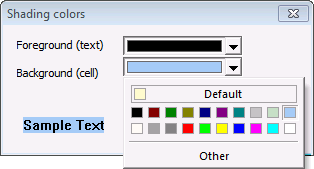
- For each shading option you have selected to use, Foreground (text) and/or Background (cell), click the selector arrow to access a drop-down menu of color options that you can apply to the grid. Shading color options are as follows.
- Default — Click Default to select to use the default colors of black (RGB 0.0.0) for Foreground (text) color, and pale yellow (RGB 255.250.205) for Background (cell) color.
- [Palette] — Click a desired color square from the range of preset colors provided in the palette to apply the selected color.
- Other — Click Other to select from a broad range of Standard or Custom colors. See Configuring Color for more information.
- Once all selections are made, click OK to save your choices.
Note: Shading color selections will be applied as determined by the value of the Shading option selected via the context menu.
More:
 Creating or Editing Alarm Log Entries

