Sending Gas Quality to a Device from the Configuration Data View
For Gas Device Nodes (not supported for Liquid Device Nodes), use the Configuration data view to send gas quality information from a selected configuration log entry to the device, by executing a Send Gas Quality command. The request can be initiated via the Configuration data view context menu or via the Node's Gas Quality property page.
Note: For gas device Nodes, the option to initiate a Send Gas Quality to Device command is made available via the Configuration data view unless a gas analysis record is also available for that time. If a gas analysis record is also available, the send option appears dimmed in the Configuration data view, but is made available via the Gas Analysis data view so that the preferred data can be sent. See Sending Gas Quality to a Device from the Gas Analysis Data View for more information.
You must have proper security authorization to send gas quality information to a device. See FMS Security (and CMDDEV security event) for information about configuring security access.
See Configuring Send Gas Quality Commands for more information about the command that is sent.
See Gas Analysis and Gas Quality Data in the CygNet Measurement Concepts topic for a discussion about gas quality and gas analysis data.
Sending Gas Quality to a Device
Gas quality information contained in a configuration log entry for a selected Node can be sent directly to the device using one of the following procedures.
To Send Gas Quality to a Device from the Context Menu
- Right-click on the configuration log entry containing the desired gas quality information to access the context menu.
- On the context menu, click Send gas quality to device. A dialog box will appear, to verify that you want to send all supported GQ data directly to the selected device Node. Click Yes to execute the command.
- The FMS Command dialog box will appear, displaying the command status and results. Click in the status row to view detailed results in the Command Results box below. See Viewing Command Logs for information about viewing historical command logs.
To Send Gas Quality to a Device from the Gas Quality Property Page
- Right-click on the configuration log entry containing the desired data to access the context menu, and then click Edit to access the Edit Configuration Log Entry dialog box for the selected record.
- Click the Gas Quality tab. Make any necessary adjustments to the properties. See Creating or Editing Configuration Log Entries for more information.
Note: See Device-Specific Property Pages for more information about property page content.
|
Gas Quality Page |
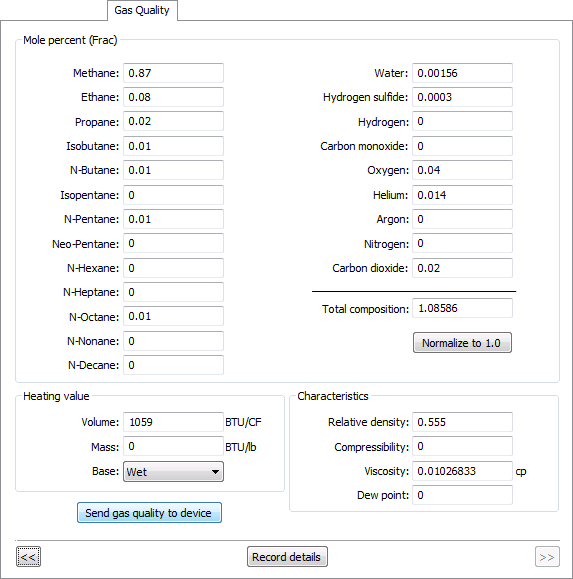
- Click Send gas quality to device to initiate the command to send supported gas quality data directly to the device.
- The FMS Command dialog box will appear, containing the command status and results. Click in the status row to view detailed results in the Command Results box below. See Viewing Command Logs for information about viewing historical command logs.


