Using the Field Chooser
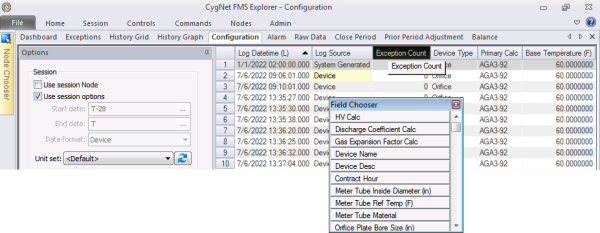
Use the field chooser feature in many FMS Explorer data grids to help customize your data grid views by adding and removing columns as desired. In controls containing this feature, right-click in the data grid column header row to access the Field Chooser option and then click Field Chooser to display/clear the Field Chooser dialog box.
|
Field Chooser |
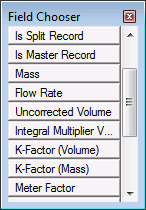
Use the Field Chooser to "store" and view available data field column headers that are not currently being displayed in the grid. Use the field chooser to add/remove data columns to/from the display grid in order to customize your view and use screen space more effectively.
Note: In controls with particularly large numbers of data columns, some column headers may initially be stored in the Field Chooser by default.
Right-click on the Field Chooser dialog box title to Move or Hide it, or you can drag the title bar to move the dialog box to a convenient position on your screen.
Field Chooser Locations
The Field Chooser feature is available in the following controls.
- Alarm Control
- Balance Control
- Configuration Control
- Exceptions Control
- History Grid Control
- Raw Data Control
- Command Log Viewer
Adding Columns to the Data Grid
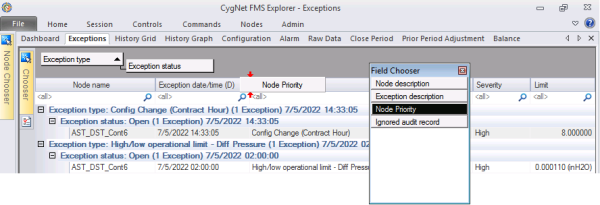
To add a column header to the display from the Field Chooser, drag the selected column header from the Field Chooser to the header row of the grid. As soon as you begin the drag, the vacated list location turns black. As soon as the red positional arrows appear to guide placement of the new column, you are close enough to release the dragged item into the desired position.
|
Adding Columns to the Data Grid |
Removing Columns from the Data Grid
To remove a column header from the display and place it in the Field Chooser, you can drag a column header off the grid. You do not have to drag it all the way to the Field Chooser. As soon as you begin the drag, the vacated column location turns black, and a black "X" symbol appears, indicating that you can release the dragged item. As soon as you release it, the column header name automatically appears in the Field Chooser, and the abandoned column location will collapse. If you try to remove a column that cannot be removed from the grid (e.g. date/time at some locations), but that can be repositioned within the grid, you will be allowed to drag it from its original spot but a black "NO" (circle-backslash) symbol will appear to notify you that it cannot be removed.
|
Removing Columns from the Data Grid |