Using the History Graph Control
 Use the History Graph control to graphically view liquid (periodic) or gas metering / gas quality history for multiple selected Nodes in order to get a visual overview of the data, make comparisons, and facilitate the identification of trends and features on a larger scale. You can create up to eight instances of this control.
Data cannot be edited with the History Graph control, although the control does have access to data edits performed in a History Grid control. When a History Graph control and a corresponding History Grid control simultaneously display the same Node data in a similar time window, you can refresh the History Graph control at any time to view any unsaved edits made in the History Grid control. In this way, the controls can be used in conjunction to create an environment in which you can view the effects of data edits before they are saved. See Using the History Grid Control for more information about editing data in that control.
Available Node categories for display in this control include Device (all), Gas Device, Liquid Device (periodic only), and Station Nodes. To select multiple Nodes from the filtered Node Chooser results, use the Apply changes option. See Using the Node Chooser Control for more information about using Apply changes to display multiple Nodes.
The History Graph control views all data in Contract time (C). It can display data for up to 16 process variables at one time. The x-axis is shared by all process variables, and denotes time. Each y-axis denotes value. When a selected process variable has no data for the entire time window selected for the control, it will not appear on the graph or in the Value Table.
Graphs generated with this control can also be exported. By default, the History Graph control is set to use the Session Node and Session options. You cannot set the Session Node from this control.
Note: Average Acceptability is not dynamically updated at the station level. When the data quality acceptability percentage is changed, Average Acceptability for the station will not be updated until the next time the data is rolled up.
The control toolbar and the context menu allow you additional options to manage files, to customize the view of data in the history graph, or to export the history data graph. The Value Table below the graph is a basic grid that optionally displays the numeric values of the graphed data.
See EFM Data Items in the Devices section for more information about the data group elements that can be mapped to FMS data items.
See CygNet FMS History Graph Control for more information about configuring this control in CygNet Studio.
See FMS Explorer User Interface for more information about the FMS Explorer user interface.
Viewing History Graph Data
Use the History Graph control Chooser pane (unless the Use Session Node option is selected in the Options pane) and Options pane to filter the data to show in the grid. Either pane can optionally be displayed or pinned to the left side.
Chooser Pane
In the embedded Node Chooser for the History Graph control, select the Nodes you want to view data for from the Device, Gas Device, Liquid Device (periodic only), or Station Node categories. Further filter the Nodes by name, description, or ID as desired. See Using the Node Chooser Control for more information.
Options Pane
In the Session section of the Options pane, define the values for the data you would like to view. In the History Graph section, define additional display options.
|
Options Pane |
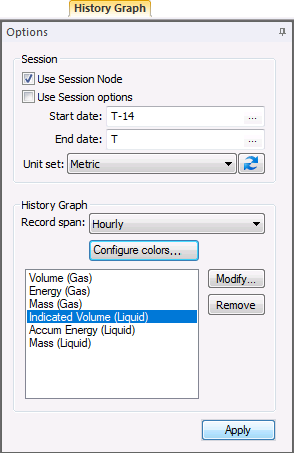
History graph control options are as follows.
| Option | Description |
|---|---|
| Session | |
|
Use Session Node |
Click the check box to select/clear the option to Use Session Node instead of using the chooser. Notes: The Use Session Node check box is selected by default for Data controls (Alarm, Configuration, History Graph, History Grid, and Raw Data). The Use Session Node check box is cleared by default for Summary controls (Dashboard, Exceptions), Reports controls, and Admin controls (Balance, Jobs; not applicable to Close Period, PPA). |
|
Use Session options |
Click the check box to select/clear the option to Use Session options instead of entering a time window and time format. Notes: The Use Session options check box is selected by default for Data controls (Alarm, Configuration, History Graph, History Grid, and Raw Data). The Use Session options check box is cleared by default for Summary controls (Dashboard, Exceptions), Reports controls, and Admin controls (PPA, Balance, Jobs; not applicable to Close Period). |
|
Start date |
Date selections are in Contract days (C). Note: Time ranges over 1 month (> 31 days, e.g. greater than T-30 to T) will override the selected record span, and display data in Daily mode.
Select the starting date, unless Use Session options is selected. Type the date into the text box or click ... to Select Date. See Selecting Date and Time for more information. |
|
End date |
Date selections are in Contract days (C). Note: Time ranges over 1 month (> 31 days, e.g. greater than T-30 to T) will override the selected record span, and display data in Daily mode.
Select the ending date, unless Use Session options is selected. Type the date into the text box or click ... to Select Date. See Selecting Date and Time for more information. |
|
Unit set |
Select a unit set in which to view the data. Options appear in the drop-down menu, which is populated by the unit sets defined in the service, and includes a default unit set. |
|
|
Refresh the available unit set list. |
| History Graph | |
|
Record span |
Click to select a Record span increment from the drop-down menu. Note: Time ranges over 1 month (> 31 days, e.g. greater than T-30 to T) will override the selected record span, and display data in Daily mode.
Options are as follows.
Default value is Native for Device data mode, Hourly for Station data mode. Note: When multiple Nodes with different native record spans are selected for display in the graph, the smallest Record span increment that is common to all Nodes selected will be used. If selections include devices with daily and hourly native spans, for example, the graph will display rolled-up daily data for the hourly device(s), and native daily data for the daily device(s). Data can only be rolled up (e.g. hourly to daily), not in the other direction. |
|
Click Configure colors to access the Graph Color Properties dialog box, to set background, line, and data quality coloring options. |
|
|
[Process variables list] |
Lists the process variables currently selected to be displayed in the graph. PV selections can be made concurrently for both liquid and gas items, as only those applicable to the currently selected Node(s) are displayed. Default selections include the following.
Note: A maximum of 16 process variables can be contained in the list box, therefore displayed on the graph, at one time. |
|
Modify |
Click Modify to access the Process Variables dialog box containing the list of possible process variables that can be displayed in the graph. Note: Attempting to add more than the maximum number of 16 process variables produces an error message. |
|
Remove |
Select the data item(s) to be removed from the graph, and then click Remove to delete the item(s) from the list of process variables that will be displayed graphically. To select multiple PVs to delete from the list, use Ctrl+Click or Shift+Click. |
|
Apply |
Click to Apply the changes made through the Options pane. Note: When you click Apply on the Options pane, any Node selections (singular or multiple) that have been made but not applied on the Chooser pane will also be applied. |

Configuring Graph Color Properties
Color properties can be configured and edited in the graph to customize the view of the selected data and allow greater initial understanding of its values at a glance.
To Configure History Graph Color Display Properties
- On the Options pane, click Configure colors to access the Graph Color Properties dialog box to select the colors to display for data in the graph.
|
Graph Color Properties |
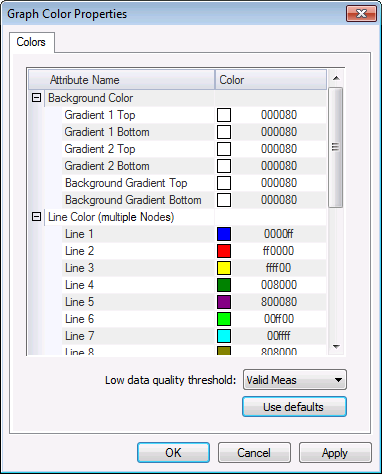
- Configure display colors. In the Color column, edit the color for each attribute as you wish it to appear on the graph when displayed. Click the color field cell desired to customize the color value for each Background Color, Line Color (multiple Nodes or Single Node section), or Data Quality choice. Either type the hexadecimal value for the desired color into the text box, or click the down arrow to access the color selector. See Configuring Color for more information about using the color selector.
- To appear for any Node selection(s), edit Background Color values to apply to the grid.
- Edit the alternating bands identifying each data area displayed (Gradient 1 Top and Gradient 1 Bottom, and Gradient 2 Top and Gradient 2 Bottom).
- Edit the background colors for the graph axes (Background Gradient Top and Background Gradient Bottom).
- To appear when multiple Nodes are selected, do the following.
- Edit Line Color (multiple Nodes) color values to apply to each corresponding Node. The color selections configured for each Line number will correspond to the Node occupying that ordinal position on the Chooser pane list.
Note: Node order can be changed in the Chooser pane list, if desired; use the column headers to re-sort by the Node type, name, or description.
- To appear when a single Node is selected, do the following. (The Color mode selector on the control toolbar becomes available for single Node selections, and configured colors are applied as follows for either selected option.)
- Line Color (single Node) - Edit color values to be displayed for each corresponding process variable (PV), when you want to view selected process variables in the graph. The color selections configured for each Line X correspond to the process variable occupying that ordinal position on the Options pane list.
Note: PV order can be changed in the process variables list, if desired; use the Move up / Move down buttons to reorder the selected data items.
- Data Quality - Edit color values to be displayed when you want to view high/low data quality information in the graph. Configure the Low Quality and High Quality color values to be shown, as defined by the Low data quality threshold value selected in step 1b (below). " Low Quality" means below the threshold specified, and "High Quality" means at or above the threshold specified. Default value is the data quality value configured in your system settings, using the Admin menu. See Configuring Data Quality Settings for more information. See Data Quality in the CygNet Measurement Concepts section for more information.
- Select a Low data quality threshold setting from the options in the drop-down menu below the color table. When a single Node is selected, and the Data quality color mode is selected, this setting determines the minimum acceptable data quality results that you want to be shown in corresponding colors on the graph, as follows.
- Data quality values higher than or equal to this setting will be shown in the "High Quality" color (as configured in step 1a, above), so that you can identify data that is already of a desired data quality.
- Data quality values lower than this selected setting will be shown in the "Low Quality" color (as configured in step 1a, above), so that you can identify data that requires more attention in order to meet or exceed the desired data quality.
Note: Data quality settings are viewed or configured on the Admin menu. See Configuring Data Quality Settings for more information.
- Optionally click Use defaults to clear any previously customized settings and restore the system default selections.
- Click OK to save the settings, and refresh the graph to see the results.

Configuring Graph Process Variables
Select up to 16 process variables for display in the graph. Attempting to add more than the maximum number of process variables produces an error message. When a selected process variable has no data for the entire time window selected for the control, it will not appear on the graph or in the Value Table.
To Configure History Graph Process Variables for Display
The list of available process variables is subdivided into gas and liquid items for ease of selection. Modify the list as follows.
- On the Options pane, click Modify to access the Process Variables dialog box to select the process variables to display in the graph.
|
Process Variables |
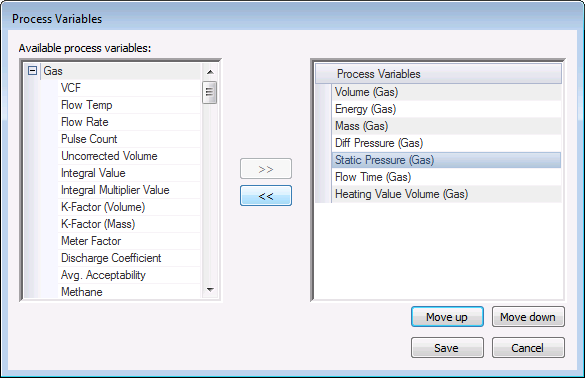
- Select the items to display.
- Click a process variable name from the list of available items (left pane), and then click >> and << to edit the list of process variables to display graphically (right pane).
- To select multiple PVs at one time, use Ctrl+Click or Shift+Click.
- Select the order of the items in the display.
- The order of items in the Process Variables list will be the order of display in the graph.
- To change the order, first click an item to select it in the list and then click Move up / Move down until the desired order is achieved. Each click moves the selected item one position further up/down the list.
- Save your selections.
- Once the list contains the desired items in the desired order, click Save to view the results in the process variables list shown on the Options pane.
Zoom
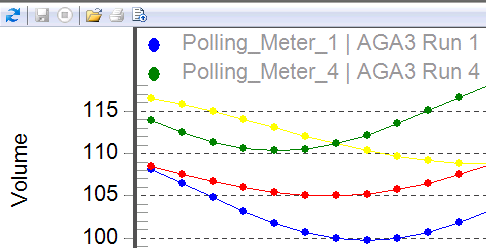
Click and drag to zoom in on a data area of interest. To return to the previous view, right-click to access the context menu and click Undo Zoom.
|
Zoom |
Managing History Graph Data
Toolbar
Use the History Graph control toolbar to access options to manage the data you are viewing. See Menus and Toolbars for more information.
|
History Graph control toolbar |

The following options appear on the toolbar; unavailable buttons appear dimmed.
| Option | Description |
|---|---|
|
|
Click to Refresh the control view. Note: The Refresh button will not take into account changes made through the Options pane that have been selected but not yet applied. See Refresh Button for more information. |
|
|
[The Save button is not available on this control.] |
|
|
[The Cancel button is not available on this control.] |
|
|
Click to Open and view the control as a .csv file. |
|
|
[The Print button is not available on this control.] |
|
|
Click Export to access the Exporting dialog box to configure the format, destination, and size for a History Graph export. See Exporting History Graphs for more information. |
|
Data mode |
For a Node that is a station meter (a Gas Meter Node set to also function as a station) click to select a Data mode from the drop-down menu, to determine how to display data for the Node. Options are as follows.
Default value is Device. |
|
When a single Node is selected, the Color mode selector appears. Click to select the color mode in which to view the data, from the options in the drop-down menu. Options are as follows.
Default value is Line color (single Node). |


Context Menu
Right-click on the History Graph to access the following options.
| Option | Description |
|---|---|
|
Font Size |
Click to select Large, Medium, or Small font size. |
|
Show Legend |
Click to select/clear display of the color-coded device legend at the top of the graph. |
|
Numeric Precision |
Click to select a decimal precision for the display from 0 - 7 decimal places. Default value is 7. Note: Although values are shown in the History Graph control with a decimal precision of up to 7 places, device Node values are shown in other controls with a decimal precision of up to 10 places, and in the Batch, Ticket, Liquid Device QTR, and Liquid Device Raw QTR reports with a decimal precision of 15 places. |
|
Grid Options |
Select one of the following grid axis options.
Select one of the following grid-line options.
|
|
Undo Zoom |
Click to undo any zoom. |
|
Export Dialog |
Click to access the Exporting dialog box to configure the format, destination, and size for a History Graph export. See Exporting History Graphs for more information. |
|
|
Click to access the Printing chart dialog box to configure a print or XPS document (.xps) file. |
Value Table
You can optionally display or hide the Value Table at the bottom of the graph to get a more specific look at the numerical values corresponding to the points on the graph. The Value Table is displayed (unpinned) at the bottom of the screen by default.
|
Value Table |
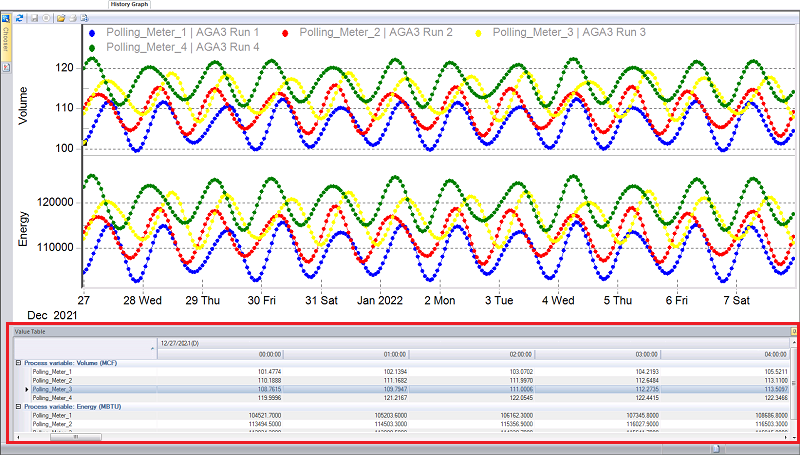
When the Value Table is in view, click a point on the graph to focus on the corresponding value cell in the table below, or click a value cell in the table to focus on the corresponding point on the graph above. Click  to hide (pin) the table. Click
  to display (unpin) the table again.
When the Value Table is hidden, hover over the Value Table tab at the bottom of the History Graph control to reveal the table temporarily, or click the Value Table tab to display the table. Click in any non-data area of the graph pane to hide the table again.
Data in the table is read-only; to edit data, use the History Grid control where more detailed numeric data can also be viewed.
Note: Certain considerations apply to viewing averaged pressure values in your data. See Device Data and Station Data in the CygNet Measurement Concepts topic for more information.
More:


